
Howard19 - Minecraft Skins & Skin History
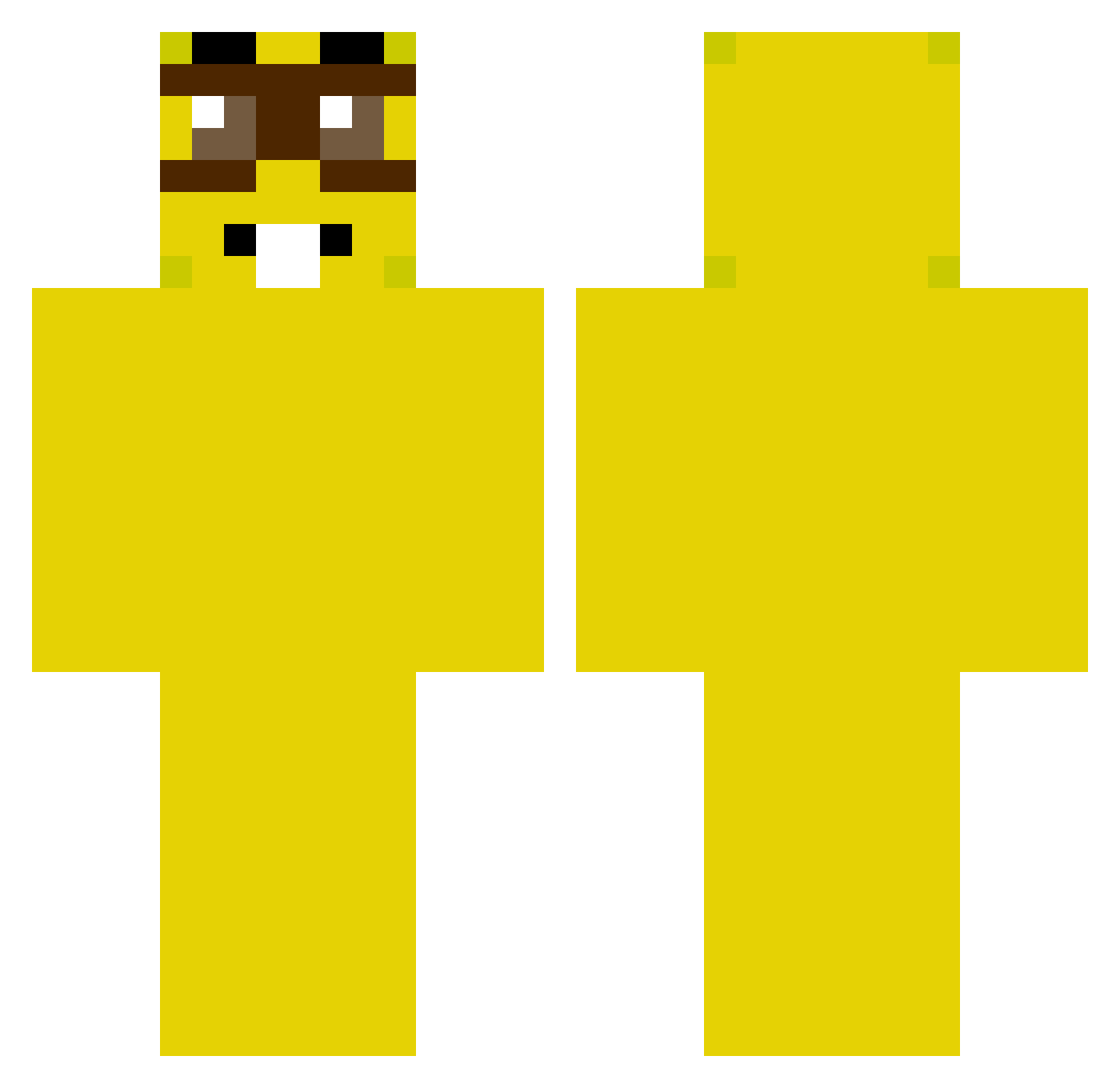
Current Minecraft skin of the player Howard19, loaded from the official Mojang API. Rotate the 3D model with your mouse or finger, then download the skin as a PNG file and use it in Minecraft: Bedrock Edition or Java Edition for free. When Howard19 changes their skin, this page updates automatically and the old skin stays in the history below.
Other players with this skin (263)
Howard19 was the 10th player we have seen with this skin, first spotted on 23.07.2026. The same skin was seen on these players. Open a nickname to see their current skin and skin history.
 BadBoyVini KinOfGames2704 MonkeyBallLicker Velame Thiago_LTK Mobning Lagartixa33_YT Jayrocker07 Vistolini ZEAN0S zMatty16 Furimangao Zeroigga Eken_123 RYOKUCH1234567 k4id0x kesitoooooooo Wheatley2244 bochonokoff EstrelliAlv kochampytlika Baphzt louisjoon_06 Tlklein gl1ken GGGabriel12 AM0NUS elbyronMC SyrexOwner ObamaChips jdf666 oeirr JerryMCberry _Clive___ Oxmopp Ryanakooo Tagarelatop10 Meakre ourtimes Jayden_Glover101 GROGGYSPY6774689 YuZzzzo AubergineSSBoi DavidtTheGoat WoeJoestar MrCole411 kuxek ByeHydro shrimpking01 Masterkon Danny888888 Rich_Augustin Feni_RL juiceballs720 N0mes_____ heksusegor EnzoDS Kyutss bakabell beltromatti
More Minion Minecraft skins
How to install the Howard19 skin
- Press the Download button above to save the skin as a PNG file.
- Minecraft: Bedrock Edition (PE): open the Dressing Room from the main menu (or tap your character → Edit Character), go to Classic Skins → Owned, press the + (new skin) button, choose the downloaded PNG and pick the Classic (Steve) model. Works on PC and mobile; consoles cannot import custom skins.
- Minecraft: Java Edition: open the Minecraft Launcher, go to the Skins tab, click New Skin, load the PNG, pick the Classic (Steve) model and press Save & Use. You can also upload it at minecraft.net → Profile → Change Skin.
The skin does not show up after import - what should I do?
Restart Minecraft and open the Dressing Room again - imported skins sometimes appear only after a restart. Also make sure you selected the imported skin and picked the Classic (Steve) model.
Which model should I choose, Classic or Slim?
This skin is designed for the Classic (Steve) model. If you pick the wrong model, the arms of the skin will look stretched or squeezed.
Is the skin of Howard19 free to download?
Yes. Press Download, save the PNG file and use it in Minecraft: Bedrock Edition or Java Edition - no payment or registration needed. The skin also works on multiplayer servers and Realms.
More skins
Looking for more? Go back to all Minecraft skins and check the top skins of the week, month and all time, or find any player's skin by nickname.