
NervousBugx19 - Minecraft Skins & Skin History
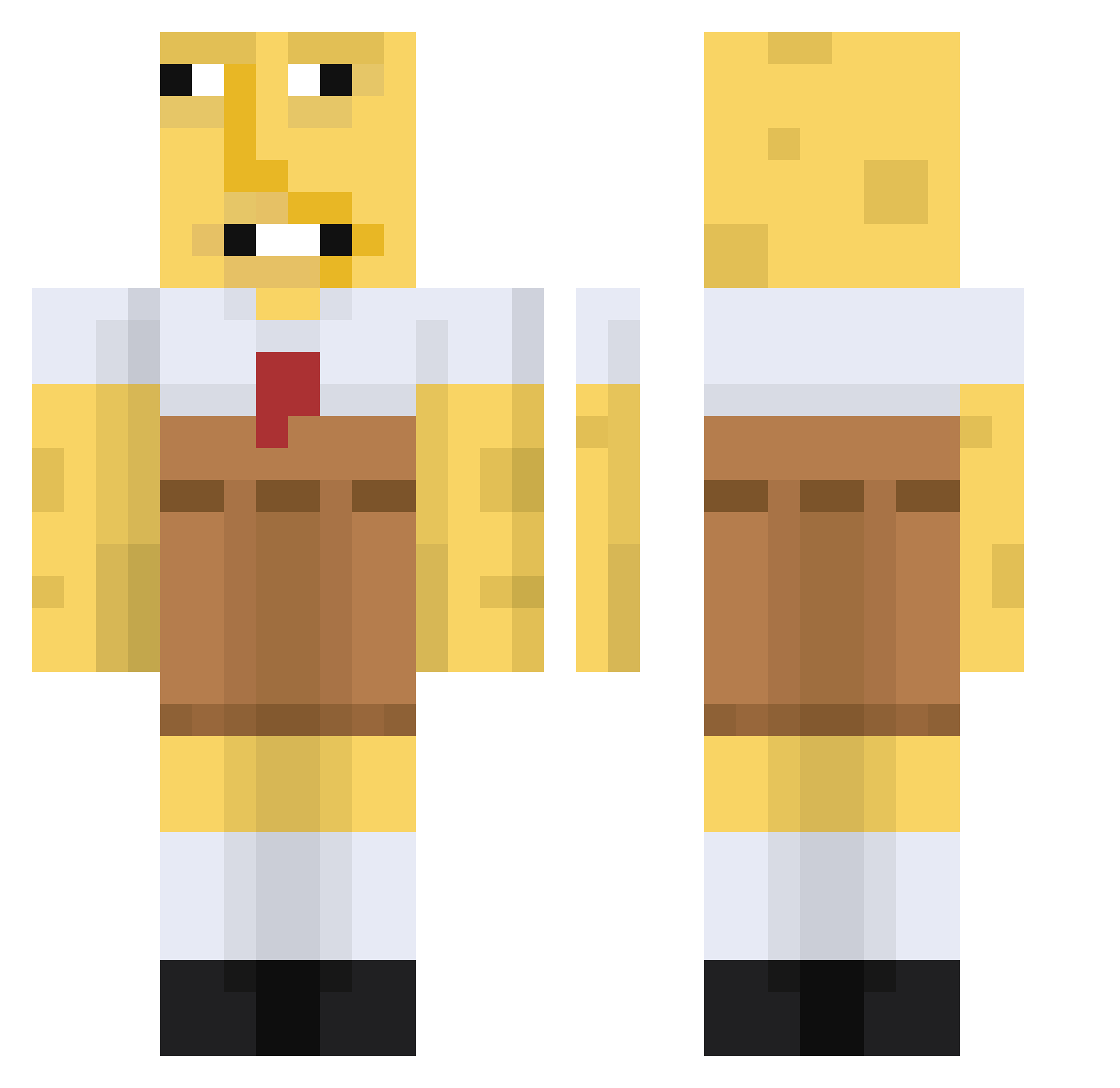
Current Minecraft skin of the player NervousBugx19, loaded from the official Mojang API. Rotate the 3D model with your mouse or finger, then download the skin as a PNG file and use it in Minecraft: Bedrock Edition or Java Edition for free. When NervousBugx19 changes their skin, this page updates automatically and the old skin stays in the history below.
Other players with this skin (670)
NervousBugx19 was the 24th player we have seen with this skin, first spotted on 27.07.2026. The same skin was seen on these players. Open a nickname to see their current skin and skin history.
 JunJuncorn Dounut47 MrZafik Moniko1234 Mincyy SirBigMac3 Curbsidechx BusanWeDaeHan Xx_NatsuKi_xX kimseong1 MrTahoe21 DesiredManSweets TorjDoyygass lilSmith109 Traky80 BillyGotBills AmedGMR eeskeez BBKR2003 EndlessKushiro PatoeterKrabs Chedder_Cheese69 STANKTEETH12 Lawllipop lximziu HondaTinkler DigginInMyBuh rexskim1003 Thesuc murochanco CodytheSK mrcosmic_04 saturn2210 parontseng Spoderjoni LightDL DisturbedToilet IgnazioOfficial ThatWasAFluke benson66666 kyzooy NorbertKlopp Ternola idminecraft0431 AK47Rorian Yusufivemusufi DomTalovo Rodderr SANTlXX Hugh_Mungo LemonDudeZombie kyak27 SprogGoblin Flich4 kotrules123 beni0_0 TheNutCookie zmaczbr MogMaster1 X0TIlC_
More Spongebob Minecraft skins
How to install the NervousBugx19 skin
- Press the Download button above to save the skin as a PNG file.
- Minecraft: Bedrock Edition (PE): open the Dressing Room from the main menu (or tap your character → Edit Character), go to Classic Skins → Owned, press the + (new skin) button, choose the downloaded PNG and pick the Classic (Steve) model. Works on PC and mobile; consoles cannot import custom skins.
- Minecraft: Java Edition: open the Minecraft Launcher, go to the Skins tab, click New Skin, load the PNG, pick the Classic (Steve) model and press Save & Use. You can also upload it at minecraft.net → Profile → Change Skin.
The skin does not show up after import - what should I do?
Restart Minecraft and open the Dressing Room again - imported skins sometimes appear only after a restart. Also make sure you selected the imported skin and picked the Classic (Steve) model.
Which model should I choose, Classic or Slim?
This skin is designed for the Classic (Steve) model. If you pick the wrong model, the arms of the skin will look stretched or squeezed.
Is the skin of NervousBugx19 free to download?
Yes. Press Download, save the PNG file and use it in Minecraft: Bedrock Edition or Java Edition - no payment or registration needed. The skin also works on multiplayer servers and Realms.
More skins
Looking for more? Go back to all Minecraft skins and check the top skins of the week, month and all time, or find any player's skin by nickname.