
JHT3 - Minecraft Skins & Skin History
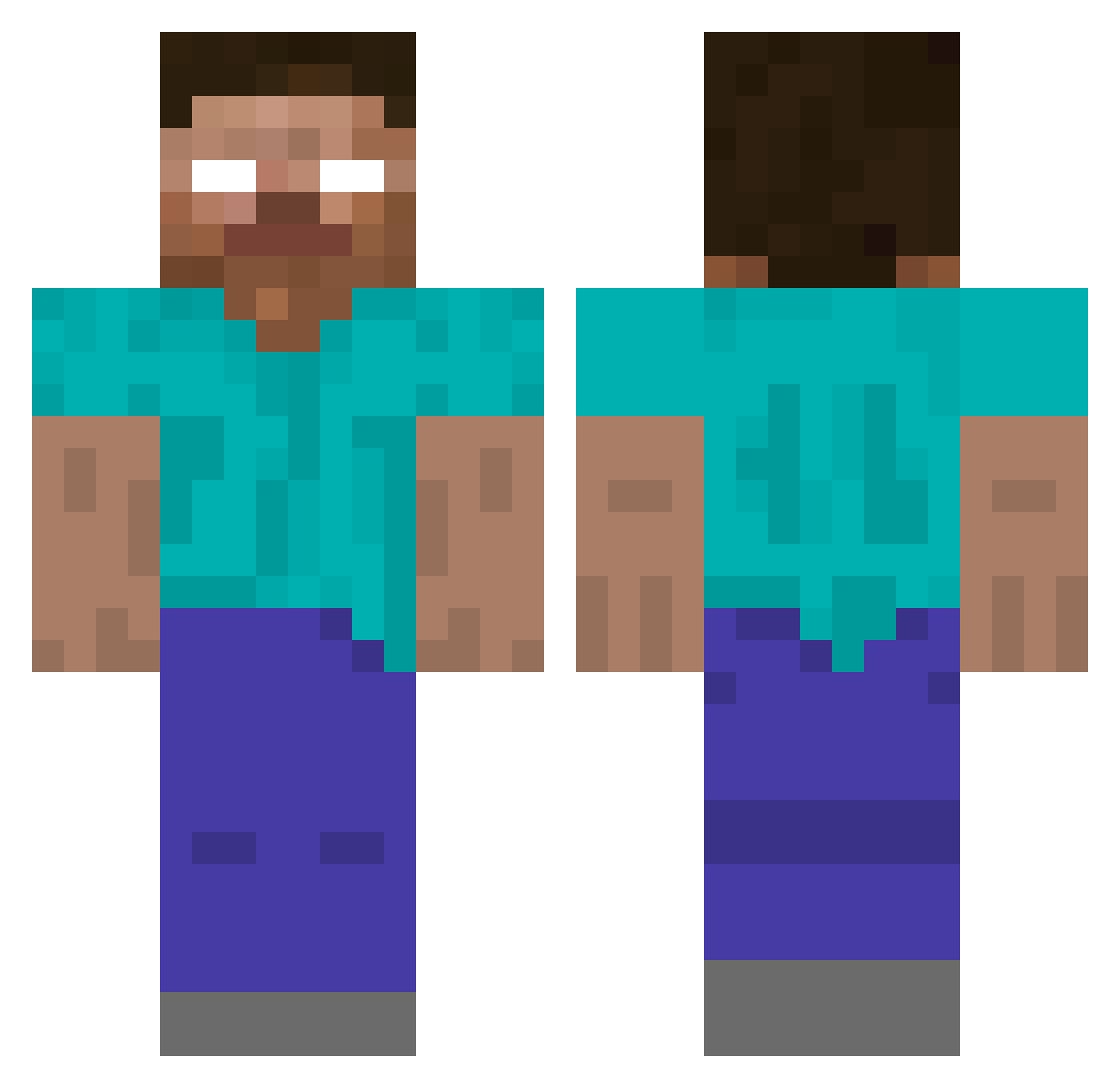
Current Minecraft skin of the player JHT3, loaded from the official Mojang API. Rotate the 3D model with your mouse or finger, then download the skin as a PNG file and use it in Minecraft: Bedrock Edition or Java Edition for free. When JHT3 changes their skin, this page updates automatically and the old skin stays in the history below.
Other players with this skin (424)
JHT3 was the 246th player we have seen with this skin, first spotted on 01.10.2026. The same skin was seen on these players. Open a nickname to see their current skin and skin history.
 jude2318 TM89Ruby MineSharks asev12 greatmonica VideoGamePro137 marley621 MCFamed McGovern101 fastguyjack Black_Night_Bear Benher05 sethkarate HJoliver killdayr trollhater04 badkitty4444 scottieben NunesSalles Robby71303 Josef_666 25512 Maxfunkychicken HotshotLewy thematthewpower CaptainRuslan ConnorBerg DrizleCrafts Milmare sdfslz Lolbird_ f4talx ChrisBossMan37 clonewarsev TheManInBudder Bladelores CMGibson MrSquid852 XLcookie Epic_midget dangosk eshm Kylian1210 GryphonXX711 Josh_Terminator Redcreeper77 Arcadianites JJZ8 Silent_Diamond_x reckertiii Zezzku Silversurfer66 V0ids Xevian26 JRB3000 minecraft123k dreezzzyy DaCrafter64 Gryffyn7 Juli2007
More Herobrine Minecraft skins
How to install the JHT3 skin
- Press the Download button above to save the skin as a PNG file.
- Minecraft: Bedrock Edition (PE): open the Dressing Room from the main menu (or tap your character → Edit Character), go to Classic Skins → Owned, press the + (new skin) button, choose the downloaded PNG and pick the Classic (Steve) model. Works on PC and mobile; consoles cannot import custom skins.
- Minecraft: Java Edition: open the Minecraft Launcher, go to the Skins tab, click New Skin, load the PNG, pick the Classic (Steve) model and press Save & Use. You can also upload it at minecraft.net → Profile → Change Skin.
The skin does not show up after import - what should I do?
Restart Minecraft and open the Dressing Room again - imported skins sometimes appear only after a restart. Also make sure you selected the imported skin and picked the Classic (Steve) model.
Which model should I choose, Classic or Slim?
This skin is designed for the Classic (Steve) model. If you pick the wrong model, the arms of the skin will look stretched or squeezed.
Is the skin of JHT3 free to download?
Yes. Press Download, save the PNG file and use it in Minecraft: Bedrock Edition or Java Edition - no payment or registration needed. The skin also works on multiplayer servers and Realms.
More skins
Looking for more? Go back to all Minecraft skins and check the top skins of the week, month and all time, or find any player's skin by nickname.