
How to Install Add-Ons in Minecraft PE (Bedrock Edition)
An add-on for Minecraft: Bedrock Edition installs in one tap. You open the file you downloaded, the game imports it, and you switch it on in the world you want to play in. No PC, no file conversion, no extra apps. The whole thing takes about a minute.
What file you are downloading
Bedrock uses three add-on formats:
- .mcpack — one pack. It is either a behaviour pack (what the add-on does: mobs, items, rules) or a resource pack (how it looks: textures, models, sounds). Many add-ons ship as two
.mcpackfiles, one of each. - .mcaddon — both halves in a single file. Open it once and the game imports everything.
- .mcworld — a ready-made world with the add-on already inside. It appears as a new world and does not touch your existing ones.
Whichever you get, the installation is the same: open the file with Minecraft.
How to install an add-on on Android
- Download the add-on. If it comes as two files, download both.
- Open the file — from the download notification, or from Downloads in your file manager → Open with → Minecraft.

- Minecraft launches and shows Import started, then confirms with the name of the pack. Repeat for the second file if there is one.


Keep the files in internal storage. Packs left on an SD card or in a cloud-only folder are sometimes invisible to the game.
How to install on iPhone, iPad and Windows
The principle is identical — open the downloaded file with Minecraft.
On iPhone and iPad, Safari saves the file to the Files app under Downloads. Tap it there; if iOS does not hand it to Minecraft by itself, use Share → Minecraft. Tap the file once beforehand so it downloads properly instead of staying in iCloud as a placeholder.
On Windows, double-click the file and it opens with Minecraft automatically.
There is also a route that works everywhere: open Minecraft and go to Settings → Storage → Import, then pick the file yourself.
How do I turn the add-on on in my world?
Importing a pack does not enable it anywhere. Add-ons are switched on per world, which is why a freshly imported add-on seems to do nothing at first.
- Press Play and tap the pencil next to your world to open Edit World.

- Choose Behaviour packs in the left column, open the Available tab, find the add-on and press Activate.

- Minecraft asks Update world? and warns that a modified world may not behave like a normal one. Press Add the pack anyway.

Watch the buttons here. The green one is Don't add pack — it cancels. The add-on is added by the white button underneath. If you tap green out of habit, nothing installs and it looks like the add-on is broken.
- The pack moves to the Active tab, and the button next to it becomes Remove. That is what an enabled add-on looks like.

You usually do not need to activate the second pack by hand. A behaviour pack declares the resource pack it needs, so Minecraft switches both on together — open Resource packs and you will normally find the add-on already sitting in Active with a Remove button next to it. If it is still under Available, press Activate there too.

Do I need to enable experimental features?
Not always. Plenty of add-ons work with no experiments at all — try the add-on first and only come back here if it does nothing in the world. Turn experiments on when the add-on page asks for it, which usually means the add-on is built on scripts.
- In Edit World open Experiments in the left column.

- Under Add-on creators, switch on Beta APIs — the toggle described as «Use "-beta" versions of API modules in add-on packs». That is the one script-based add-ons need.
- Minecraft asks Are you sure? Again the green button (Cancel and go back) is the refusal; experiments are turned on by Turn on Experiments anyway.

Read that warning before you agree, because it is accurate: you cannot turn experiments off again after the world is created, and the world permanently loses achievements — the left column starts showing Achievements disabled right away. If the world matters to you, copy it first and experiment on the copy.

The other toggles in that list — Forthcoming Creator Features, Experimental Creator Camera Features, Experimental Voxel Shape Features — are for people building add-ons. Leave them alone unless the add-on page names one directly.
Why is my add-on not working?
- The confirmation was declined. The green button in both pop-ups cancels. Reopen Behaviour packs and check the pack really sits in Active.
- Only half the add-on is on. New mobs showing up as white boxes or missing textures means the behaviour pack is running without its resource pack.
- The add-on needs Beta APIs and the experiment is off.
- The game is out of date. A pack built for a newer release will not load on an older version of Minecraft.
- Two add-ons collide. When both change the same mob or item, the one higher in the list wins. Turn one off to find out which.
One more thing worth knowing on Android: some file managers do not offer Minecraft in the Open with list at all. Files by Google is the common example — it may show only its own apps and leave you stuck. Open the same file through the file manager that came with your phone, or import it from inside the game via Settings → Storage → Import.
If the pack imported but never appears in the world settings, it was probably built for another edition. Java Edition mods (.jar) do not work in Bedrock — different game, different engine.
Where to get add-ons
Every add-on in our mods section comes as .mcpack or .mcaddon, ready to open, and each page states the Minecraft version it was made for. Maps arrive as .mcworld and install exactly the same way — open the file and the world shows up in your list.
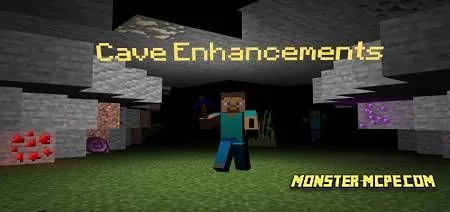 Cave Enhancements Add-on 1.16+
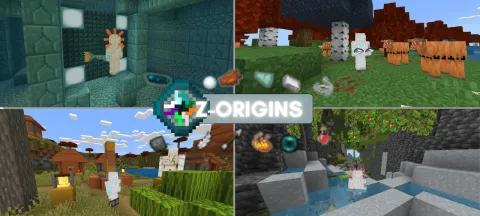 Z ORIGINS Add-on 1.21+
 Godzilla and Kong Rise Of The Titans Add-on 1.18/1.17+
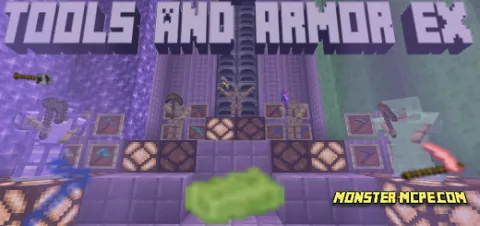 Tools and Armor Add-on 1.17+
 More Tools Add-on 1.18
 Golden Utilities: Transport Any Mob and Much More Add-on