
rollo19 - Minecraft Skins & Skin History
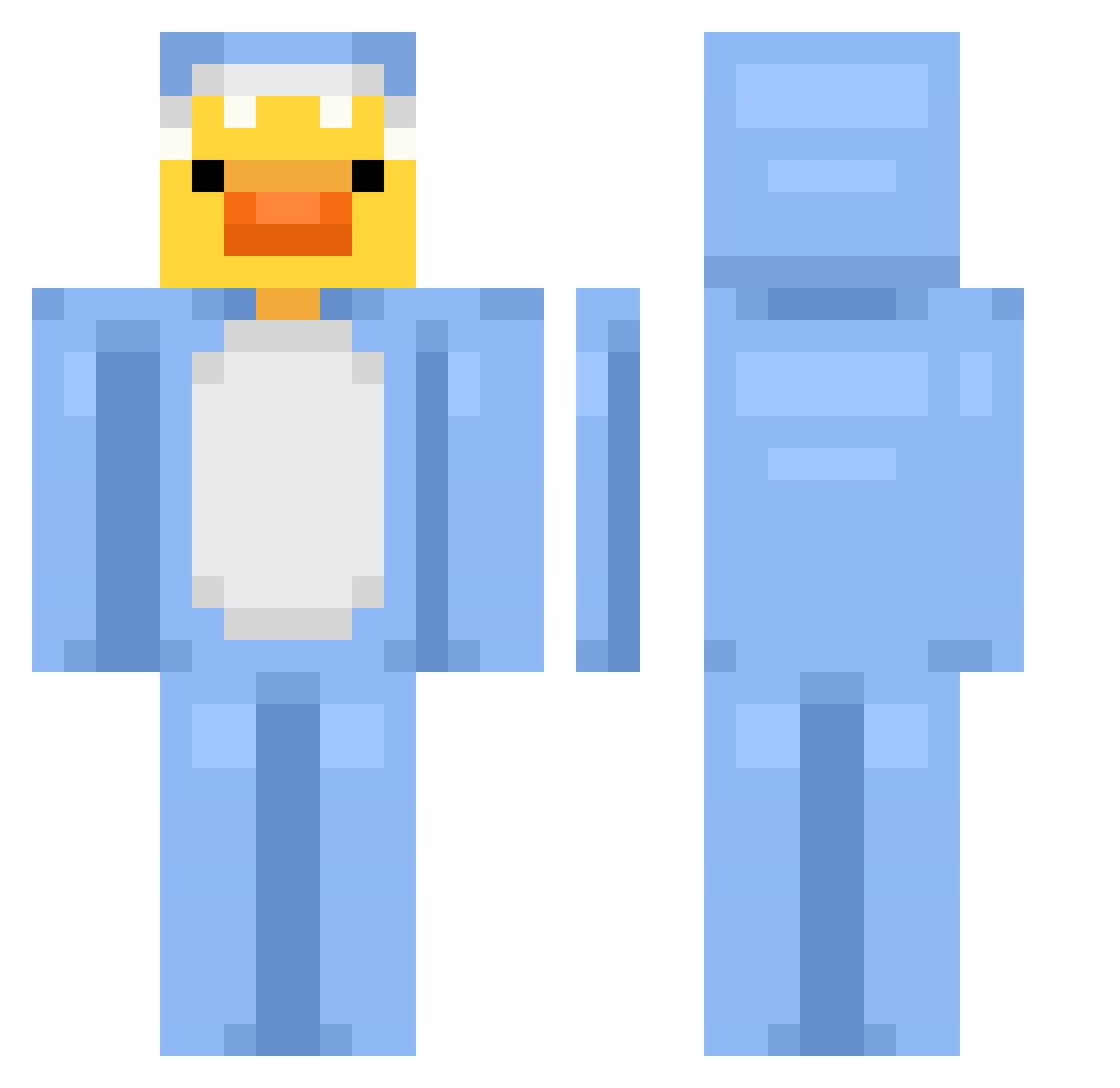
Current Minecraft skin of the player rollo19, loaded from the official Mojang API. Rotate the 3D model with your mouse or finger, then download the skin as a PNG file and use it in Minecraft: Bedrock Edition or Java Edition for free. When rollo19 changes their skin, this page updates automatically and the old skin stays in the history below.
Other players with this skin (677)
rollo19 was the 621st player we have seen with this skin, first spotted on 15.10.2026. The same skin was seen on these players. Open a nickname to see their current skin and skin history.
 Sp_1_xayz ElCajonKid hamdna Kupfer10 jabe387 for1person ShaddowStorm123 ItzTaxFreeMan ToastyBuns09 JustPaulo i_bowbow banditalgaib elysaen sanwishdewebito Metabeans Ru_gyeom03111 on9on9on99 ThatKoreanSK PONONG Lilimek dryflyjedi cider_mint11 cesco32 ikedajun SpdrMonkey135 Mion33 devinissussyligm Anniversum dannapito cider_mint Jose_Lax Candido_22 violet2024 CinderySquid2 evilboyy KursedBear Mariator_025 m3ani57 ItsHolyLuck JoshyWashy02 william2937 Minyo_0328 zosiasamosia204 DonutShopGyatt bellsthequeen accrod FI__FO DBG1234 _ViktorX YookaTV brionybear mojenogesmrdijo SeanCahills chxrlxcs Jayden_1125 Tigra958 Simbron reneepenne marc1it Noe590
More Onesie Minecraft skins
How to install the rollo19 skin
- Press the Download button above to save the skin as a PNG file.
- Minecraft: Bedrock Edition (PE): open the Dressing Room from the main menu (or tap your character → Edit Character), go to Classic Skins → Owned, press the + (new skin) button, choose the downloaded PNG and pick the Classic (Steve) model. Works on PC and mobile; consoles cannot import custom skins.
- Minecraft: Java Edition: open the Minecraft Launcher, go to the Skins tab, click New Skin, load the PNG, pick the Classic (Steve) model and press Save & Use. You can also upload it at minecraft.net → Profile → Change Skin.
The skin does not show up after import - what should I do?
Restart Minecraft and open the Dressing Room again - imported skins sometimes appear only after a restart. Also make sure you selected the imported skin and picked the Classic (Steve) model.
Which model should I choose, Classic or Slim?
This skin is designed for the Classic (Steve) model. If you pick the wrong model, the arms of the skin will look stretched or squeezed.
Is the skin of rollo19 free to download?
Yes. Press Download, save the PNG file and use it in Minecraft: Bedrock Edition or Java Edition - no payment or registration needed. The skin also works on multiplayer servers and Realms.
More skins
Looking for more? Go back to all Minecraft skins and check the top skins of the week, month and all time, or find any player's skin by nickname.