
YellowMause - Minecraft Skins & Skin History
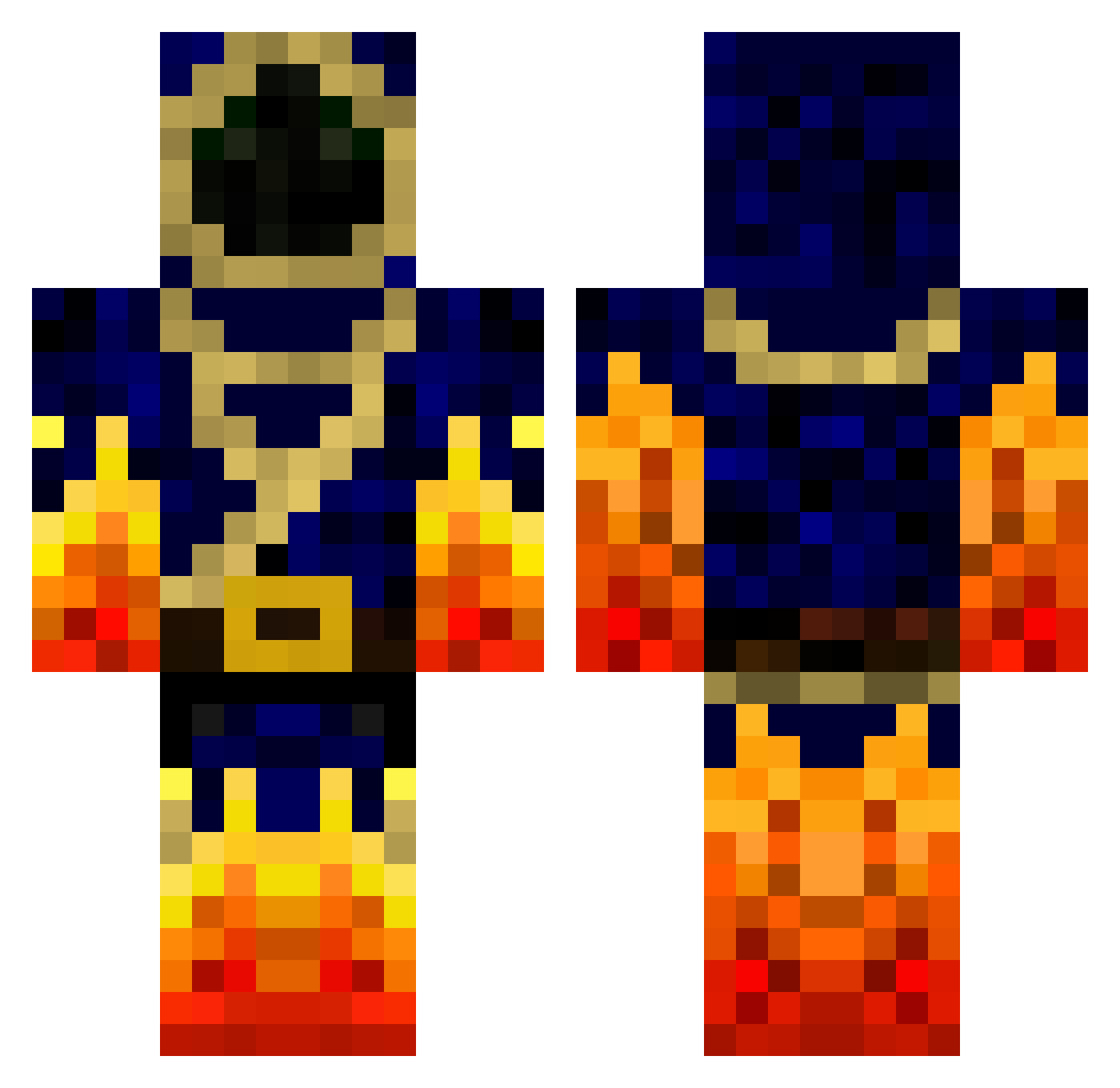
Current Minecraft skin of the player YellowMause, loaded from the official Mojang API. Rotate the 3D model with your mouse or finger, then download the skin as a PNG file and use it in Minecraft: Bedrock Edition or Java Edition for free. When YellowMause changes their skin, this page updates automatically and the old skin stays in the history below.
Other players with this skin (118)
YellowMause was the 47th player we have seen with this skin, first spotted on 30.08.2026. The same skin was seen on these players. Open a nickname to see their current skin and skin history.
 KingDaelyn5 ollefar1 Ragnaur_ Live_Mas DanielV1209 lichangqing BettyCrocker imafreetree AlphaGiulio Playcrafter27 BerniHard Ranichi Xiaolonglonmg TisTheBirdMan Gui_Yuan Arbolist Harash2019 Infernal_Lich AndyTheDemon BattlePrizrak_ ZachFB_Studios Tenfes nexusinox Banaan20 theslimjiggins FireRaptor220 Fredothekid123 MWY2354 MrWarlockFTW LostAzure Laquiche2007 Deadshot_14 Shekeo orloved OsmozeInverse 12saw99 redtiger708 SnookieWar MinerJulius Lynx62 granada25 DorkyOldMan PhoenixLord4226 hugopm8 Ac3rKiLl7two Hukules Jaralax Jumbah Chief_Lag Cynewulf FryingPan_God tatalelama Hidden_Guy2552 dragonjlo TheMasterG17 Amargosa TVflower Doomox _ST0RM FlexBrulux
More Mage Minecraft skins
How to install the YellowMause skin
- Press the Download button above to save the skin as a PNG file.
- Minecraft: Bedrock Edition (PE): open the Dressing Room from the main menu (or tap your character → Edit Character), go to Classic Skins → Owned, press the + (new skin) button, choose the downloaded PNG and pick the Classic (Steve) model. Works on PC and mobile; consoles cannot import custom skins.
- Minecraft: Java Edition: open the Minecraft Launcher, go to the Skins tab, click New Skin, load the PNG, pick the Classic (Steve) model and press Save & Use. You can also upload it at minecraft.net → Profile → Change Skin.
The skin does not show up after import - what should I do?
Restart Minecraft and open the Dressing Room again - imported skins sometimes appear only after a restart. Also make sure you selected the imported skin and picked the Classic (Steve) model.
Which model should I choose, Classic or Slim?
This skin is designed for the Classic (Steve) model. If you pick the wrong model, the arms of the skin will look stretched or squeezed.
Is the skin of YellowMause free to download?
Yes. Press Download, save the PNG file and use it in Minecraft: Bedrock Edition or Java Edition - no payment or registration needed. The skin also works on multiplayer servers and Realms.
More skins
Looking for more? Go back to all Minecraft skins and check the top skins of the week, month and all time, or find any player's skin by nickname.