
PanicZone20 - Minecraft Skins & Skin History
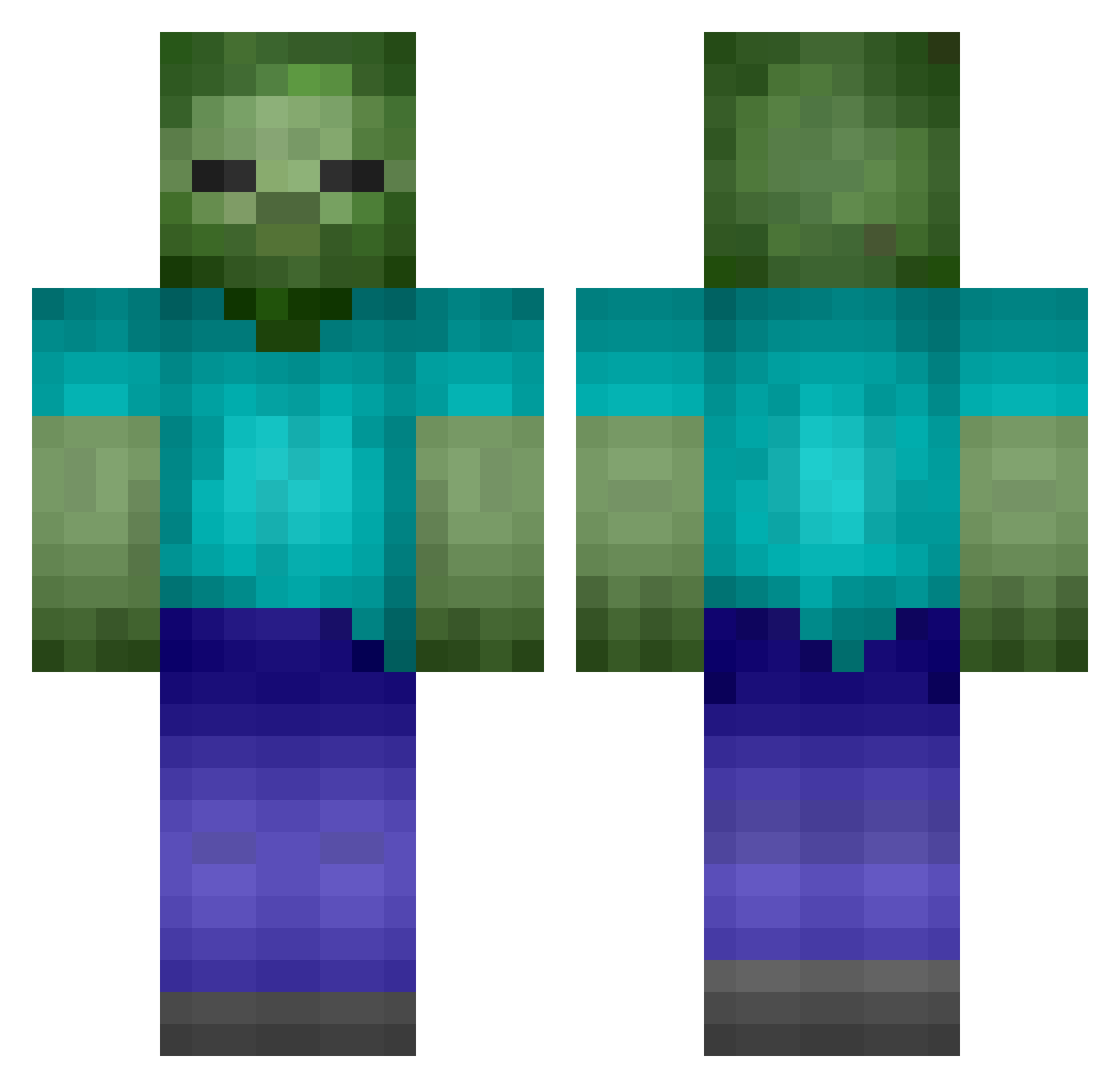
Current Minecraft skin of the player PanicZone20, loaded from the official Mojang API. Rotate the 3D model with your mouse or finger, then download the skin as a PNG file and use it in Minecraft: Bedrock Edition or Java Edition for free. When PanicZone20 changes their skin, this page updates automatically and the old skin stays in the history below.
Other players with this skin (200)
PanicZone20 was the 124th player we have seen with this skin, first spotted on 05.10.2026. The same skin was seen on these players. Open a nickname to see their current skin and skin history.
 talanbean 319 dan1061 ___Phoenix__ protuukka jopro01 mit55ch Jacobhearn1998 Fr3ak1n0ut Desecrator Comez_97 SILVAN_1999 darkmaul8 T8ER_TOT walexs fatso12345678910 the_Doom_ZombiJr Bust2627M Noahsjungle Mr_Treeman_ FinnrRastas ggogi TittyMcLovin NordicWarrior4 Shvade jachca lucce2525 PSNeymar HattyHtn kouhei428 CurseBot1 D3laya skateer12345 Finchy29 bigfacecat Dj_gilou curtman koristo24 blackmagic202 EmanuelPost blastergamer126 turbo04 kasey44 NinjaMoa Fipser3737 fpd3rd Braithe28 Eskbog16 sukrenpoudre dillonodoherty nerfgamer13 antony960 RocksMonster higo1311 Bill_Kerman AshTouch Jeongyongjae Zombie BananaSlug177 Terror_Sumo
More Zombie Minecraft skins
How to install the PanicZone20 skin
- Press the Download button above to save the skin as a PNG file.
- Minecraft: Bedrock Edition (PE): open the Dressing Room from the main menu (or tap your character → Edit Character), go to Classic Skins → Owned, press the + (new skin) button, choose the downloaded PNG and pick the Classic (Steve) model. Works on PC and mobile; consoles cannot import custom skins.
- Minecraft: Java Edition: open the Minecraft Launcher, go to the Skins tab, click New Skin, load the PNG, pick the Classic (Steve) model and press Save & Use. You can also upload it at minecraft.net → Profile → Change Skin.
The skin does not show up after import - what should I do?
Restart Minecraft and open the Dressing Room again - imported skins sometimes appear only after a restart. Also make sure you selected the imported skin and picked the Classic (Steve) model.
Which model should I choose, Classic or Slim?
This skin is designed for the Classic (Steve) model. If you pick the wrong model, the arms of the skin will look stretched or squeezed.
Is the skin of PanicZone20 free to download?
Yes. Press Download, save the PNG file and use it in Minecraft: Bedrock Edition or Java Edition - no payment or registration needed. The skin also works on multiplayer servers and Realms.
More skins
Looking for more? Go back to all Minecraft skins and check the top skins of the week, month and all time, or find any player's skin by nickname.