
Merkur9 - Minecraft Skins & Skin History
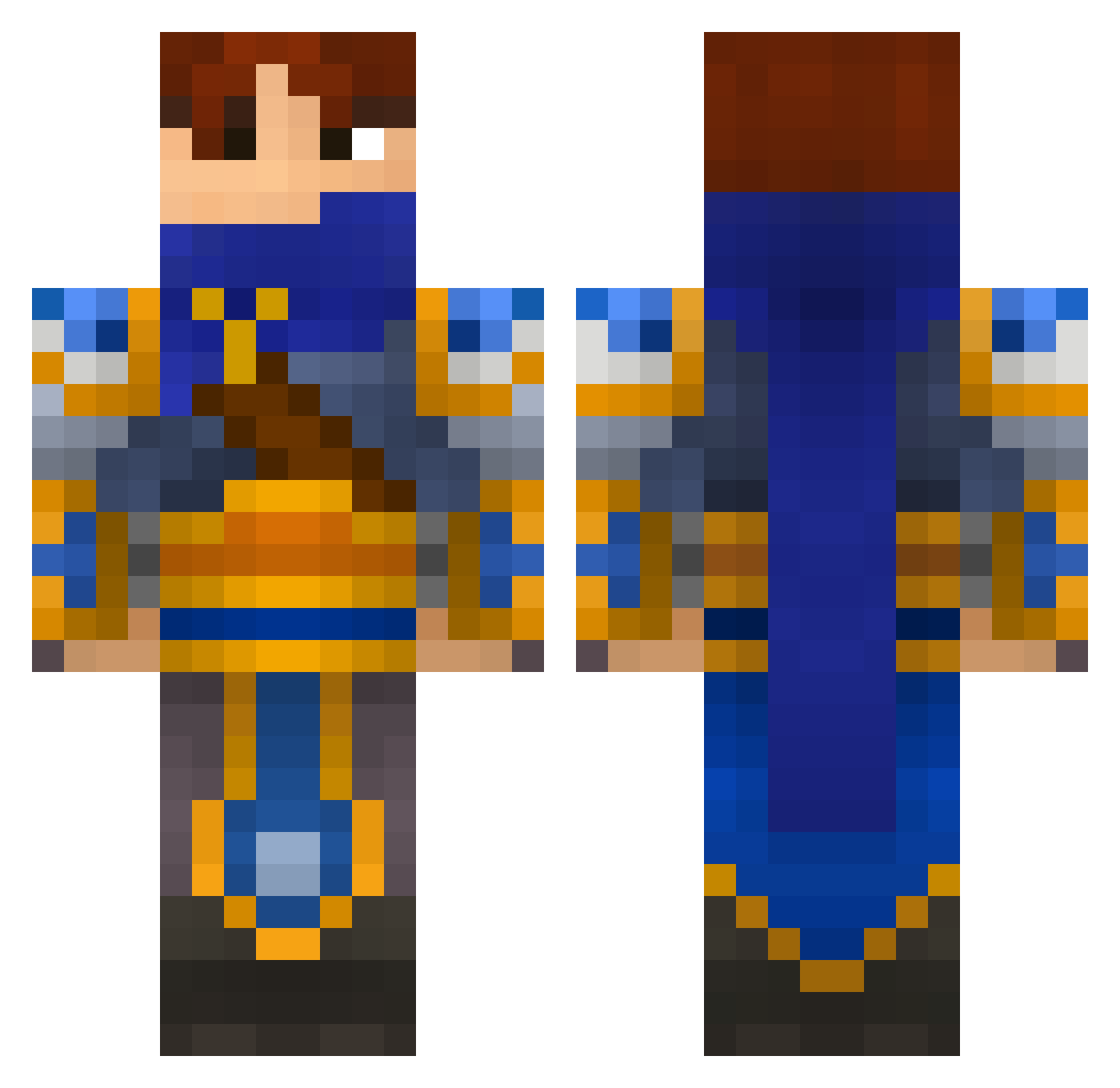
Current Minecraft skin of the player Merkur9, loaded from the official Mojang API. Rotate the 3D model with your mouse or finger, then download the skin as a PNG file and use it in Minecraft: Bedrock Edition or Java Edition for free. When Merkur9 changes their skin, this page updates automatically and the old skin stays in the history below.
Other players with this skin (696)
Merkur9 was the 286th player we have seen with this skin, first spotted on 17.09.2026. The same skin was seen on these players. Open a nickname to see their current skin and skin history.
 bena868 Robotronx15 Awlx koji104 kekkomortal WebberplaysmcMC spreef Tyh05 semak nighthawk213 bosspanic tinysedric mushroomdo jquan1024 Ankoun LuckyTiger7 k27463 Cellron terrariaplayer57 McFatN0b Diagee awding MegaManKane PetitPingouin red_dude12321 KolTrain joschXXL lankykidd CrazyNounours Phil_denfer Oregnoll IaMLetiTgo Si6 ravnested1 Dunclos ujfujf merricko zerkesh redwraiths milo7879000 m4xR Silenciium baman254 RiZnRazor DaddySoc admjtpjmw Zonder06 LucasR90 Recon_Ghost daemiion Archeedas caleb_ahern ayatuki Jiggawatts St0l0S DoubleMilkk TheDarkBeyond perlew speedlight624 sam_the_cat
More Warrior Minecraft skins
How to install the Merkur9 skin
- Press the Download button above to save the skin as a PNG file.
- Minecraft: Bedrock Edition (PE): open the Dressing Room from the main menu (or tap your character → Edit Character), go to Classic Skins → Owned, press the + (new skin) button, choose the downloaded PNG and pick the Classic (Steve) model. Works on PC and mobile; consoles cannot import custom skins.
- Minecraft: Java Edition: open the Minecraft Launcher, go to the Skins tab, click New Skin, load the PNG, pick the Classic (Steve) model and press Save & Use. You can also upload it at minecraft.net → Profile → Change Skin.
The skin does not show up after import - what should I do?
Restart Minecraft and open the Dressing Room again - imported skins sometimes appear only after a restart. Also make sure you selected the imported skin and picked the Classic (Steve) model.
Which model should I choose, Classic or Slim?
This skin is designed for the Classic (Steve) model. If you pick the wrong model, the arms of the skin will look stretched or squeezed.
Is the skin of Merkur9 free to download?
Yes. Press Download, save the PNG file and use it in Minecraft: Bedrock Edition or Java Edition - no payment or registration needed. The skin also works on multiplayer servers and Realms.
More skins
Looking for more? Go back to all Minecraft skins and check the top skins of the week, month and all time, or find any player's skin by nickname.