
MegaMudda - Minecraft Skins & Skin History
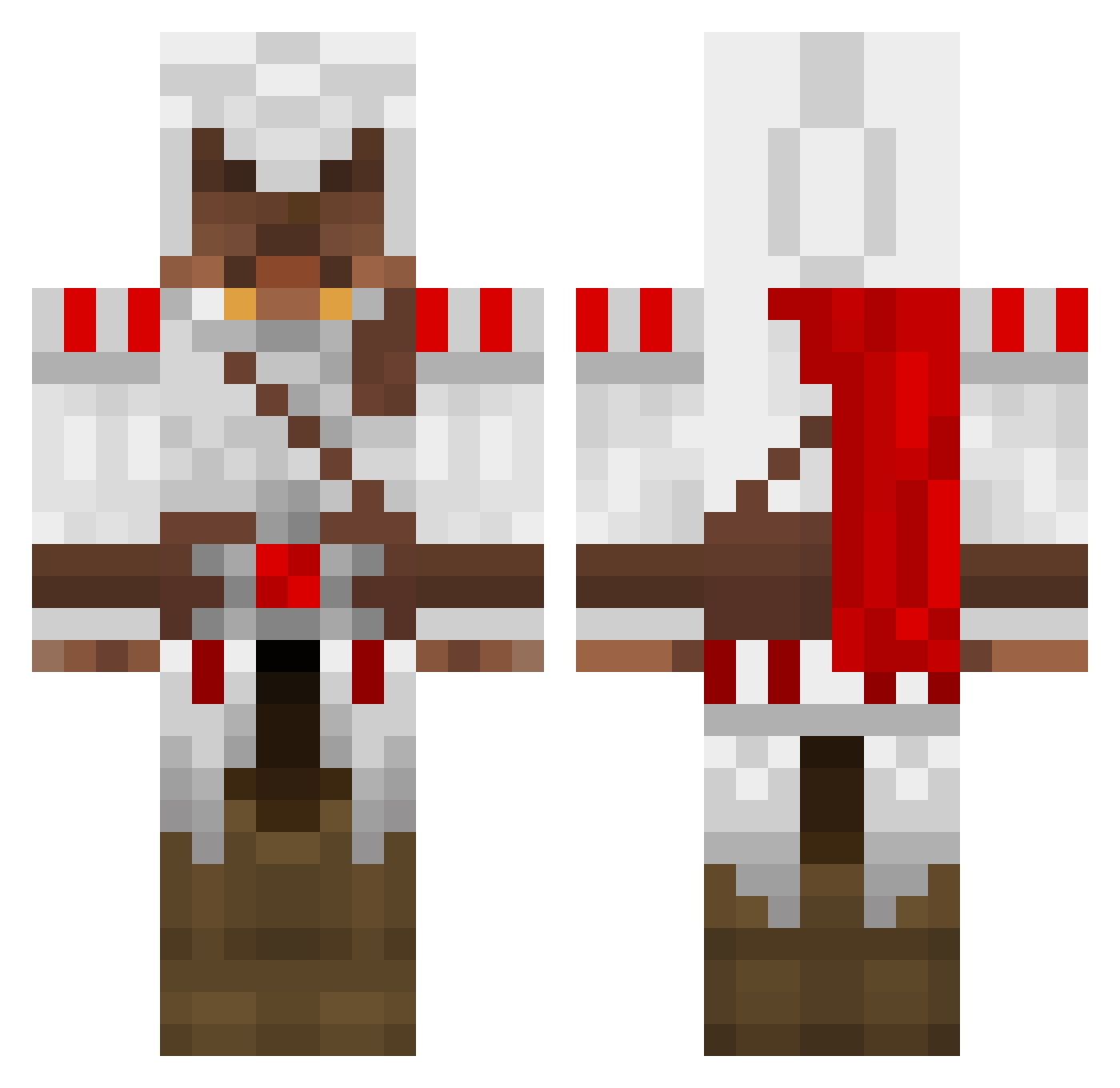
Current Minecraft skin of the player MegaMudda, loaded from the official Mojang API. Rotate the 3D model with your mouse or finger, then download the skin as a PNG file and use it in Minecraft: Bedrock Edition or Java Edition for free. When MegaMudda changes their skin, this page updates automatically and the old skin stays in the history below.
Other players with this skin (1388)
MegaMudda was the 1176th player we have seen with this skin, first spotted on 18.10.2026. The same skin was seen on these players. Open a nickname to see their current skin and skin history.
 Blazej11 maciek1816 nknknknk JayNayNay Spratti0000 xDolman Zetec1989 kiloroy bob36045 lucho2709 andy12445566 madipants12 Nostromo0815 Kev_in rock401 TehYack gman7787 TrippleP GeminiDreamer22 CsShadow8994 MrVtt51 IndyUnited briand505 laxdude001 Elvin_Awesome hmaho10 lanepwnage94 rik9972 Mr_Staxbox euancadle XxKiingHadesxX Tehann101 AhNoneeMoose SamiLeo Your_mum9213 GaStON_94 Vipertron Spooky_Dathan copainilm Micromidget777 minimidget219 nulla77 Montecore11 propolarbear CrucksLine BroGOAL randolph_v Namastre EqUaLiZeRRR buddakinz Invader_Boris nebsta929 UntrimmedFreeway Legilan GiantPinkDildo Crixopher hebrewhamm3r Schrotti22 hkgf26703 werewolf_nr
More Altair Ibn La Ahad Minecraft skins
See all 196 Altair Ibn La Ahad skins
How to install the MegaMudda skin
- Press the Download button above to save the skin as a PNG file.
- Minecraft: Bedrock Edition (PE): open the Dressing Room from the main menu (or tap your character → Edit Character), go to Classic Skins → Owned, press the + (new skin) button, choose the downloaded PNG and pick the Classic (Steve) model. Works on PC and mobile; consoles cannot import custom skins.
- Minecraft: Java Edition: open the Minecraft Launcher, go to the Skins tab, click New Skin, load the PNG, pick the Classic (Steve) model and press Save & Use. You can also upload it at minecraft.net → Profile → Change Skin.
The skin does not show up after import - what should I do?
Restart Minecraft and open the Dressing Room again - imported skins sometimes appear only after a restart. Also make sure you selected the imported skin and picked the Classic (Steve) model.
Which model should I choose, Classic or Slim?
This skin is designed for the Classic (Steve) model. If you pick the wrong model, the arms of the skin will look stretched or squeezed.
Is the skin of MegaMudda free to download?
Yes. Press Download, save the PNG file and use it in Minecraft: Bedrock Edition or Java Edition - no payment or registration needed. The skin also works on multiplayer servers and Realms.
More skins
Looking for more? Go back to all Minecraft skins and check the top skins of the week, month and all time, or find any player's skin by nickname.