
Color9 - Minecraft Skins & Skin History
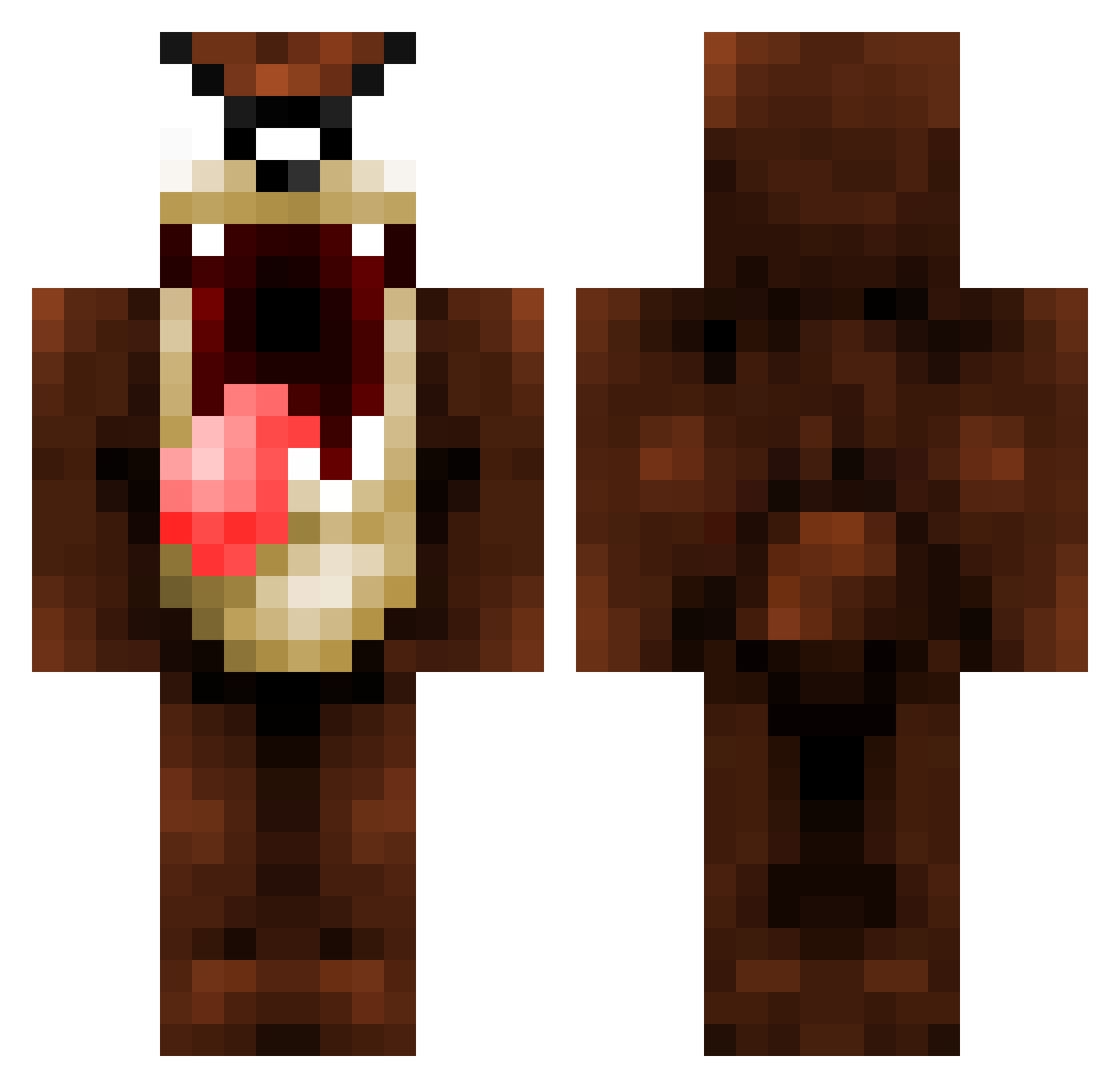
Current Minecraft skin of the player Color9, loaded from the official Mojang API. Rotate the 3D model with your mouse or finger, then download the skin as a PNG file and use it in Minecraft: Bedrock Edition or Java Edition for free. When Color9 changes their skin, this page updates automatically and the old skin stays in the history below.
Other players with this skin (1320)
Color9 was the 1156th player we have seen with this skin, first spotted on 07.11.2026. The same skin was seen on these players. Open a nickname to see their current skin and skin history.
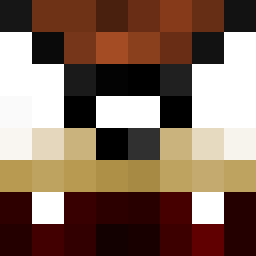 VapeIsLife15 Nowzinzica34 Taz_LG dolphindan17 Gier_NL GalaxyT10 game_is_loading Latruffe42 pickyeater1 dan_rankin skenz40 aldahir_G4 Sixtomagno Almanach TheRealLillelas sotoj MaGic_Pancakemix charliecwebb mikkel123421 AmusingMickey PullisGaming Darknight_75 boomboom30 Uzukiyo potefis nubtubert TomaHawkaNokey conclin131 DickyoAo yergnov Boom17 300KingLeonidas Donavaan Heldmann Roxhayate MUDDSLING3R123 bibz89 StrykerR7500 nichlas0 Wingman72 SoulEaterMo Fluffyguy96 MR_baschassel LoupFurtif21 Crunch_13 BrandonKooi the_man_nik Eext Ommytay gozling2m chrisb13456 pisco17 smoshy15 hidden_guns BD20K massacrre Snellepelle peaky1988 Anomaly0 Th1ckson
More Taz Minecraft skins
How to install the Color9 skin
- Press the Download button above to save the skin as a PNG file.
- Minecraft: Bedrock Edition (PE): open the Dressing Room from the main menu (or tap your character → Edit Character), go to Classic Skins → Owned, press the + (new skin) button, choose the downloaded PNG and pick the Classic (Steve) model. Works on PC and mobile; consoles cannot import custom skins.
- Minecraft: Java Edition: open the Minecraft Launcher, go to the Skins tab, click New Skin, load the PNG, pick the Classic (Steve) model and press Save & Use. You can also upload it at minecraft.net → Profile → Change Skin.
The skin does not show up after import - what should I do?
Restart Minecraft and open the Dressing Room again - imported skins sometimes appear only after a restart. Also make sure you selected the imported skin and picked the Classic (Steve) model.
Which model should I choose, Classic or Slim?
This skin is designed for the Classic (Steve) model. If you pick the wrong model, the arms of the skin will look stretched or squeezed.
Is the skin of Color9 free to download?
Yes. Press Download, save the PNG file and use it in Minecraft: Bedrock Edition or Java Edition - no payment or registration needed. The skin also works on multiplayer servers and Realms.
More skins
Looking for more? Go back to all Minecraft skins and check the top skins of the week, month and all time, or find any player's skin by nickname.