
BingBongChu - Minecraft Skins & Skin History
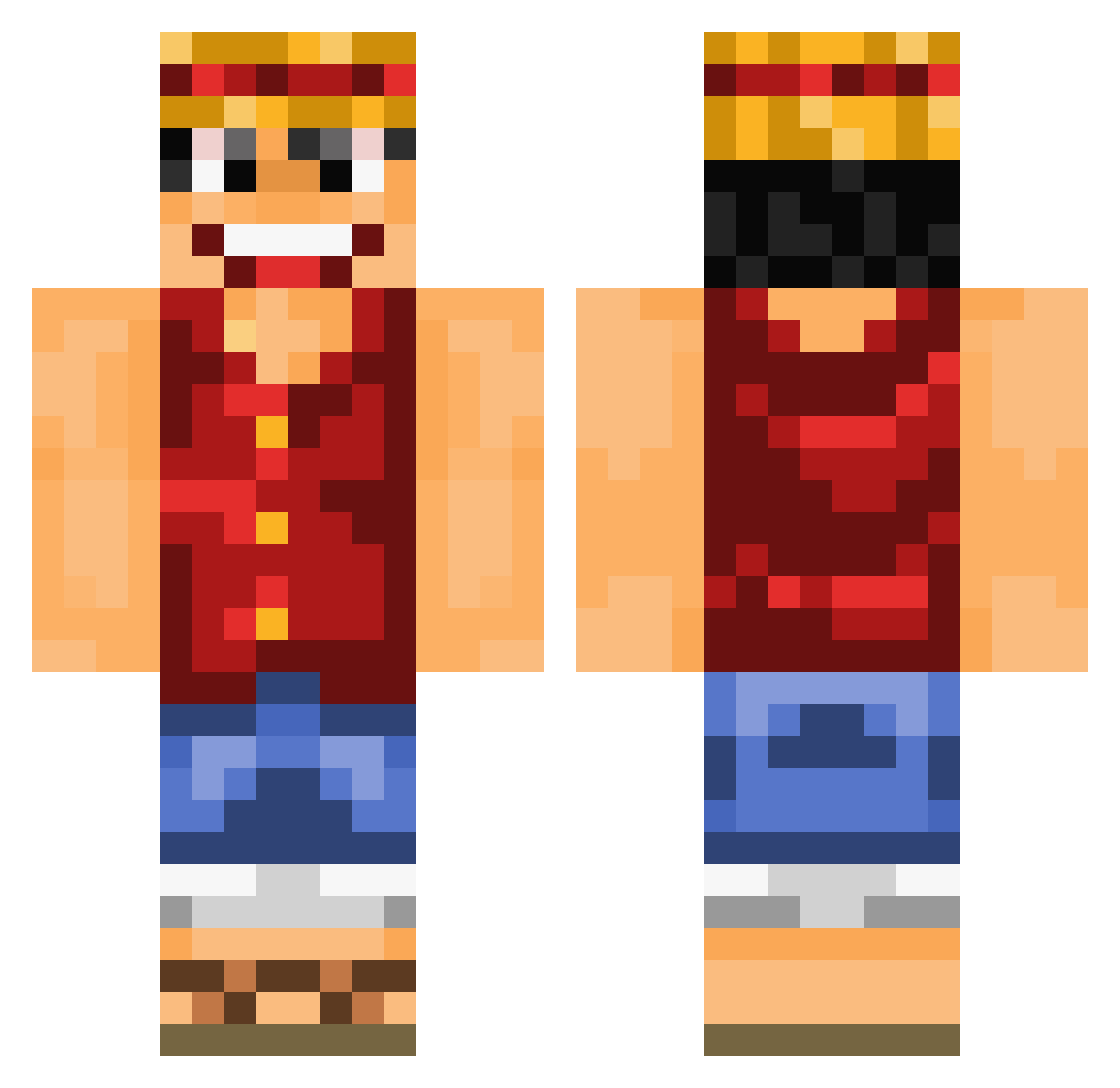
Current Minecraft skin of the player BingBongChu, loaded from the official Mojang API. Rotate the 3D model with your mouse or finger, then download the skin as a PNG file and use it in Minecraft: Bedrock Edition or Java Edition for free. When BingBongChu changes their skin, this page updates automatically and the old skin stays in the history below.
Other players with this skin (837)
BingBongChu was the 781st player we have seen with this skin, first spotted on 26.10.2026. The same skin was seen on these players. Open a nickname to see their current skin and skin history.
 guigu_chuanqi opgamermoment Lostbloodsoul xGhxsty Cooperisseggsy SaranNon Deltanium_ TheMarvinski Ruisung lupi0706 PanchXO lIStnkyIl HeySnapchat KaoFerra CalmDown96 thechefpapa FuzzyTurtle8006 FraudKeller sVv3zZy tivda SoritaBaby Mr_Jxxx Qupel GnSayx syroaxX nanung fxwf9920 MTGxManish baki_cl JGReed Pocceschi98 servant333 _anaY_ Tsunju1 BeeJeeBoucher k0sp InfiniteGas Caasas Saanson juan941901 Nuguri01 uhNatey BenouKun Maxdoux AhmadIbrahim nMSz Kaiowai trrr KampfHund47 _FlyingDonut_ RurouniRisu 1mxm1 BigFatSheep tovegalere TheJusanMC Jetlarsson _MonkeyDLuffy_ depardieugerard Adamcmm Trivergente
More Monkey D Luffy Minecraft skins
See all 924 Monkey D Luffy skins
How to install the BingBongChu skin
- Press the Download button above to save the skin as a PNG file.
- Minecraft: Bedrock Edition (PE): open the Dressing Room from the main menu (or tap your character → Edit Character), go to Classic Skins → Owned, press the + (new skin) button, choose the downloaded PNG and pick the Classic (Steve) model. Works on PC and mobile; consoles cannot import custom skins.
- Minecraft: Java Edition: open the Minecraft Launcher, go to the Skins tab, click New Skin, load the PNG, pick the Classic (Steve) model and press Save & Use. You can also upload it at minecraft.net → Profile → Change Skin.
The skin does not show up after import - what should I do?
Restart Minecraft and open the Dressing Room again - imported skins sometimes appear only after a restart. Also make sure you selected the imported skin and picked the Classic (Steve) model.
Which model should I choose, Classic or Slim?
This skin is designed for the Classic (Steve) model. If you pick the wrong model, the arms of the skin will look stretched or squeezed.
Is the skin of BingBongChu free to download?
Yes. Press Download, save the PNG file and use it in Minecraft: Bedrock Edition or Java Edition - no payment or registration needed. The skin also works on multiplayer servers and Realms.
More skins
Looking for more? Go back to all Minecraft skins and check the top skins of the week, month and all time, or find any player's skin by nickname.