
lukecottle19 - Minecraft Skins & Skin History
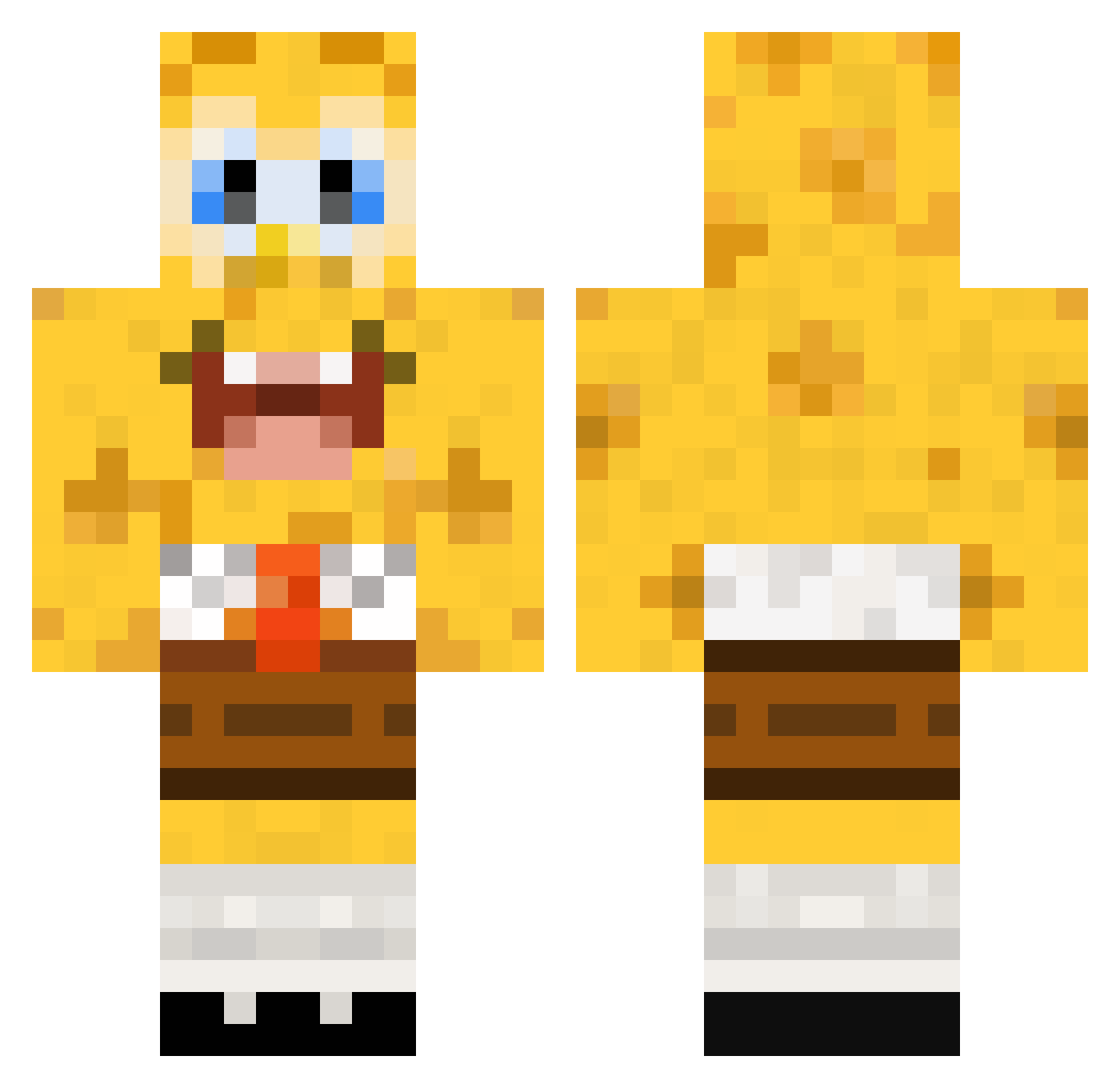
Current Minecraft skin of the player lukecottle19, loaded from the official Mojang API. Rotate the 3D model with your mouse or finger, then download the skin as a PNG file and use it in Minecraft: Bedrock Edition or Java Edition for free. When lukecottle19 changes their skin, this page updates automatically and the old skin stays in the history below.
Other players with this skin (448)
lukecottle19 was the 203rd player we have seen with this skin, first spotted on 20.09.2026. The same skin was seen on these players. Open a nickname to see their current skin and skin history.
 helixtang AnnieTheSurvivor blokkum Franz1234 zZzsamzZz Flomaes maxo5201 Silviole OntoysTV Bigtimersh5 Lemon653 w1ldf1re 0Racecarbed emilieminecraFt Bigw00dy Sigillo85 Basketball1w tildehs ToolManager PrettyxFlacko Hetzer150 jonathanekbladh Bostitch Gohabsgo6 Emil0428 Wachimingo123 odlanor mbh0659 justmine12345 Superthies Monster_Xtrem John_Sinan wellexcuseme avantgardejazz Standemannn sweetdonut Apels1nka JohnnyQuest98 jdbeta Ryanosausages Contriturate nm510 riancooper1234 APLASTICBAGGY Kingcreza spunke ollekol Buffinater Popcornman300 blockman278 Craaazy88 Kromann95 pigsAhoy176 viller2004 lauren926 lolgameing xdualix alucard2762 MeditativeDingus amiike
More Cartoon Minecraft skins
How to install the lukecottle19 skin
- Press the Download button above to save the skin as a PNG file.
- Minecraft: Bedrock Edition (PE): open the Dressing Room from the main menu (or tap your character → Edit Character), go to Classic Skins → Owned, press the + (new skin) button, choose the downloaded PNG and pick the Classic (Steve) model. Works on PC and mobile; consoles cannot import custom skins.
- Minecraft: Java Edition: open the Minecraft Launcher, go to the Skins tab, click New Skin, load the PNG, pick the Classic (Steve) model and press Save & Use. You can also upload it at minecraft.net → Profile → Change Skin.
The skin does not show up after import - what should I do?
Restart Minecraft and open the Dressing Room again - imported skins sometimes appear only after a restart. Also make sure you selected the imported skin and picked the Classic (Steve) model.
Which model should I choose, Classic or Slim?
This skin is designed for the Classic (Steve) model. If you pick the wrong model, the arms of the skin will look stretched or squeezed.
Is the skin of lukecottle19 free to download?
Yes. Press Download, save the PNG file and use it in Minecraft: Bedrock Edition or Java Edition - no payment or registration needed. The skin also works on multiplayer servers and Realms.
More skins
Looking for more? Go back to all Minecraft skins and check the top skins of the week, month and all time, or find any player's skin by nickname.