
azunekow - Minecraft Skins & Skin History
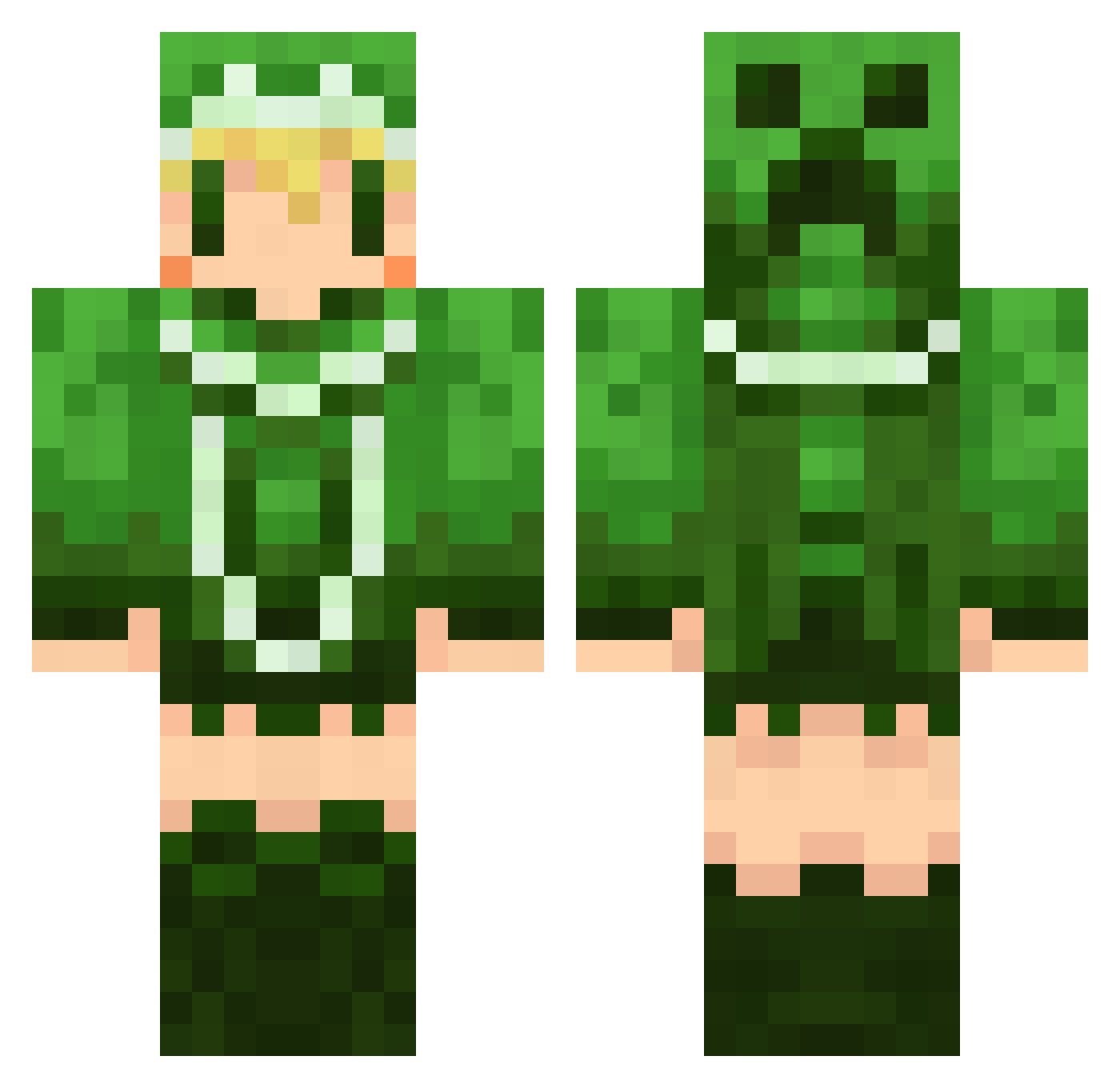
Current Minecraft skin of the player azunekow, loaded from the official Mojang API. Rotate the 3D model with your mouse or finger, then download the skin as a PNG file and use it in Minecraft: Bedrock Edition or Java Edition for free. When azunekow changes their skin, this page updates automatically and the old skin stays in the history below.
Other players with this skin (668)
azunekow was the 575th player we have seen with this skin, first spotted on 28.10.2026. The same skin was seen on these players. Open a nickname to see their current skin and skin history.
 masa1813 yuneko0 mikunow Siro283 Balmu_Fahmat heppyyy aqua_123 Pekory nasubi0827 toruhosokawa ninnin708 yutoton Sio0518 hazuki924 with_pop rituki1028 kyouhei65 umiminmin mt09 Ritochin mmyr0330 yukinokoko edamameee yuki_crow zalaru AbsoluteGaogao ayumin04 METALS_ ringosan2000 Aichan125 nukonukomush noeru_yuuki Youqun sigsauerp230 payadon karin39 FoxCarnival MISODANGO11 FrierenR Damien_666 regen173 sizumapippi kuroa69 mtyama freenear savao nanatonanato aTUKASAa oimotan blueflame1208 sawaraa yuman_kuma OLGO1987 water03 yy2525 chironta ICEvar febreeeeeze TwinElephantS hayapo
More Creeper Minecraft skins
How to install the azunekow skin
- Press the Download button above to save the skin as a PNG file.
- Minecraft: Bedrock Edition (PE): open the Dressing Room from the main menu (or tap your character → Edit Character), go to Classic Skins → Owned, press the + (new skin) button, choose the downloaded PNG and pick the Classic (Steve) model. Works on PC and mobile; consoles cannot import custom skins.
- Minecraft: Java Edition: open the Minecraft Launcher, go to the Skins tab, click New Skin, load the PNG, pick the Classic (Steve) model and press Save & Use. You can also upload it at minecraft.net → Profile → Change Skin.
The skin does not show up after import - what should I do?
Restart Minecraft and open the Dressing Room again - imported skins sometimes appear only after a restart. Also make sure you selected the imported skin and picked the Classic (Steve) model.
Which model should I choose, Classic or Slim?
This skin is designed for the Classic (Steve) model. If you pick the wrong model, the arms of the skin will look stretched or squeezed.
Is the skin of azunekow free to download?
Yes. Press Download, save the PNG file and use it in Minecraft: Bedrock Edition or Java Edition - no payment or registration needed. The skin also works on multiplayer servers and Realms.
More skins
Looking for more? Go back to all Minecraft skins and check the top skins of the week, month and all time, or find any player's skin by nickname.