
BroMo19 - Minecraft Skins & Skin History
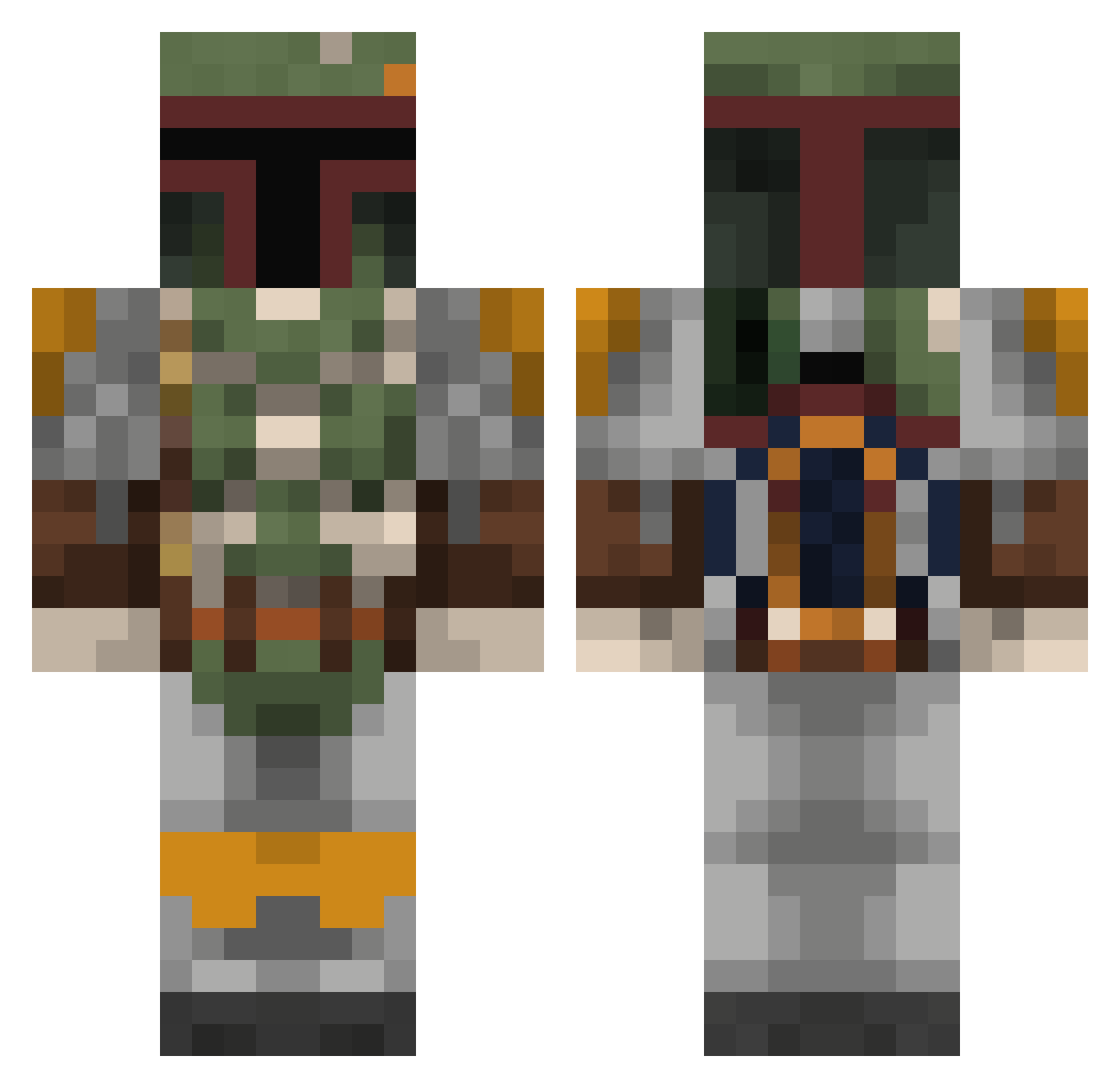
Current Minecraft skin of the player BroMo19, loaded from the official Mojang API. Rotate the 3D model with your mouse or finger, then download the skin as a PNG file and use it in Minecraft: Bedrock Edition or Java Edition for free. When BroMo19 changes their skin, this page updates automatically and the old skin stays in the history below.
Other players with this skin (432)
BroMo19 was the 360th player we have seen with this skin, first spotted on 03.11.2026. The same skin was seen on these players. Open a nickname to see their current skin and skin history.
 TayarJ jojoch3ck3r wt_55 StormShadow40k BarretTai Bobafett639 TempNut Urssch AlexArctico Cyberoni696 jrdkddk TraceSnipe Shwakk Romerillo123 Blaxican27 Grinch887 SaviorSix1 LupieMike countdemonet xeon12 jamabern edkan7 JaggyM15 KanesCabDriver InZane393 CavemanFountain SparhawkIV PEFILL Isthatapixel TrogdortheBrnn8r XYZMIKEL ChildishPaulbino Shanhara25 elgecko22 BreiterReiter ScovilleSpicy SLAYER3945 choque_18 Laith11 Jzeller03 Maiki2425 BanillaCone Tiger4859 lunasabaism eiire Faxenmacher11 The_Assasin_ Lichtenstein69 SgtHippieJew papanub2 BeardedRoger hawala18 Sjuggur MRHUNTZZ Rick110901 Nr21BobaFettFan RyRySully tornadogordo DarthWhon Sstarchlord
More Boba Fett Minecraft skins
How to install the BroMo19 skin
- Press the Download button above to save the skin as a PNG file.
- Minecraft: Bedrock Edition (PE): open the Dressing Room from the main menu (or tap your character → Edit Character), go to Classic Skins → Owned, press the + (new skin) button, choose the downloaded PNG and pick the Classic (Steve) model. Works on PC and mobile; consoles cannot import custom skins.
- Minecraft: Java Edition: open the Minecraft Launcher, go to the Skins tab, click New Skin, load the PNG, pick the Classic (Steve) model and press Save & Use. You can also upload it at minecraft.net → Profile → Change Skin.
The skin does not show up after import - what should I do?
Restart Minecraft and open the Dressing Room again - imported skins sometimes appear only after a restart. Also make sure you selected the imported skin and picked the Classic (Steve) model.
Which model should I choose, Classic or Slim?
This skin is designed for the Classic (Steve) model. If you pick the wrong model, the arms of the skin will look stretched or squeezed.
Is the skin of BroMo19 free to download?
Yes. Press Download, save the PNG file and use it in Minecraft: Bedrock Edition or Java Edition - no payment or registration needed. The skin also works on multiplayer servers and Realms.
More skins
Looking for more? Go back to all Minecraft skins and check the top skins of the week, month and all time, or find any player's skin by nickname.