
BinBox19 - Minecraft Skins & Skin History
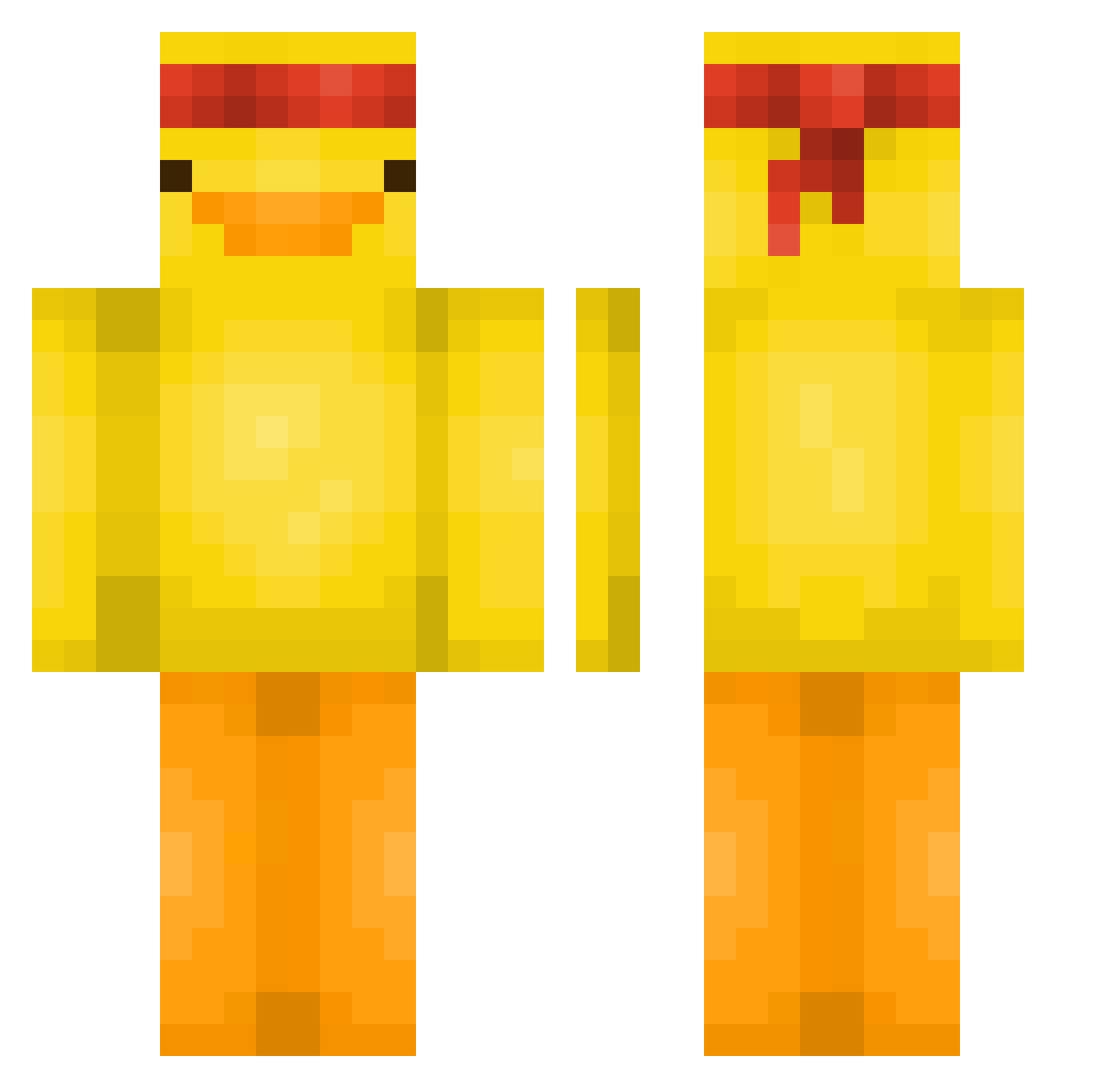
Current Minecraft skin of the player BinBox19, loaded from the official Mojang API. Rotate the 3D model with your mouse or finger, then download the skin as a PNG file and use it in Minecraft: Bedrock Edition or Java Edition for free. When BinBox19 changes their skin, this page updates automatically and the old skin stays in the history below.
Other players with this skin (563)
BinBox19 was the 462nd player we have seen with this skin, first spotted on 17.10.2026. The same skin was seen on these players. Open a nickname to see their current skin and skin history.
 Tango070 badoinkdoink ZennyMC OriginalSSwamppy MCVidsYT zaid2112 ItsMarquis HYUN000001 Leyummyduck wheretfdamallyat TheMimile02 Pomar_ SlurpDurp79 kamenfize InfamousAncient KidsLabEcho F1Kingston yantoperson hwell Ghostminer22 yagi12279 optic4k XpiredRs xcadea Koley23 Snipeyouded jaehoon077 Mrvasvas thatguyouknoe SalvaBGames HakOzO ArkBit1 Bente1203 FeelTheMeto P1PSQ3AK SenHocFPT Mincraftman16 yoqx SmallRubberDuck Rixoxxx Dippy___ GumbaLord Wopert Lingongrovan0 Slipgator2014 vojtassww Earach kepazu ilyamr NAST22 NightTurtle237 Triperis CRIMSONchin0405 ZAPyCharzard WhatsUpItsYaBoii Reeeeeeeee8826 Happykamel VillagerOssian Kingplazy2 Thilde10
More Duck Minecraft skins
How to install the BinBox19 skin
- Press the Download button above to save the skin as a PNG file.
- Minecraft: Bedrock Edition (PE): open the Dressing Room from the main menu (or tap your character → Edit Character), go to Classic Skins → Owned, press the + (new skin) button, choose the downloaded PNG and pick the Classic (Steve) model. Works on PC and mobile; consoles cannot import custom skins.
- Minecraft: Java Edition: open the Minecraft Launcher, go to the Skins tab, click New Skin, load the PNG, pick the Classic (Steve) model and press Save & Use. You can also upload it at minecraft.net → Profile → Change Skin.
The skin does not show up after import - what should I do?
Restart Minecraft and open the Dressing Room again - imported skins sometimes appear only after a restart. Also make sure you selected the imported skin and picked the Classic (Steve) model.
Which model should I choose, Classic or Slim?
This skin is designed for the Classic (Steve) model. If you pick the wrong model, the arms of the skin will look stretched or squeezed.
Is the skin of BinBox19 free to download?
Yes. Press Download, save the PNG file and use it in Minecraft: Bedrock Edition or Java Edition - no payment or registration needed. The skin also works on multiplayer servers and Realms.
More skins
Looking for more? Go back to all Minecraft skins and check the top skins of the week, month and all time, or find any player's skin by nickname.