
locate - Minecraft Skins & Skin History
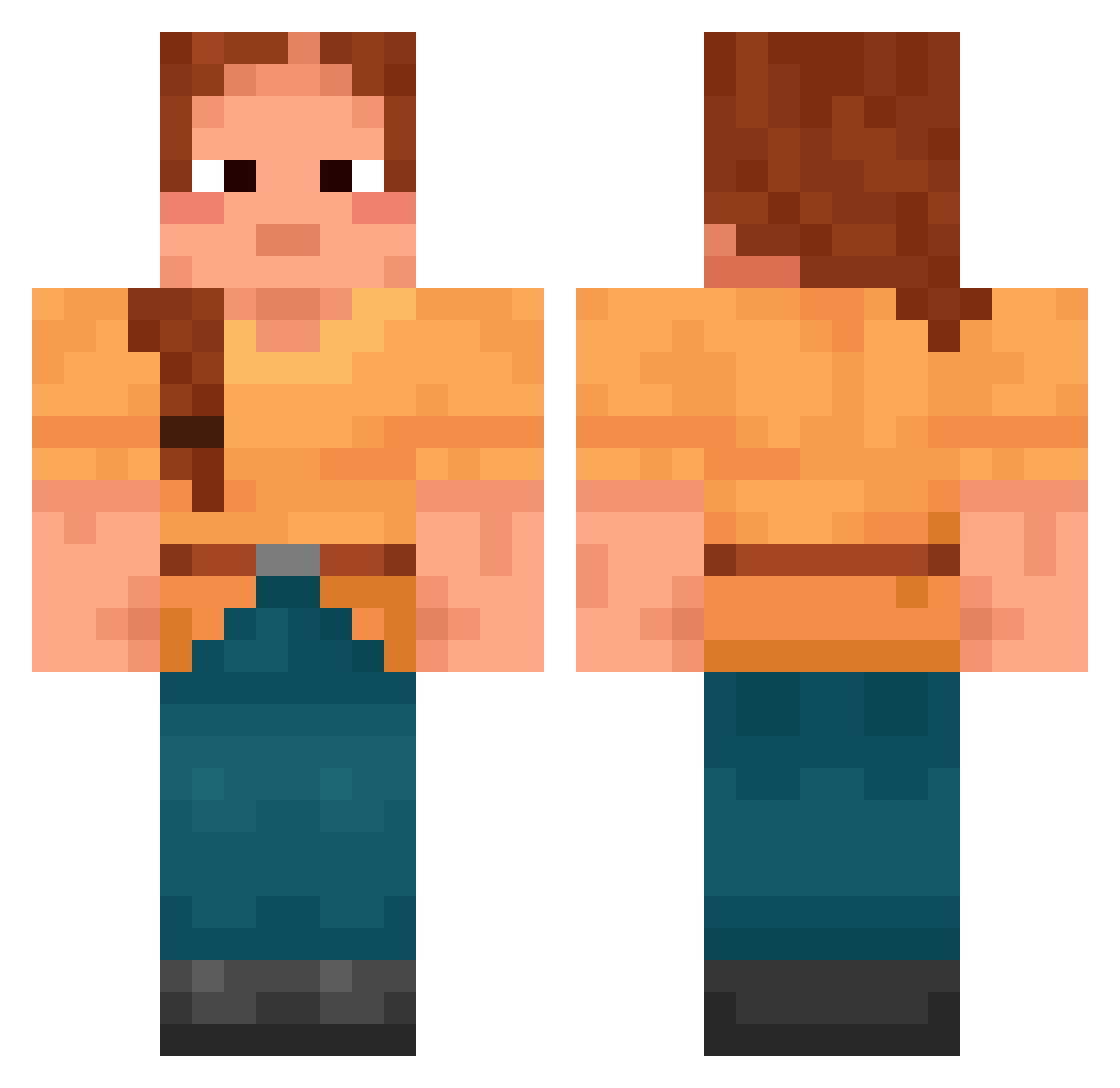
Current Minecraft skin of the player locate, loaded from the official Mojang API. Rotate the 3D model with your mouse or finger, then download the skin as a PNG file and use it in Minecraft: Bedrock Edition or Java Edition for free. When locate changes their skin, this page updates automatically and the old skin stays in the history below.
Other players with this skin (1696)
locate was the 1599th player we have seen with this skin, first spotted on 28.10.2026. The same skin was seen on these players. Open a nickname to see their current skin and skin history.
 chrisiii999 CLiwwY chevaux delaneysays SuperSpoon amster86 polyphobia atodekangaeru Thouse MammaMiaK nightfish Coprinus Torquer Poto23 valerio45 iluv707 QuaiVatBanhMi xituu NotGAZDA SpareRib Cnstr2 Circumventing harjassss regicidal mc_Ania Arixophon Quirks penelopesweets Grammarian Youten_YT Nathankami roomthy pabloescabo pantsless BINI_NI Grim_ReaperL Loitering K0f4 iLayda26 AFlyingSilver T0AsTmAsTeR Craie mchillgaming hong1318 Leaper oleeenka Diamott Cestodes liash2412 TheSheepLord blackberyl Jewelkit Donos2409 Soul5405 Shadowmere_Swift CakeInThePan Spikiness uncoolbugfacts BenjiR289 luanick
More Cottagecore Minecraft skins
See all 6455 Cottagecore skins
How to install the locate skin
- Press the Download button above to save the skin as a PNG file.
- Minecraft: Bedrock Edition (PE): open the Dressing Room from the main menu (or tap your character → Edit Character), go to Classic Skins → Owned, press the + (new skin) button, choose the downloaded PNG and pick the Classic (Steve) model. Works on PC and mobile; consoles cannot import custom skins.
- Minecraft: Java Edition: open the Minecraft Launcher, go to the Skins tab, click New Skin, load the PNG, pick the Classic (Steve) model and press Save & Use. You can also upload it at minecraft.net → Profile → Change Skin.
The skin does not show up after import - what should I do?
Restart Minecraft and open the Dressing Room again - imported skins sometimes appear only after a restart. Also make sure you selected the imported skin and picked the Classic (Steve) model.
Which model should I choose, Classic or Slim?
This skin is designed for the Classic (Steve) model. If you pick the wrong model, the arms of the skin will look stretched or squeezed.
Is the skin of locate free to download?
Yes. Press Download, save the PNG file and use it in Minecraft: Bedrock Edition or Java Edition - no payment or registration needed. The skin also works on multiplayer servers and Realms.
More skins
Looking for more? Go back to all Minecraft skins and check the top skins of the week, month and all time, or find any player's skin by nickname.