
darkkingthe3th - Minecraft Skins & Skin History
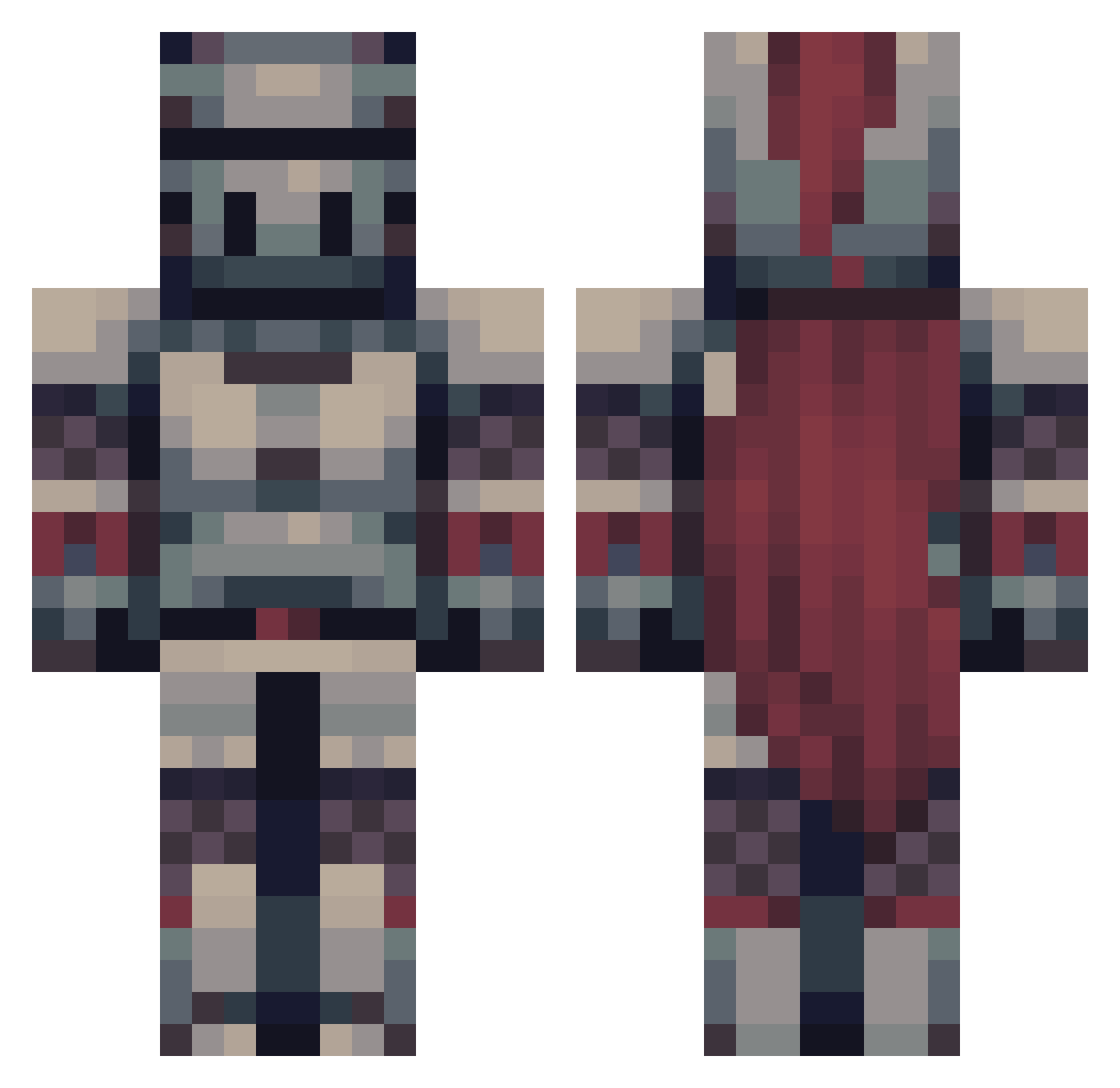
Current Minecraft skin of the player darkkingthe3th, loaded from the official Mojang API. Rotate the 3D model with your mouse or finger, then download the skin as a PNG file and use it in Minecraft: Bedrock Edition or Java Edition for free. When darkkingthe3th changes their skin, this page updates automatically and the old skin stays in the history below.
Other players with this skin (475)
darkkingthe3th was the 120th player we have seen with this skin, first spotted on 19.08.2026. The same skin was seen on these players. Open a nickname to see their current skin and skin history.
 Irvingamer90 Pintix05 Yeti4224 TigerLinch Esmha89 TheMiracleBoy Olive___________ Dreyuzzz Hsudeywowaros FobGobbler MakkerHoi slowasteroid730 Filthy_Frenchy
 crimsoncattt Pokerista Himaworusan PandoraPL Sohoveach 0Waba0 TheJuan44 Ijsbrandt24 dghayai MagN004 EyesOfOsiris HexironNox Yeestered Fluid5 TheDeathstroke Fries51 SnarpCC biggrim9 Krakiin11 unkownshadow99 Zachyyyyyyyyy
 gigaagin Jesus420_ r00ks_exe lZeSuol Abussabo Dulgran ProfessorKaKa EspressoD3presso KingKuren hanjingshu BaxterKnight MrBevil Bebarbaric Yusshii VinnieMorgan CDProctah fastcam06 PureTrip Paulomatik Jackk018 fall4 Jack7657 smjones104 Sama_Rama hot024rod Spungmangett
Previous skins of darkkingthe3th
Skins that darkkingthe3th wore before, newest first. Click a skin to open its page and download it.
More Knight Minecraft skins
How to install the darkkingthe3th skin
- Press the Download button above to save the skin as a PNG file.
- Minecraft: Bedrock Edition (PE): open the Dressing Room from the main menu (or tap your character → Edit Character), go to Classic Skins → Owned, press the + (new skin) button, choose the downloaded PNG and pick the Classic (Steve) model. Works on PC and mobile; consoles cannot import custom skins.
- Minecraft: Java Edition: open the Minecraft Launcher, go to the Skins tab, click New Skin, load the PNG, pick the Classic (Steve) model and press Save & Use. You can also upload it at minecraft.net → Profile → Change Skin.
The skin does not show up after import - what should I do?
Restart Minecraft and open the Dressing Room again - imported skins sometimes appear only after a restart. Also make sure you selected the imported skin and picked the Classic (Steve) model.
Which model should I choose, Classic or Slim?
This skin is designed for the Classic (Steve) model. If you pick the wrong model, the arms of the skin will look stretched or squeezed.
Is the skin of darkkingthe3th free to download?
Yes. Press Download, save the PNG file and use it in Minecraft: Bedrock Edition or Java Edition - no payment or registration needed. The skin also works on multiplayer servers and Realms.
More skins
Looking for more? Go back to all Minecraft skins and check the top skins of the week, month and all time, or find any player's skin by nickname.