
PurpleDuck19 - Minecraft Skins & Skin History
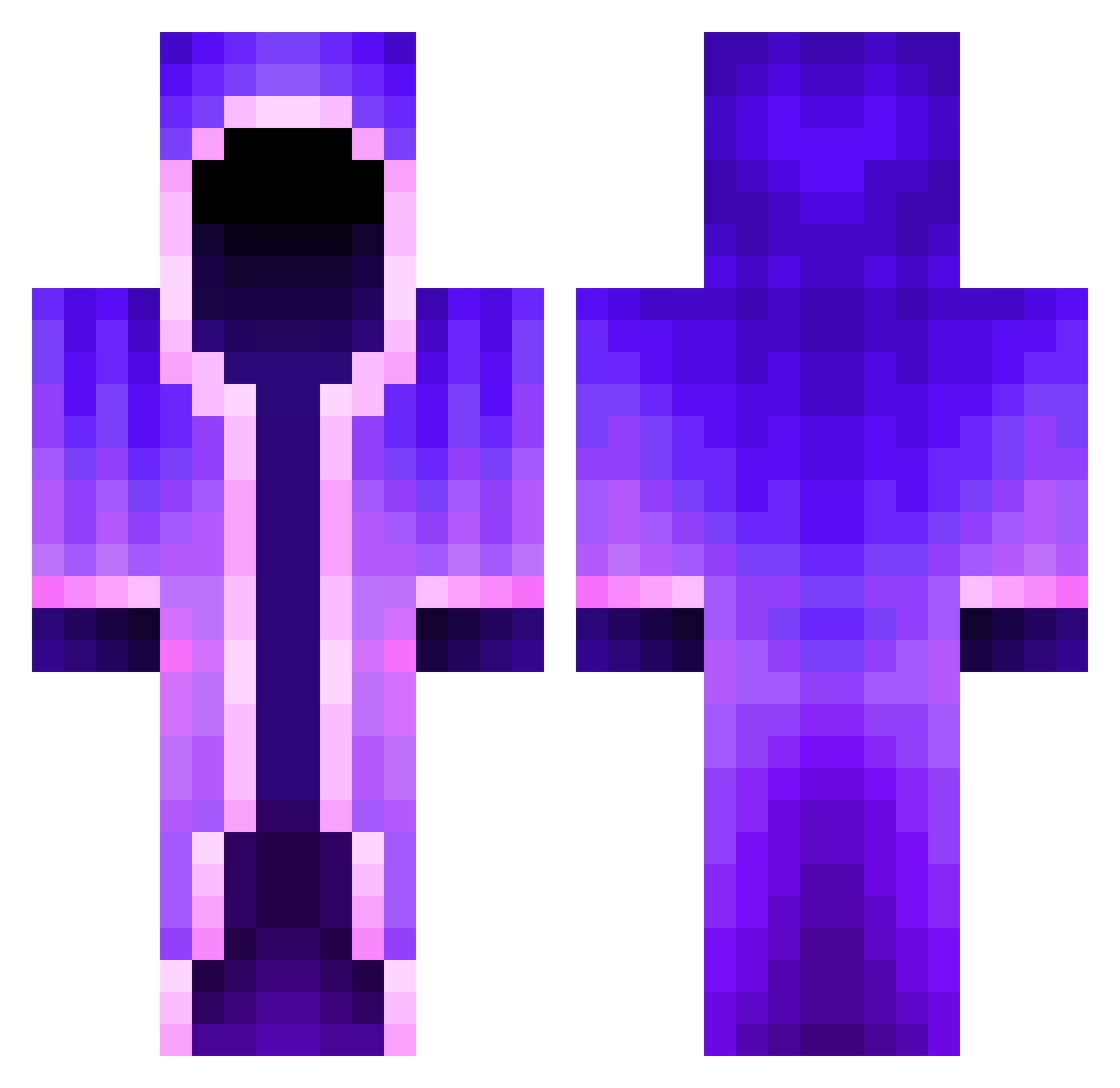
Current Minecraft skin of the player PurpleDuck19, loaded from the official Mojang API. Rotate the 3D model with your mouse or finger, then download the skin as a PNG file and use it in Minecraft: Bedrock Edition or Java Edition for free. When PurpleDuck19 changes their skin, this page updates automatically and the old skin stays in the history below.
Other players with this skin (462)
PurpleDuck19 was the 136th player we have seen with this skin, first spotted on 27.08.2026. The same skin was seen on these players. Open a nickname to see their current skin and skin history.
 xiaououo MiniChina69 Hakenzahn999 Jankevvv Strangerjx iSipSillyJuice JakeShawty ZombieToken KOR_buffalo Akiiyu_ aurantius_ ArjunNRGamer Caper6687 xSplcy DON_TRIMONE guyfarhy Chlemonice FightNakamori pepson13579 Kamui5743 littlekitty36 SuperTomar753 Daangulitz MinecraftWiki123 Maxsoesters doct0r_who Thescarebear1 callahan811 CuteJellyFish anglerjoe3245 Syrano88 sergioexeni Flasche_Cola Papa_Smelbs FluffyWater Asinus32 Placekkk___ hyeon__10 L30n2011 M3lyy Stole407 Balthasar08 Blackwolf2757 Zaeran24 MF44 Areshir Nanji69 sussy_boi109 __VJ__ Dregle TypMitDenNikess fasterra9581 MTGSarthakRao Ghostly_X_ charizard25 Popgo4823 hugosa Daemonium8 volvlad CZwizard
More Mage Minecraft skins
How to install the PurpleDuck19 skin
- Press the Download button above to save the skin as a PNG file.
- Minecraft: Bedrock Edition (PE): open the Dressing Room from the main menu (or tap your character → Edit Character), go to Classic Skins → Owned, press the + (new skin) button, choose the downloaded PNG and pick the Classic (Steve) model. Works on PC and mobile; consoles cannot import custom skins.
- Minecraft: Java Edition: open the Minecraft Launcher, go to the Skins tab, click New Skin, load the PNG, pick the Classic (Steve) model and press Save & Use. You can also upload it at minecraft.net → Profile → Change Skin.
The skin does not show up after import - what should I do?
Restart Minecraft and open the Dressing Room again - imported skins sometimes appear only after a restart. Also make sure you selected the imported skin and picked the Classic (Steve) model.
Which model should I choose, Classic or Slim?
This skin is designed for the Classic (Steve) model. If you pick the wrong model, the arms of the skin will look stretched or squeezed.
Is the skin of PurpleDuck19 free to download?
Yes. Press Download, save the PNG file and use it in Minecraft: Bedrock Edition or Java Edition - no payment or registration needed. The skin also works on multiplayer servers and Realms.
More skins
Looking for more? Go back to all Minecraft skins and check the top skins of the week, month and all time, or find any player's skin by nickname.