
OniTengu20 - Minecraft Skins & Skin History
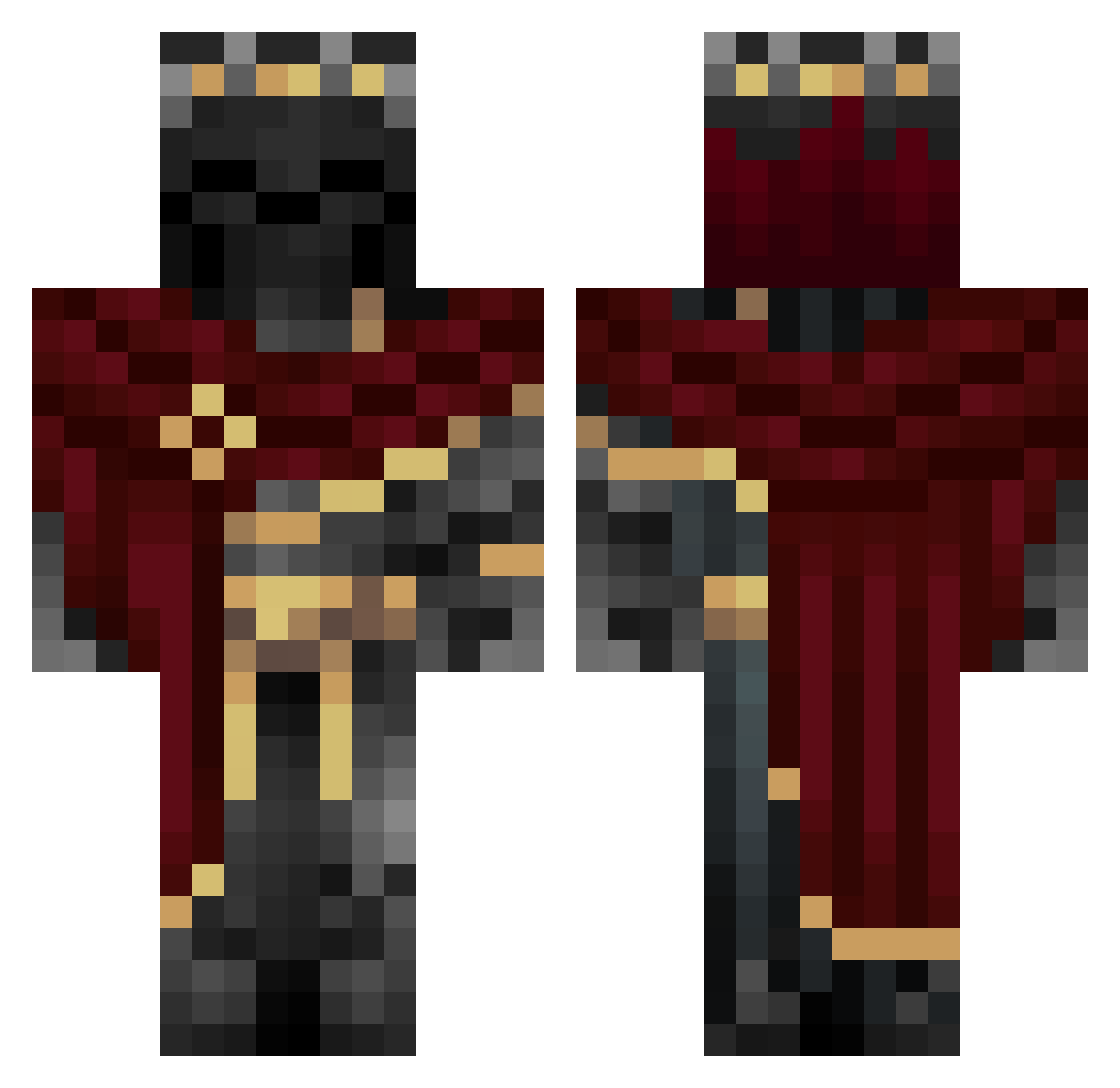
Current Minecraft skin of the player OniTengu20, loaded from the official Mojang API. Rotate the 3D model with your mouse or finger, then download the skin as a PNG file and use it in Minecraft: Bedrock Edition or Java Edition for free. When OniTengu20 changes their skin, this page updates automatically and the old skin stays in the history below.
Other players with this skin (983)
OniTengu20 was the 765th player we have seen with this skin, first spotted on 11.10.2026. The same skin was seen on these players. Open a nickname to see their current skin and skin history.
 Lanko007 Camperskon DrGaster_ Maeth3r RockerFan Swagmassiah69 Noctarex im_hydrated CS1337 zketen RawisPunk RokuroRose Sharbos Emperatorrr J0s1ph qwerty1231312312 AndyLogic QualityJava VoidexMC_ 1Miistery Donny96 TCCB MrG20008 KlNG_BREAK Keshik66 Giorgi1530 TheChildSteale1 Nirogre Darklizard2005 Stay_Quiet Shadow_Knight888 Kazisita Gravesro66er deltafrost009 roobikahun kadrkays salsaman2300 S0UL_l9 Fluffy10_11 MasterCrazyTaco Drjukich OUTFORB100D sedateprod Decayy_ samur4is tomscho Zuplez_43 Ruined_Knight Big_Bray_ Nayuroc Francisco3214567 cconann Sk0rGe10 Enderboy225 H1ddenShad0w NJL_Boar Nysxl kurtzon Texuz512X MadBlack
More King Minecraft skins
How to install the OniTengu20 skin
- Press the Download button above to save the skin as a PNG file.
- Minecraft: Bedrock Edition (PE): open the Dressing Room from the main menu (or tap your character → Edit Character), go to Classic Skins → Owned, press the + (new skin) button, choose the downloaded PNG and pick the Classic (Steve) model. Works on PC and mobile; consoles cannot import custom skins.
- Minecraft: Java Edition: open the Minecraft Launcher, go to the Skins tab, click New Skin, load the PNG, pick the Classic (Steve) model and press Save & Use. You can also upload it at minecraft.net → Profile → Change Skin.
The skin does not show up after import - what should I do?
Restart Minecraft and open the Dressing Room again - imported skins sometimes appear only after a restart. Also make sure you selected the imported skin and picked the Classic (Steve) model.
Which model should I choose, Classic or Slim?
This skin is designed for the Classic (Steve) model. If you pick the wrong model, the arms of the skin will look stretched or squeezed.
Is the skin of OniTengu20 free to download?
Yes. Press Download, save the PNG file and use it in Minecraft: Bedrock Edition or Java Edition - no payment or registration needed. The skin also works on multiplayer servers and Realms.
More skins
Looking for more? Go back to all Minecraft skins and check the top skins of the week, month and all time, or find any player's skin by nickname.