
Mikobykov2 - Minecraft Skins & Skin History
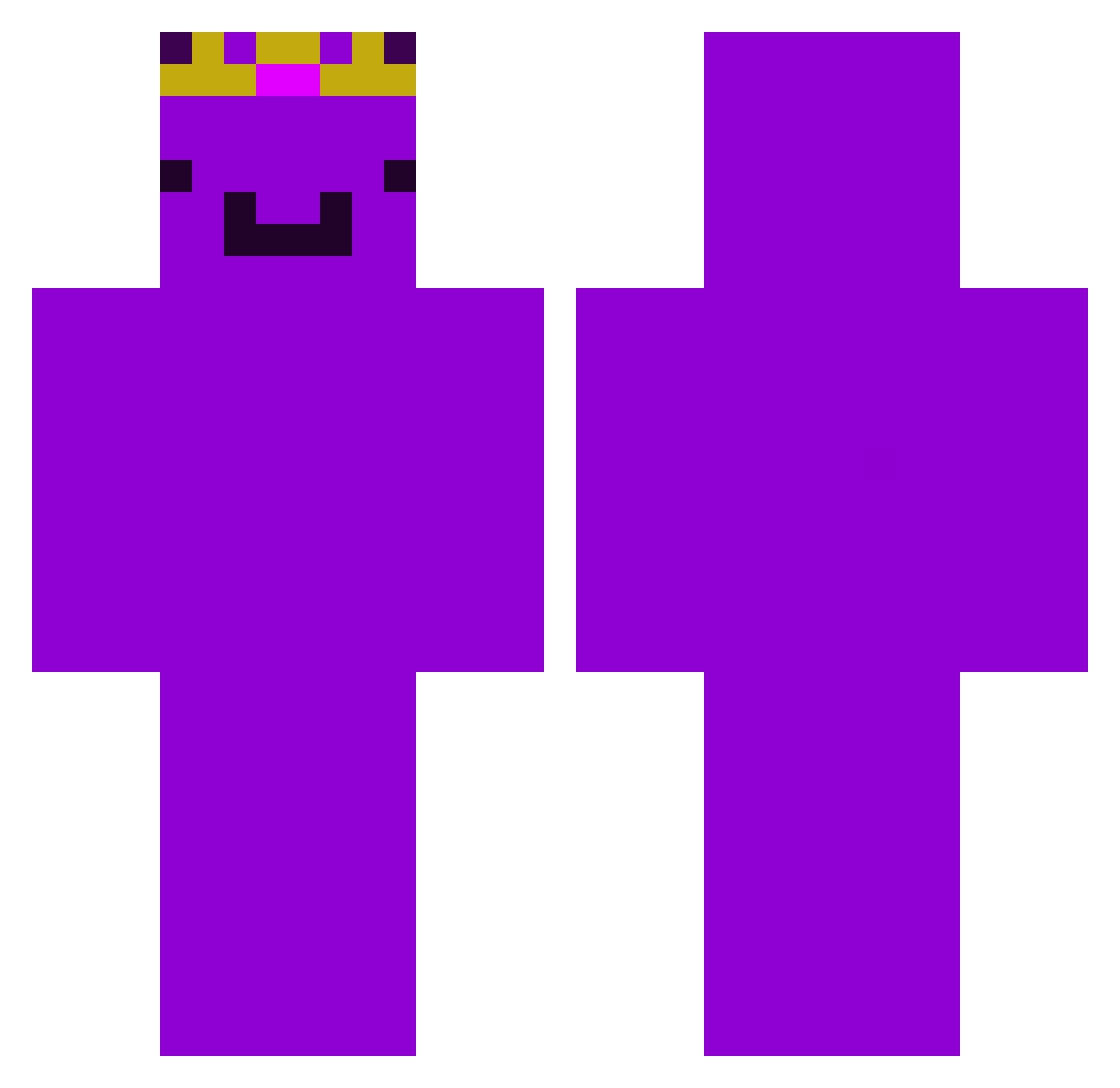
Current Minecraft skin of the player Mikobykov2, loaded from the official Mojang API. Rotate the 3D model with your mouse or finger, then download the skin as a PNG file and use it in Minecraft: Bedrock Edition or Java Edition for free. When Mikobykov2 changes their skin, this page updates automatically and the old skin stays in the history below.
Other players with this skin (378)
Mikobykov2 was the 332nd player we have seen with this skin, first spotted on 12.10.2026. The same skin was seen on these players. Open a nickname to see their current skin and skin history.
 DetectiveMace DragonFishLIVE Wfmmbu loxy_95 KalchCat poepie444 PASIR2qum1kz5p9y Alessio_o_o_o_ kai_5h1n5375u sensuzuki ShnibbleSnab PerfectTeo11 Olle214 Wojtussssss StrafeX2 Lookout9712 itzmegamer321 prismxop Wemmbum BetterThanU14 Dummtendo Joonas126 Ray090413 KostakhsX2 Amr1ylse OLIWER1223 D4NDTM ILikeMyWatermelo jubileelin MintToastboyy Kubaxyz Danon_pro ImSetABlaze WessiYT SuperMoo34 xXGAMERXxprrr TheShuTing TakenBread2371 AntoniFans Dom051111 Nabhith28 Reptx Minoessepoes Frost_Hollow ThaobaldTheBird AndreTheBeast Y4uk_ wembu cuzsy _na2 ANDYandONLY GujaratiSavant Mirror18 loke123456 hypespeed179 BoundenBro xrisavgitis1967 LinhXblOJ0213 Strxxw ItsRealLucaYT
Previous skins of Mikobykov2
Skins that Mikobykov2 wore before, newest first. Click a skin to open its page and download it.
More Crown Minecraft skins
How to install the Mikobykov2 skin
- Press the Download button above to save the skin as a PNG file.
- Minecraft: Bedrock Edition (PE): open the Dressing Room from the main menu (or tap your character → Edit Character), go to Classic Skins → Owned, press the + (new skin) button, choose the downloaded PNG and pick the Classic (Steve) model. Works on PC and mobile; consoles cannot import custom skins.
- Minecraft: Java Edition: open the Minecraft Launcher, go to the Skins tab, click New Skin, load the PNG, pick the Classic (Steve) model and press Save & Use. You can also upload it at minecraft.net → Profile → Change Skin.
The skin does not show up after import - what should I do?
Restart Minecraft and open the Dressing Room again - imported skins sometimes appear only after a restart. Also make sure you selected the imported skin and picked the Classic (Steve) model.
Which model should I choose, Classic or Slim?
This skin is designed for the Classic (Steve) model. If you pick the wrong model, the arms of the skin will look stretched or squeezed.
Is the skin of Mikobykov2 free to download?
Yes. Press Download, save the PNG file and use it in Minecraft: Bedrock Edition or Java Edition - no payment or registration needed. The skin also works on multiplayer servers and Realms.
More skins
Looking for more? Go back to all Minecraft skins and check the top skins of the week, month and all time, or find any player's skin by nickname.