
KewTea - Minecraft Skins & Skin History
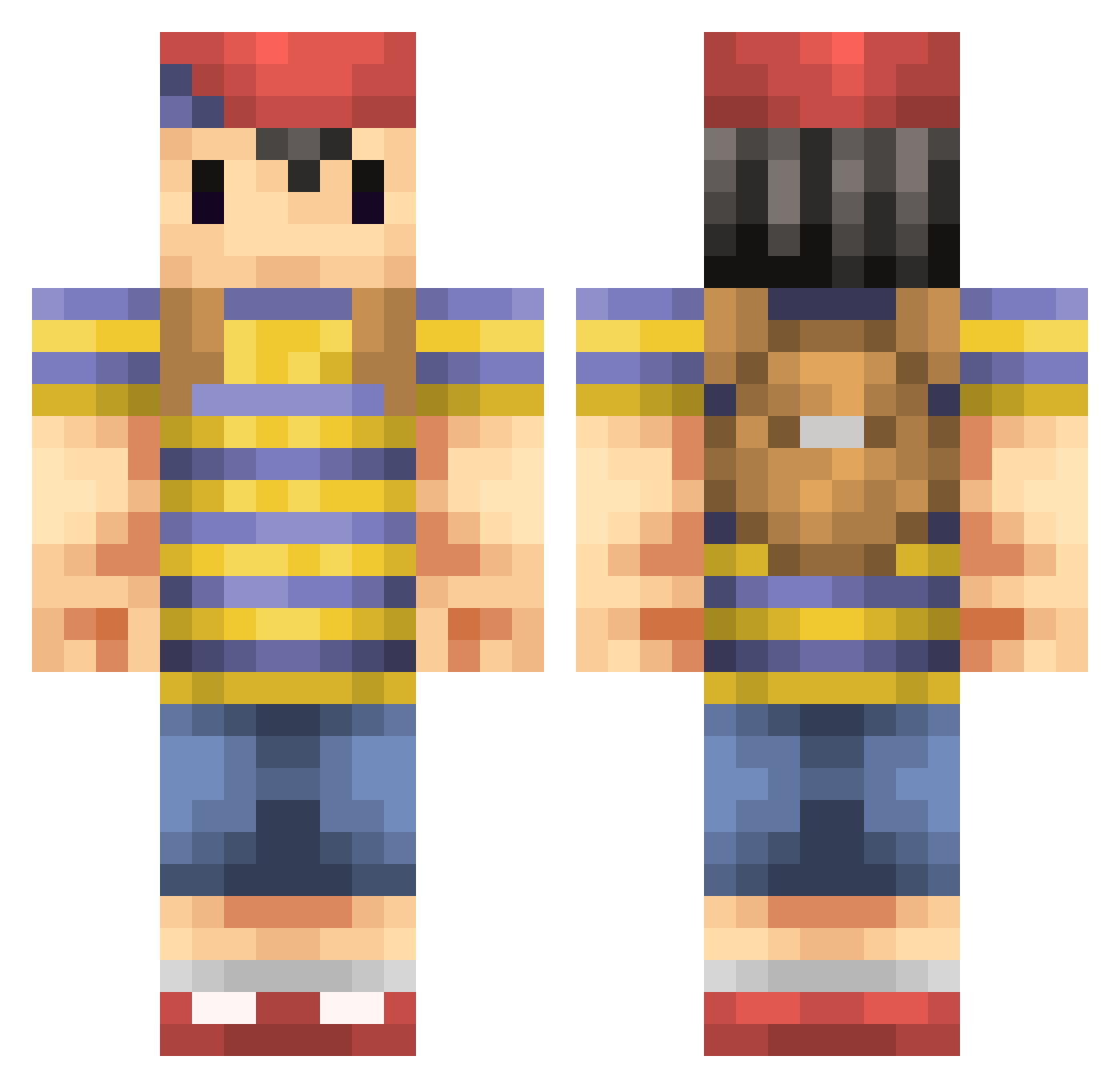
Current Minecraft skin of the player KewTea, loaded from the official Mojang API. Rotate the 3D model with your mouse or finger, then download the skin as a PNG file and use it in Minecraft: Bedrock Edition or Java Edition for free. When KewTea changes their skin, this page updates automatically and the old skin stays in the history below.
Other players with this skin (235)
KewTea was the 158th player we have seen with this skin, first spotted on 08.10.2026. The same skin was seen on these players. Open a nickname to see their current skin and skin history.
 Rabbitcode Stylz07 Glustert nettin08 kuroiruka724 mikmikeme Arkamn NASTY_BOY Mottie777 Enazdrassel MlXERY Rovelius Crafty425 LegoMyEggo kengo0225 andymatics carphreak S1LV3R_BULL3T leavanny_1948 PJNess Pilpen Lingl1ng you_neek dylanskimask 123rayman4567 Jackbarn28 CpBausone EatsGnomes ghou UncleTomNook kong58 Hazing Pandemonius Rcil Slipperfish Sandjobs SantiPistolero Benezuela Lasmoore yama1205 ElRastita BLEXVI ShadowGamerOmega AngelitoxBlack Jaeperdices advent89 shin4083 AdamM1996 LaxPlays cheverisimo t5Ace attackingguy101 ppocius Darknalful Tuque7 HazaxsPvP kani_cam Minewim Space_Sandvich babycapybara
More Smash Bros Minecraft skins
How to install the KewTea skin
- Press the Download button above to save the skin as a PNG file.
- Minecraft: Bedrock Edition (PE): open the Dressing Room from the main menu (or tap your character → Edit Character), go to Classic Skins → Owned, press the + (new skin) button, choose the downloaded PNG and pick the Classic (Steve) model. Works on PC and mobile; consoles cannot import custom skins.
- Minecraft: Java Edition: open the Minecraft Launcher, go to the Skins tab, click New Skin, load the PNG, pick the Classic (Steve) model and press Save & Use. You can also upload it at minecraft.net → Profile → Change Skin.
The skin does not show up after import - what should I do?
Restart Minecraft and open the Dressing Room again - imported skins sometimes appear only after a restart. Also make sure you selected the imported skin and picked the Classic (Steve) model.
Which model should I choose, Classic or Slim?
This skin is designed for the Classic (Steve) model. If you pick the wrong model, the arms of the skin will look stretched or squeezed.
Is the skin of KewTea free to download?
Yes. Press Download, save the PNG file and use it in Minecraft: Bedrock Edition or Java Edition - no payment or registration needed. The skin also works on multiplayer servers and Realms.
More skins
Looking for more? Go back to all Minecraft skins and check the top skins of the week, month and all time, or find any player's skin by nickname.