
Jorkey19 - Minecraft Skins & Skin History
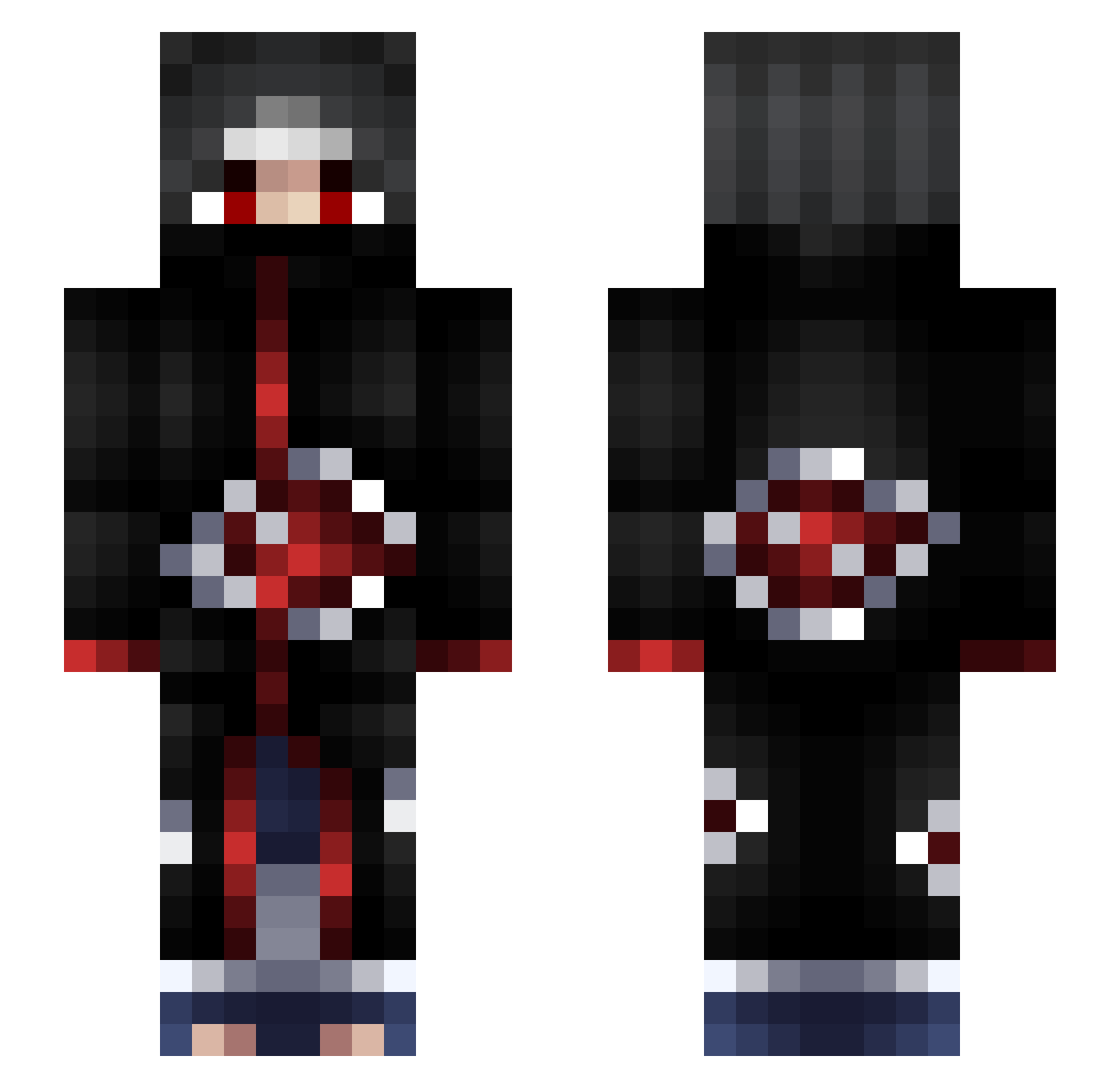
Current Minecraft skin of the player Jorkey19, loaded from the official Mojang API. Rotate the 3D model with your mouse or finger, then download the skin as a PNG file and use it in Minecraft: Bedrock Edition or Java Edition for free. When Jorkey19 changes their skin, this page updates automatically and the old skin stays in the history below.
Other players with this skin (89)
Jorkey19 was the 67th player we have seen with this skin, first spotted on 01.10.2026. The same skin was seen on these players. Open a nickname to see their current skin and skin history.
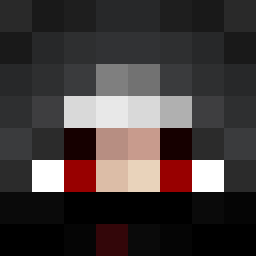 MrTrol Dark_Lurker_ Vanhga SOMUS xther0 NerfSabo Danx1120 Bob_H47 deathalonne zakairo AquaiUK KarateKoala_ Barab_ RtmxA CasparDZ2014 Perpet Inkohh Josh_ooh_argh bnRayzX Pouchy h4rrisn OneRyZeIssUp GawroszEmeryt DoinkleBergg SuperMochi29 Marin_97 PhuongDang1210VN sturmreif Jdey babyvain Mokiki2x Trinowo lene_skt Peugoto OmenBlaze SullivanE HussainOtaibi511 MambaDavid hot_abdullah AbdurRimmi xHotcakes PolarYoshi ItsCasualBob
 NoaMalka tutur72 _AnTo_RuBe_ Ferrax_10 xen77 JayHawkJRHYT Corgester
 Hirasen2000 MazoBeats gaara1601 VERSACHEEBOII Vezyuol ch4m4n CaptainM7mD DamianNooob szrt Koko_74
More Itachi Uchiha Minecraft skins
See all 311 Itachi Uchiha skins
How to install the Jorkey19 skin
- Press the Download button above to save the skin as a PNG file.
- Minecraft: Bedrock Edition (PE): open the Dressing Room from the main menu (or tap your character → Edit Character), go to Classic Skins → Owned, press the + (new skin) button, choose the downloaded PNG and pick the Slim (Alex) model. Works on PC and mobile; consoles cannot import custom skins.
- Minecraft: Java Edition: open the Minecraft Launcher, go to the Skins tab, click New Skin, load the PNG, pick the Slim (Alex) model and press Save & Use. You can also upload it at minecraft.net → Profile → Change Skin.
The skin does not show up after import - what should I do?
Restart Minecraft and open the Dressing Room again - imported skins sometimes appear only after a restart. Also make sure you selected the imported skin and picked the Slim (Alex) model.
Which model should I choose, Classic or Slim?
This skin is designed for the Slim (Alex) model. If you pick the wrong model, the arms of the skin will look stretched or squeezed.
Is the skin of Jorkey19 free to download?
Yes. Press Download, save the PNG file and use it in Minecraft: Bedrock Edition or Java Edition - no payment or registration needed. The skin also works on multiplayer servers and Realms.
More skins
Looking for more? Go back to all Minecraft skins and check the top skins of the week, month and all time, or find any player's skin by nickname.