
HeyLightzy - Minecraft Skins & Skin History
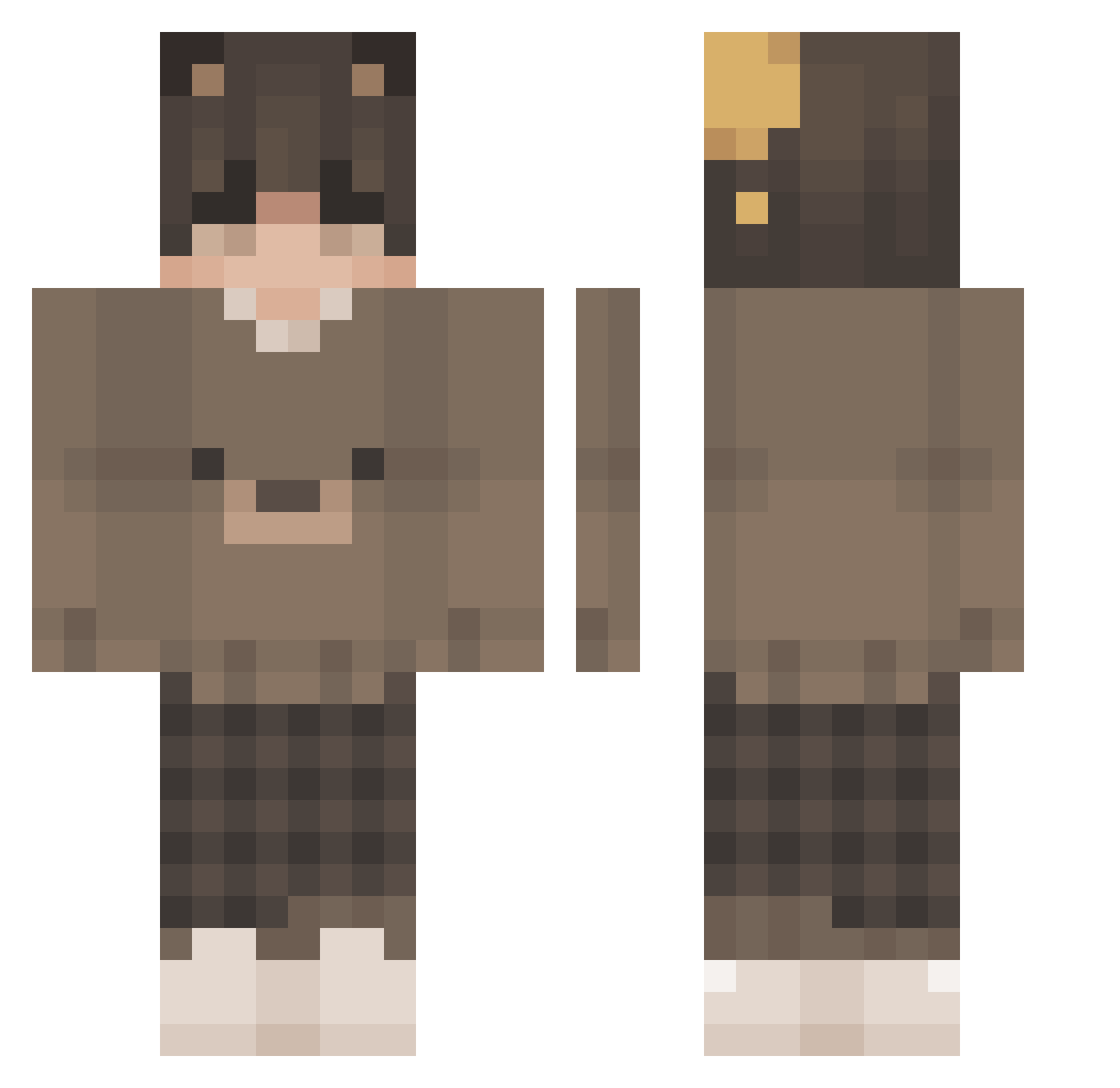
Current Minecraft skin of the player HeyLightzy, loaded from the official Mojang API. Rotate the 3D model with your mouse or finger, then download the skin as a PNG file and use it in Minecraft: Bedrock Edition or Java Edition for free. When HeyLightzy changes their skin, this page updates automatically and the old skin stays in the history below.
Other players with this skin (187)
HeyLightzy was the 145th player we have seen with this skin, first spotted on 14.10.2026. The same skin was seen on these players. Open a nickname to see their current skin and skin history.
 ItzGuzinPvP__ llilack NyxPaws cinnamon_boy101 W1nterEquinox 1Shinks1 Saturnnani Vennyy Badzinn_ Krytexs TREVOR_PAZZ0 Swizzyv LilMario05 unlethargical galaxyboy110 GoldGrizzly mango0422 lilyasny kukinoPVP Malahidael_Ignus __Thai__ Kauiyy peekha NeilBeth mathew_G faifek Chaoshppy kristofer2 MtnDew006 limonchips Thew_04 Theuzindosenai jackfr0st_ madbutstillvibin Foodu codeation1 ShenBilliams salvatofabo22 xKingXIsMex Gamjaa_ SnowySB Botzx ItzSunkkj Luckyisdead Phil187 Anxasaurous _Sh0x_ ni_se_ Katryk9 Ghostie26 Burschyy Frosty_Skyys Damssy_ Clashbad Capizinfofin Fuerza_06 DuSchmock724 goblinarmy1 VentiGamer VividHazee
Previous skins of HeyLightzy
Skins that HeyLightzy wore before, newest first. Click a skin to open its page and download it.
More Bear Ears Minecraft skins
How to install the HeyLightzy skin
- Press the Download button above to save the skin as a PNG file.
- Minecraft: Bedrock Edition (PE): open the Dressing Room from the main menu (or tap your character → Edit Character), go to Classic Skins → Owned, press the + (new skin) button, choose the downloaded PNG and pick the Classic (Steve) model. Works on PC and mobile; consoles cannot import custom skins.
- Minecraft: Java Edition: open the Minecraft Launcher, go to the Skins tab, click New Skin, load the PNG, pick the Classic (Steve) model and press Save & Use. You can also upload it at minecraft.net → Profile → Change Skin.
The skin does not show up after import - what should I do?
Restart Minecraft and open the Dressing Room again - imported skins sometimes appear only after a restart. Also make sure you selected the imported skin and picked the Classic (Steve) model.
Which model should I choose, Classic or Slim?
This skin is designed for the Classic (Steve) model. If you pick the wrong model, the arms of the skin will look stretched or squeezed.
Is the skin of HeyLightzy free to download?
Yes. Press Download, save the PNG file and use it in Minecraft: Bedrock Edition or Java Edition - no payment or registration needed. The skin also works on multiplayer servers and Realms.
More skins
Looking for more? Go back to all Minecraft skins and check the top skins of the week, month and all time, or find any player's skin by nickname.