
GeeGolly19 - Minecraft Skins & Skin History
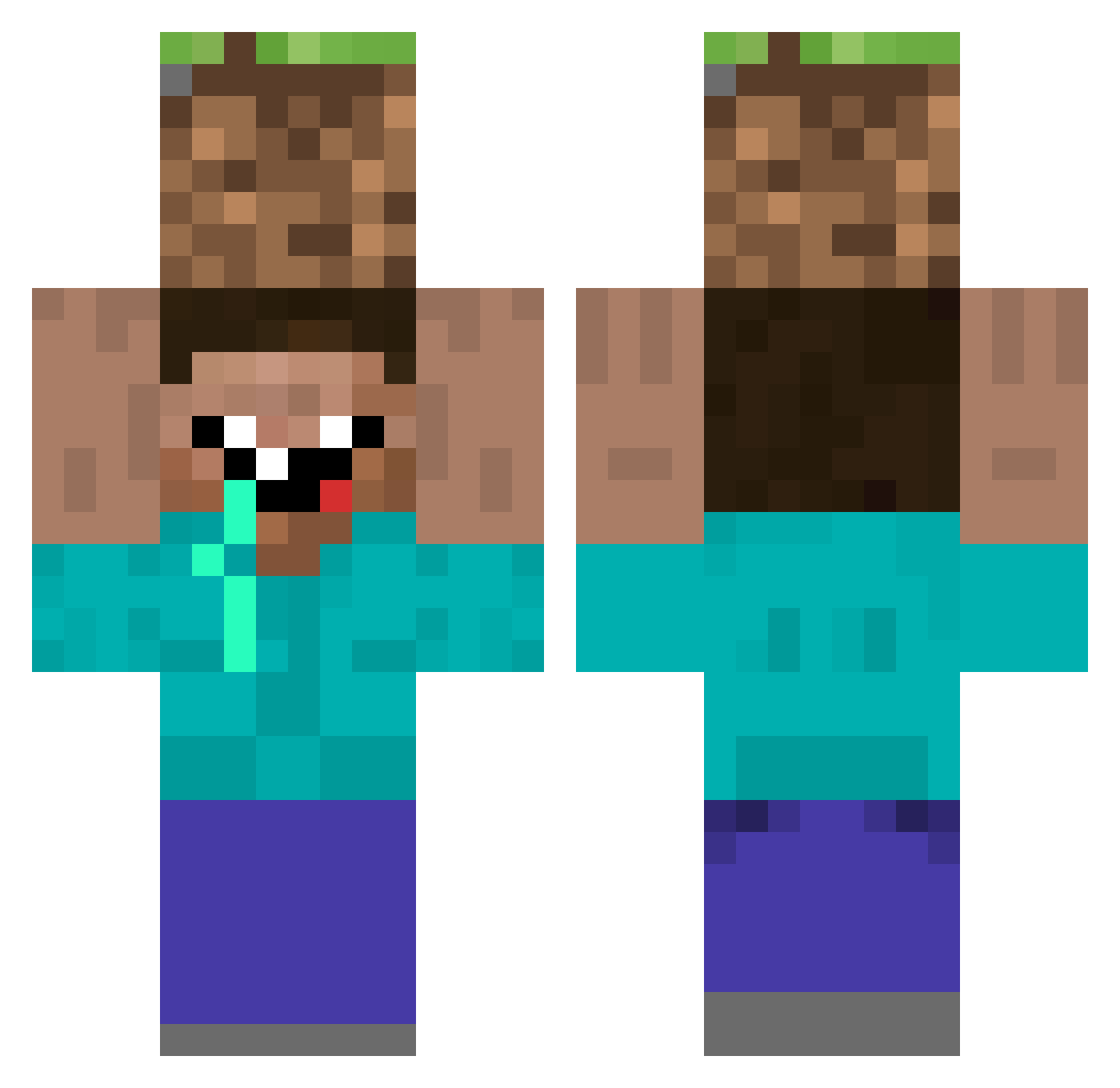
Current Minecraft skin of the player GeeGolly19, loaded from the official Mojang API. Rotate the 3D model with your mouse or finger, then download the skin as a PNG file and use it in Minecraft: Bedrock Edition or Java Edition for free. When GeeGolly19 changes their skin, this page updates automatically and the old skin stays in the history below.
Other players with this skin (307)
GeeGolly19 was the 266th player we have seen with this skin, first spotted on 18.10.2026. The same skin was seen on these players. Open a nickname to see their current skin and skin history.
 lliilliilililili Cmapbejdod Bluelord1243 Wiktoreg WooHyun_ ___Soka___ Embourgeoiser LEEHOJUN_ PotatoPassion wo1fie2007 dondiego31 IslandMonkey73 lSchottky NeBulAnoVa_ Julio0016 AmiGrooot LilBuggie Melonsoda_42 asdf1821 ImFranco42 eatmybut R4YFLOW GooseApocalypsE HOT_TKG Alex_Jones_Frogs 17kevin tychoow Xiang0__0 Brubruvador Schnupftabak69 Weseth123 angelo100pika Amynee Tanamati27 GGSnoboY_ Jinne879 Dream_ez aurudodasilva xoDarkk Tortadebuebo NavyCorpsman3 Dstar415823 Raphfly EggsKiller gogo0310 Lordcreeper12 Paypavl Kaosoiaroi kjkjsss Ridly86 laim__ Schalyyyy nerf___ Suparsloth SJfriend tahaoyunyt deusmillyvre polimo90 bodhi08 MachiKuchi
More Dirt Block Minecraft skins
How to install the GeeGolly19 skin
- Press the Download button above to save the skin as a PNG file.
- Minecraft: Bedrock Edition (PE): open the Dressing Room from the main menu (or tap your character → Edit Character), go to Classic Skins → Owned, press the + (new skin) button, choose the downloaded PNG and pick the Classic (Steve) model. Works on PC and mobile; consoles cannot import custom skins.
- Minecraft: Java Edition: open the Minecraft Launcher, go to the Skins tab, click New Skin, load the PNG, pick the Classic (Steve) model and press Save & Use. You can also upload it at minecraft.net → Profile → Change Skin.
The skin does not show up after import - what should I do?
Restart Minecraft and open the Dressing Room again - imported skins sometimes appear only after a restart. Also make sure you selected the imported skin and picked the Classic (Steve) model.
Which model should I choose, Classic or Slim?
This skin is designed for the Classic (Steve) model. If you pick the wrong model, the arms of the skin will look stretched or squeezed.
Is the skin of GeeGolly19 free to download?
Yes. Press Download, save the PNG file and use it in Minecraft: Bedrock Edition or Java Edition - no payment or registration needed. The skin also works on multiplayer servers and Realms.
More skins
Looking for more? Go back to all Minecraft skins and check the top skins of the week, month and all time, or find any player's skin by nickname.