
korex9 - Minecraft Skins & Skin History
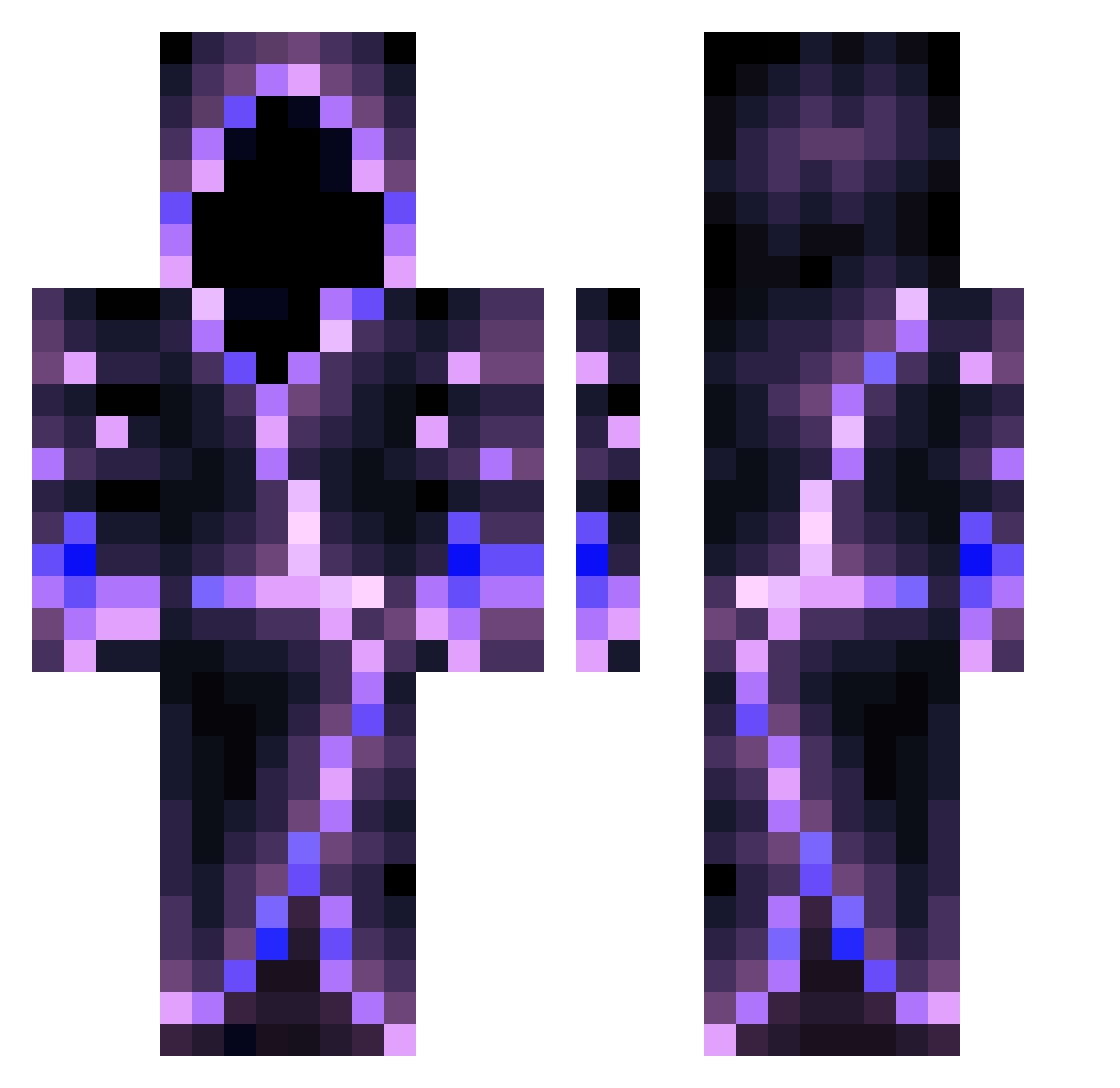
Current Minecraft skin of the player korex9, loaded from the official Mojang API. Rotate the 3D model with your mouse or finger, then download the skin as a PNG file and use it in Minecraft: Bedrock Edition or Java Edition for free. When korex9 changes their skin, this page updates automatically and the old skin stays in the history below.
Other players with this skin (491)
korex9 was the 459th player we have seen with this skin, first spotted on 15.10.2026. The same skin was seen on these players. Open a nickname to see their current skin and skin history.
 ShadowShawny117 wilber39 HazyOG Builder2008 Marlin31 mathieu25z Slayer1238 TP_Magus LMuRain V1n100 Retro_Ant Proxgamerpro sonicandgoku2 Jleak14 Gzor223 Margithefellomen Leonardovettore TroubleMaker4F LiterallyVibz ImMiillyy xZaDi_05 Kraken14354 Bragio01 LOGANOOO_2345 ICanAxeU ARLEQUIN994 Potion_of_Frost IronChaos_35 Iron_Lynx157 iamgorkemer notn3rT Tobiee15 CptTyFighter2009 papapeye SrPavel Horserider69 Superior_Donkey airoine SilentArrow28 GalaxyHack_ demiskp MaltheSA WIEBEL246 Darkytin69 leviatan701 SumTingDifferent PinkStreet1 Plugzap Squiggles017 xero_lifes JysusGR lntriguing Trapzsixpath The_Alchemyst RubyGlo0m Meandmypizza WarhammerMZ NoRealThanUR RaidenRevengers ShaKav_Gaming
More Hooded Figure Minecraft skins
See all 1103 Hooded Figure skins
How to install the korex9 skin
- Press the Download button above to save the skin as a PNG file.
- Minecraft: Bedrock Edition (PE): open the Dressing Room from the main menu (or tap your character → Edit Character), go to Classic Skins → Owned, press the + (new skin) button, choose the downloaded PNG and pick the Classic (Steve) model. Works on PC and mobile; consoles cannot import custom skins.
- Minecraft: Java Edition: open the Minecraft Launcher, go to the Skins tab, click New Skin, load the PNG, pick the Classic (Steve) model and press Save & Use. You can also upload it at minecraft.net → Profile → Change Skin.
The skin does not show up after import - what should I do?
Restart Minecraft and open the Dressing Room again - imported skins sometimes appear only after a restart. Also make sure you selected the imported skin and picked the Classic (Steve) model.
Which model should I choose, Classic or Slim?
This skin is designed for the Classic (Steve) model. If you pick the wrong model, the arms of the skin will look stretched or squeezed.
Is the skin of korex9 free to download?
Yes. Press Download, save the PNG file and use it in Minecraft: Bedrock Edition or Java Edition - no payment or registration needed. The skin also works on multiplayer servers and Realms.
More skins
Looking for more? Go back to all Minecraft skins and check the top skins of the week, month and all time, or find any player's skin by nickname.