
Yingzinho - Minecraft Skins & Skin History
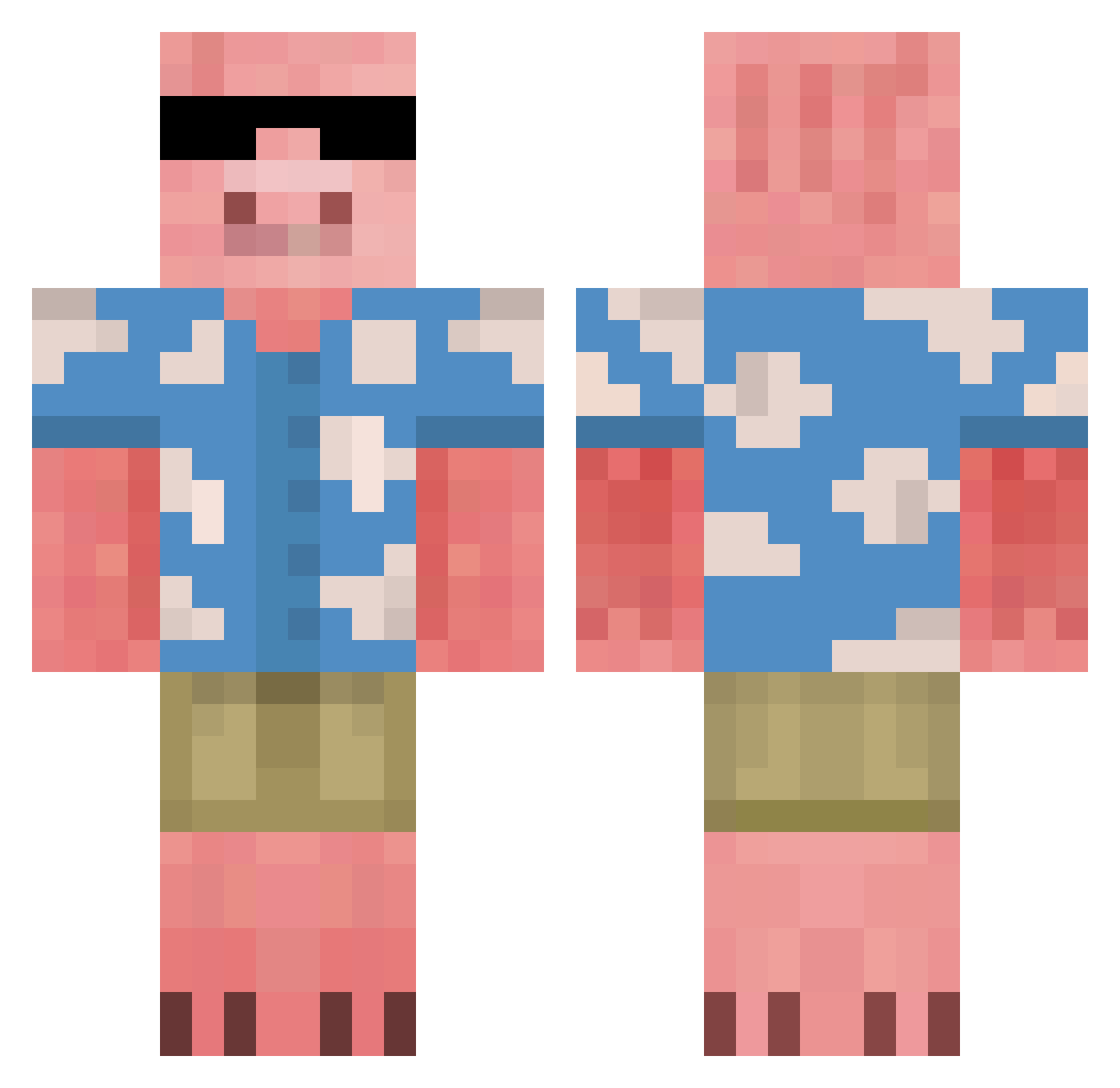
Current Minecraft skin of the player Yingzinho, loaded from the official Mojang API. Rotate the 3D model with your mouse or finger, then download the skin as a PNG file and use it in Minecraft: Bedrock Edition or Java Edition for free. When Yingzinho changes their skin, this page updates automatically and the old skin stays in the history below.
Other players with this skin (675)
Yingzinho was the 625th player we have seen with this skin, first spotted on 25.10.2026. The same skin was seen on these players. Open a nickname to see their current skin and skin history.
 notserp4738 kiinekii enzol2000 felipepilo Slowwiiiii holo44 LiuRoy CoffeeOverlord pawlardo Johnny2812 Eloc_99 CamDog_AS GxPlayzz MonkeyPig23 MonkeyMika2010 emmi267 Domi2827 XiHenry18 gabikun10 ReyJohn16 AjiNoMen multamuna222 r7x90 LeFries37 LaRucaLoca BOBTINGYI Lixun0202 TaysonAte NokZen _FLxx_ KREJBERG Axyz558 MercedesCL_500 kawamotoT minbrothers GratedOrca50532 Zooweemamaq MarioGames21 Horot Sponsorrrrrrr ohjay123 luke2095 sssynq beike233 zwozwo_1 Melonade101 carlosmikei FirstNameJan Majusia77 Klaniasty Jacob8807 JhinerallyConMan JaJake7 Andreas_sfc200 flibdev vectem74 brycesangricco PaulaufLock SintoSuaFalta Ilyesdu62
More Piglin Minecraft skins
How to install the Yingzinho skin
- Press the Download button above to save the skin as a PNG file.
- Minecraft: Bedrock Edition (PE): open the Dressing Room from the main menu (or tap your character → Edit Character), go to Classic Skins → Owned, press the + (new skin) button, choose the downloaded PNG and pick the Classic (Steve) model. Works on PC and mobile; consoles cannot import custom skins.
- Minecraft: Java Edition: open the Minecraft Launcher, go to the Skins tab, click New Skin, load the PNG, pick the Classic (Steve) model and press Save & Use. You can also upload it at minecraft.net → Profile → Change Skin.
The skin does not show up after import - what should I do?
Restart Minecraft and open the Dressing Room again - imported skins sometimes appear only after a restart. Also make sure you selected the imported skin and picked the Classic (Steve) model.
Which model should I choose, Classic or Slim?
This skin is designed for the Classic (Steve) model. If you pick the wrong model, the arms of the skin will look stretched or squeezed.
Is the skin of Yingzinho free to download?
Yes. Press Download, save the PNG file and use it in Minecraft: Bedrock Edition or Java Edition - no payment or registration needed. The skin also works on multiplayer servers and Realms.
More skins
Looking for more? Go back to all Minecraft skins and check the top skins of the week, month and all time, or find any player's skin by nickname.