
Xenopicker - Minecraft Skins & Skin History
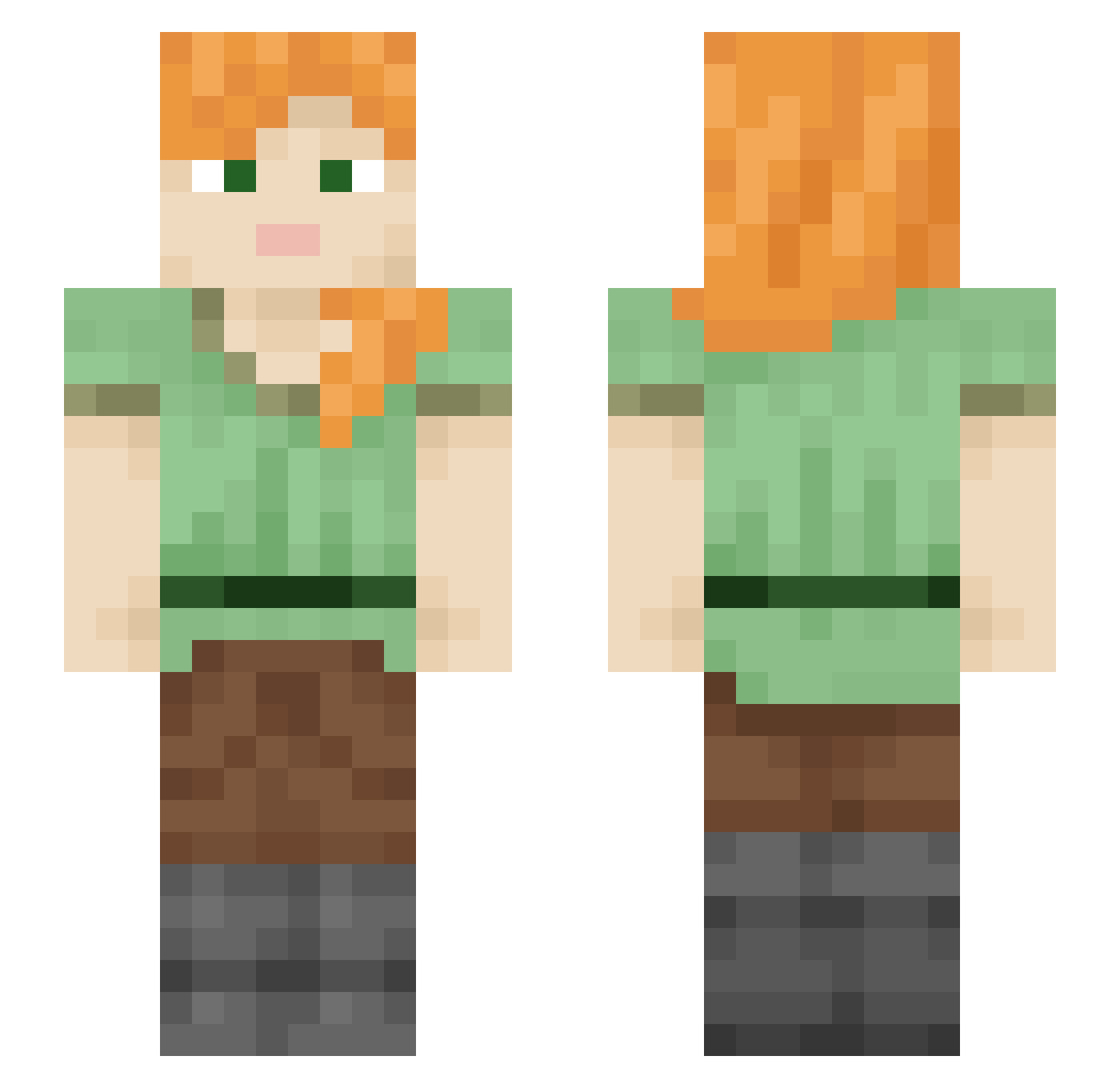
Current Minecraft skin of the player Xenopicker, loaded from the official Mojang API. Rotate the 3D model with your mouse or finger, then download the skin as a PNG file and use it in Minecraft: Bedrock Edition or Java Edition for free. When Xenopicker changes their skin, this page updates automatically and the old skin stays in the history below.
Other players with this skin (2371)
Xenopicker was the 2190th player we have seen with this skin, first spotted on 05.11.2026. The same skin was seen on these players. Open a nickname to see their current skin and skin history.
 HYX0917 kendalMT FabioGrosso2006 RAZEES KyRaMi maxack NotReallyAdi Lorax Leopepardu wazapcornet WANGCHENGYONG ARI3S THARF Trickled lowtest beggars mollah Deusvod Trollking76 Kanbercan Varidex nyarlahotep SoerenF computerdisc JessesGoodGirl Tonkin grandfatherH Mewnoa Hetake_Reshke TheUlka_ Alimuhammad Nacharbeiter ImMarshy BaconxD Wini Uli_Sim Princessly alunjung obliviousfool Thor_kiddo33 xmas1224 Alexrzp 415matdaii pudda Gandy_666 Haaatch Kwon_il garrsto candlebeam Dimetrodon ateles hexose Expired_mango BigShlappy DoodleNoodleGuy paularaja Vijore_13 Mucorales SUDO__ genetrix
How to install the Xenopicker skin
- Press the Download button above to save the skin as a PNG file.
- Minecraft: Bedrock Edition (PE): open the Dressing Room from the main menu (or tap your character → Edit Character), go to Classic Skins → Owned, press the + (new skin) button, choose the downloaded PNG and pick the Slim (Alex) model. Works on PC and mobile; consoles cannot import custom skins.
- Minecraft: Java Edition: open the Minecraft Launcher, go to the Skins tab, click New Skin, load the PNG, pick the Slim (Alex) model and press Save & Use. You can also upload it at minecraft.net → Profile → Change Skin.
The skin does not show up after import - what should I do?
Restart Minecraft and open the Dressing Room again - imported skins sometimes appear only after a restart. Also make sure you selected the imported skin and picked the Slim (Alex) model.
Which model should I choose, Classic or Slim?
This skin is designed for the Slim (Alex) model. If you pick the wrong model, the arms of the skin will look stretched or squeezed.
Is the skin of Xenopicker free to download?
Yes. Press Download, save the PNG file and use it in Minecraft: Bedrock Edition or Java Edition - no payment or registration needed. The skin also works on multiplayer servers and Realms.
More skins
Looking for more? Go back to all Minecraft skins and check the top skins of the week, month and all time, or find any player's skin by nickname.