
SilverGx20 - Minecraft Skins & Skin History
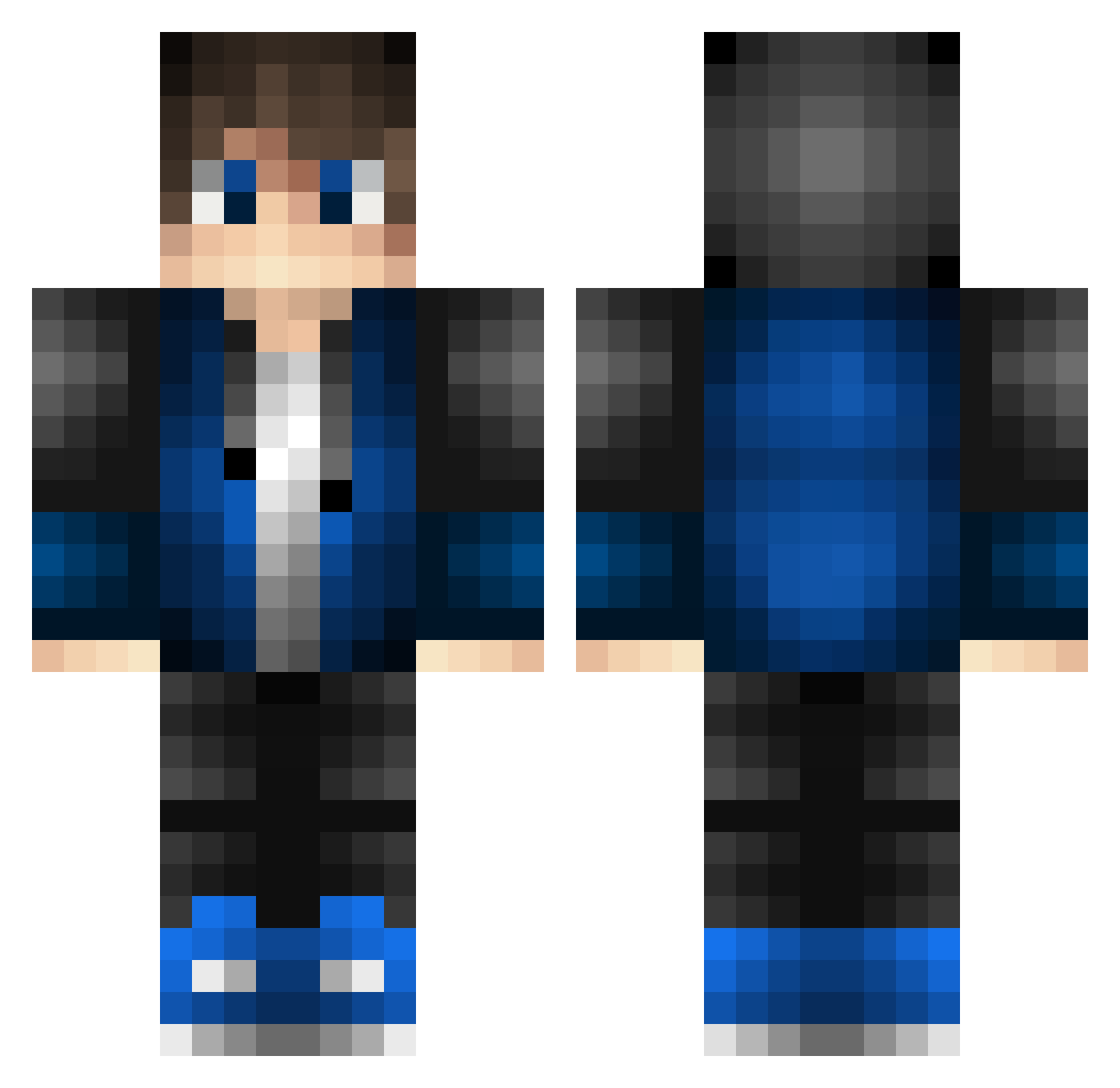
Current Minecraft skin of the player SilverGx20, loaded from the official Mojang API. Rotate the 3D model with your mouse or finger, then download the skin as a PNG file and use it in Minecraft: Bedrock Edition or Java Edition for free. When SilverGx20 changes their skin, this page updates automatically and the old skin stays in the history below.
Other players with this skin (528)
SilverGx20 was the 370th player we have seen with this skin, first spotted on 09.10.2026. The same skin was seen on these players. Open a nickname to see their current skin and skin history.
 UndefinedCloud Mindfulmax lemondaroids neruden1113 Alister2309 vivava00 ImDilandroid Small_bear1 GregoMC anl4234 JaumRuff xzudemimino yuu6150 Alvarolmlm Luki1810 Dagobertduck21 AcrelixMaster135 ZeyShy MULU2021 Matty997 BennyGabon wlroldan KA_AFC_16_pLaYs CrazyBunny2313 Jackattack08_2 HongdouCc Domz404 Morecrafter_ weilor__ DannyTekk23 GXLH Bombic3 Commando565 ShadowKiller099 Nocturner mitsuan0823 Scrambu MidoriTora_ Floofy82 rampagejr0312 Tactical_Sl0th wojo514 Senji___ destructeurr EpsilonWolf7 Samuel_Yuan Mr_Splinter92 SimoRoma99 KalebMC7113 Asazin2200 Teothepotato MCPEDavid50 Lepuluche TEEEEEPURAA SYXShadows Mastraus jeemin1317 Flourisheng kilionline _CrafterLP
How to install the SilverGx20 skin
- Press the Download button above to save the skin as a PNG file.
- Minecraft: Bedrock Edition (PE): open the Dressing Room from the main menu (or tap your character → Edit Character), go to Classic Skins → Owned, press the + (new skin) button, choose the downloaded PNG and pick the Classic (Steve) model. Works on PC and mobile; consoles cannot import custom skins.
- Minecraft: Java Edition: open the Minecraft Launcher, go to the Skins tab, click New Skin, load the PNG, pick the Classic (Steve) model and press Save & Use. You can also upload it at minecraft.net → Profile → Change Skin.
The skin does not show up after import - what should I do?
Restart Minecraft and open the Dressing Room again - imported skins sometimes appear only after a restart. Also make sure you selected the imported skin and picked the Classic (Steve) model.
Which model should I choose, Classic or Slim?
This skin is designed for the Classic (Steve) model. If you pick the wrong model, the arms of the skin will look stretched or squeezed.
Is the skin of SilverGx20 free to download?
Yes. Press Download, save the PNG file and use it in Minecraft: Bedrock Edition or Java Edition - no payment or registration needed. The skin also works on multiplayer servers and Realms.
More skins
Looking for more? Go back to all Minecraft skins and check the top skins of the week, month and all time, or find any player's skin by nickname.