
Prepy20 - Minecraft Skins & Skin History
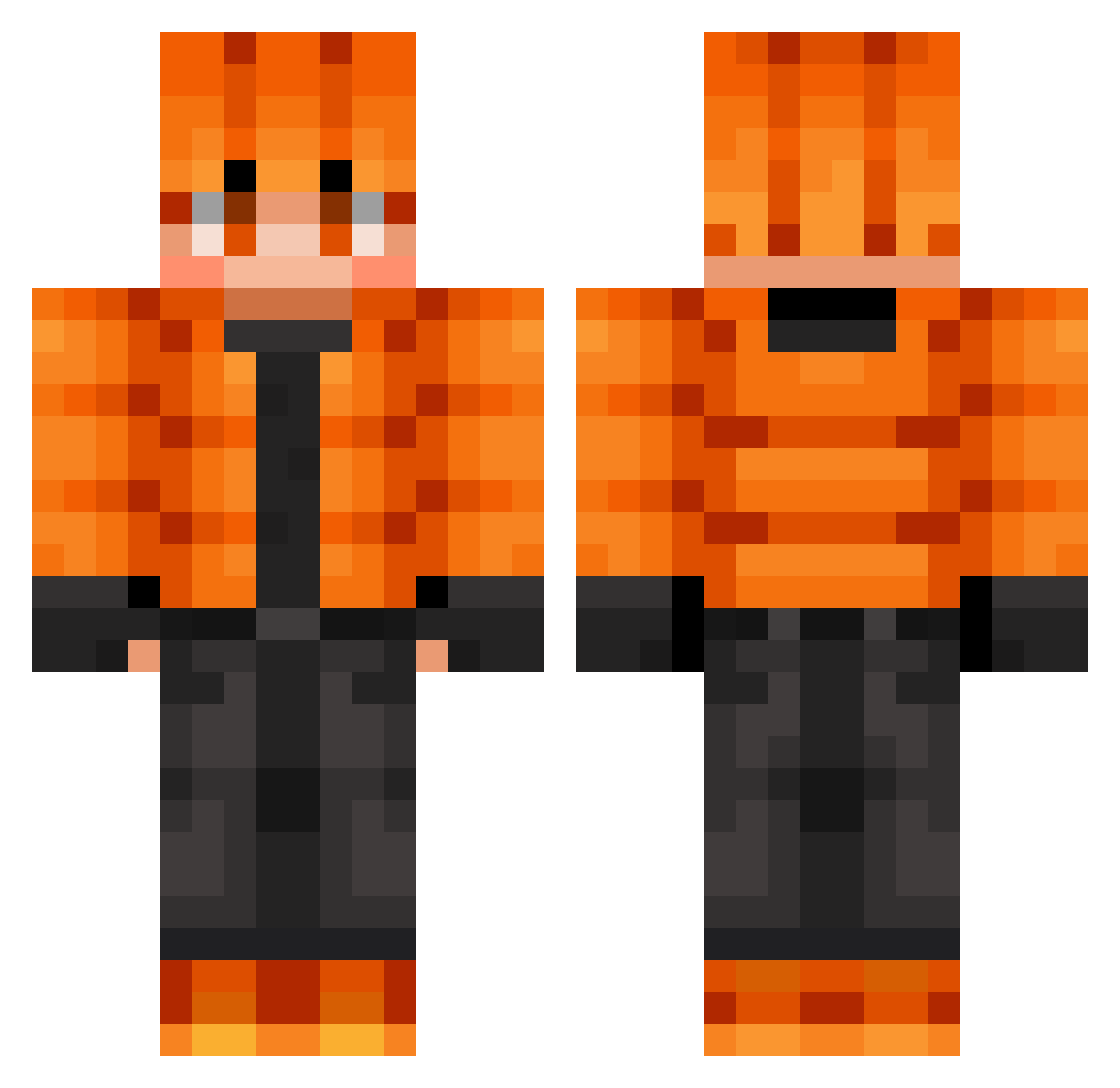
Current Minecraft skin of the player Prepy20, loaded from the official Mojang API. Rotate the 3D model with your mouse or finger, then download the skin as a PNG file and use it in Minecraft: Bedrock Edition or Java Edition for free. When Prepy20 changes their skin, this page updates automatically and the old skin stays in the history below.
Other players with this skin (867)
Prepy20 was the 826th player we have seen with this skin, first spotted on 14.11.2026. The same skin was seen on these players. Open a nickname to see their current skin and skin history.
 Salvasp15 blueonly George9339 RaelxD eggomylego L_Margo CEVERBAL K_ADDY ABEL2012 Martilu3108 LucieFlowers SAF_Shade Tailz07 KraBik987 Alex11238 messici31 Volkeyn17 Doudou2311 9I0I bright099 kekshoOo MechanicBeast62 mozr09 tijo67 MythcCc NateBatman DrgnBrnBacon Shadeslayer2040 Louuta StarEclipseDaCat CloudJr9 UmbraSociety Gravas watergod9634 michal17 WhiteItem daityan0313 Gerfnut WHK1 TheMeszaros ivan685 sacha76660 Bringbring13 hyeonbin151205 noobgod1234e Arslan8148 Beca666 Prakit davs1221 martin1234XD Milan57970 PiropIa Filip12299 TheSniper1918 CraftyBen2047 aRedMisFit DarkVolition Yukisonji jasonCoop Millardm_
How to install the Prepy20 skin
- Press the Download button above to save the skin as a PNG file.
- Minecraft: Bedrock Edition (PE): open the Dressing Room from the main menu (or tap your character → Edit Character), go to Classic Skins → Owned, press the + (new skin) button, choose the downloaded PNG and pick the Classic (Steve) model. Works on PC and mobile; consoles cannot import custom skins.
- Minecraft: Java Edition: open the Minecraft Launcher, go to the Skins tab, click New Skin, load the PNG, pick the Classic (Steve) model and press Save & Use. You can also upload it at minecraft.net → Profile → Change Skin.
The skin does not show up after import - what should I do?
Restart Minecraft and open the Dressing Room again - imported skins sometimes appear only after a restart. Also make sure you selected the imported skin and picked the Classic (Steve) model.
Which model should I choose, Classic or Slim?
This skin is designed for the Classic (Steve) model. If you pick the wrong model, the arms of the skin will look stretched or squeezed.
Is the skin of Prepy20 free to download?
Yes. Press Download, save the PNG file and use it in Minecraft: Bedrock Edition or Java Edition - no payment or registration needed. The skin also works on multiplayer servers and Realms.
More skins
Looking for more? Go back to all Minecraft skins and check the top skins of the week, month and all time, or find any player's skin by nickname.