
PheonixKnight15 - Minecraft Skins & Skin History
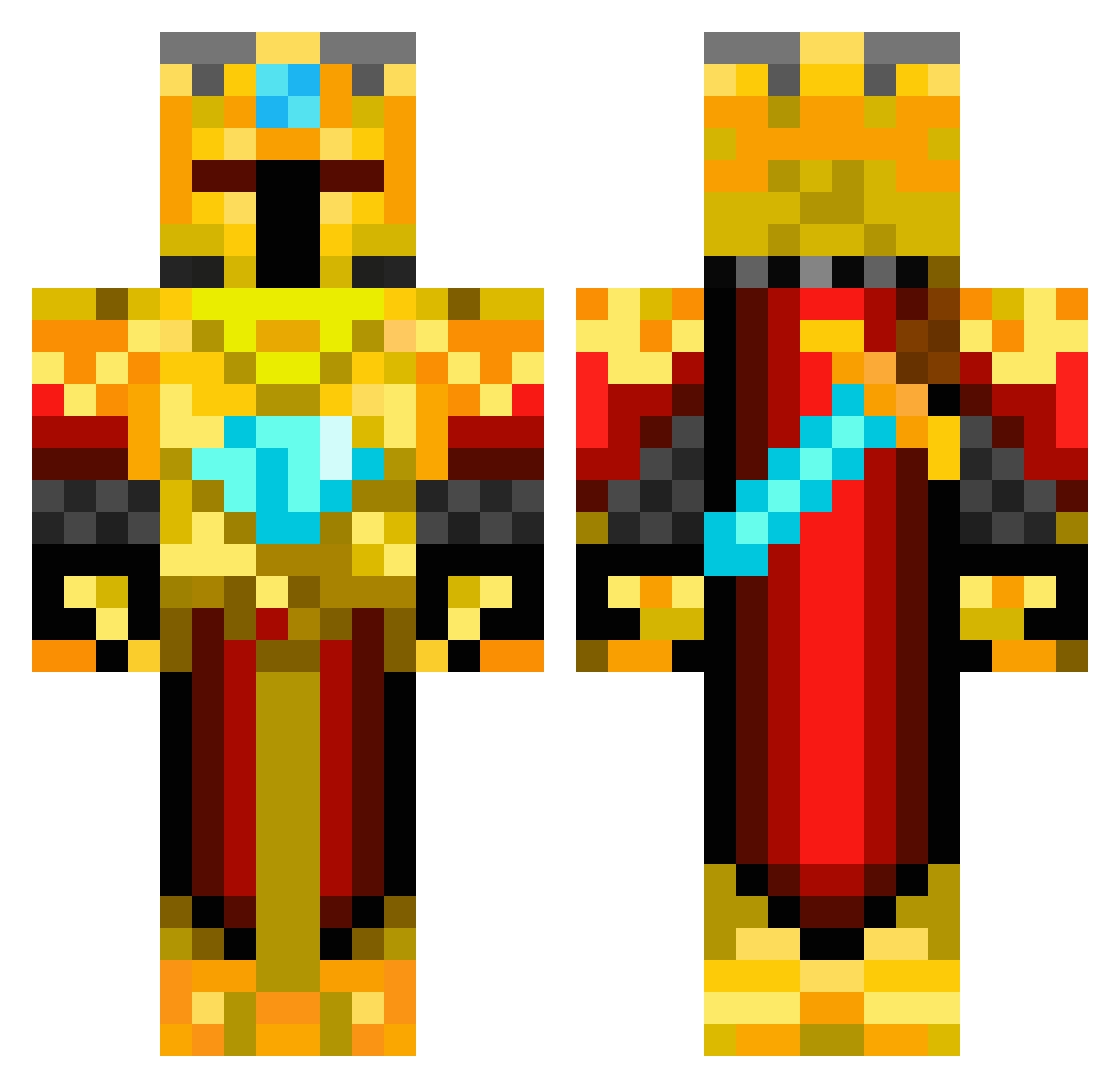
Current Minecraft skin of the player PheonixKnight15, loaded from the official Mojang API. Rotate the 3D model with your mouse or finger, then download the skin as a PNG file and use it in Minecraft: Bedrock Edition or Java Edition for free. When PheonixKnight15 changes their skin, this page updates automatically and the old skin stays in the history below.
Other players with this skin (419)
PheonixKnight15 was the 118th player we have seen with this skin, first spotted on 22.08.2026. The same skin was seen on these players. Open a nickname to see their current skin and skin history.
 Barca_man El_Daki Baasdami chrisholl123 Brought kingmasonjr demoniclama BoberOB DJ_Chante Kotstullenlothar the_joepp GeoTheGOAT YomenT Gvmsky snipershot17 Noeltree Streiter2424 TonioG04 allanacevedo LacedUpJayRuss thespyjack crazydude123 benten12345 Ridistrin Imperator_24 MarcoOnel Kelanth Szymkoza djc16 pinkspencercat ank122004 PizzaBob1114 Halodog123 BellumHeros plingpling Dragonbolt4 reymystyrio16 BusyB33 Maattyy99 worthys11 hope92698 Freakskills Chokboy10 RogetMT RetahdedCrobahhh Henderman22 Carloss23 ThorsMittens Hopiefor Konriking MrFaCe01 Shock00 DaBoss90 GoldenCubix WarpDragon0 Minizinny Kleinertoy ItsTacozPvP thebutterpolice Gajez
More Golden Armor Minecraft skins
See all 170 Golden Armor skins
How to install the PheonixKnight15 skin
- Press the Download button above to save the skin as a PNG file.
- Minecraft: Bedrock Edition (PE): open the Dressing Room from the main menu (or tap your character → Edit Character), go to Classic Skins → Owned, press the + (new skin) button, choose the downloaded PNG and pick the Classic (Steve) model. Works on PC and mobile; consoles cannot import custom skins.
- Minecraft: Java Edition: open the Minecraft Launcher, go to the Skins tab, click New Skin, load the PNG, pick the Classic (Steve) model and press Save & Use. You can also upload it at minecraft.net → Profile → Change Skin.
The skin does not show up after import - what should I do?
Restart Minecraft and open the Dressing Room again - imported skins sometimes appear only after a restart. Also make sure you selected the imported skin and picked the Classic (Steve) model.
Which model should I choose, Classic or Slim?
This skin is designed for the Classic (Steve) model. If you pick the wrong model, the arms of the skin will look stretched or squeezed.
Is the skin of PheonixKnight15 free to download?
Yes. Press Download, save the PNG file and use it in Minecraft: Bedrock Edition or Java Edition - no payment or registration needed. The skin also works on multiplayer servers and Realms.
More skins
Looking for more? Go back to all Minecraft skins and check the top skins of the week, month and all time, or find any player's skin by nickname.