
Ph0enix99 - Minecraft Skins & Skin History
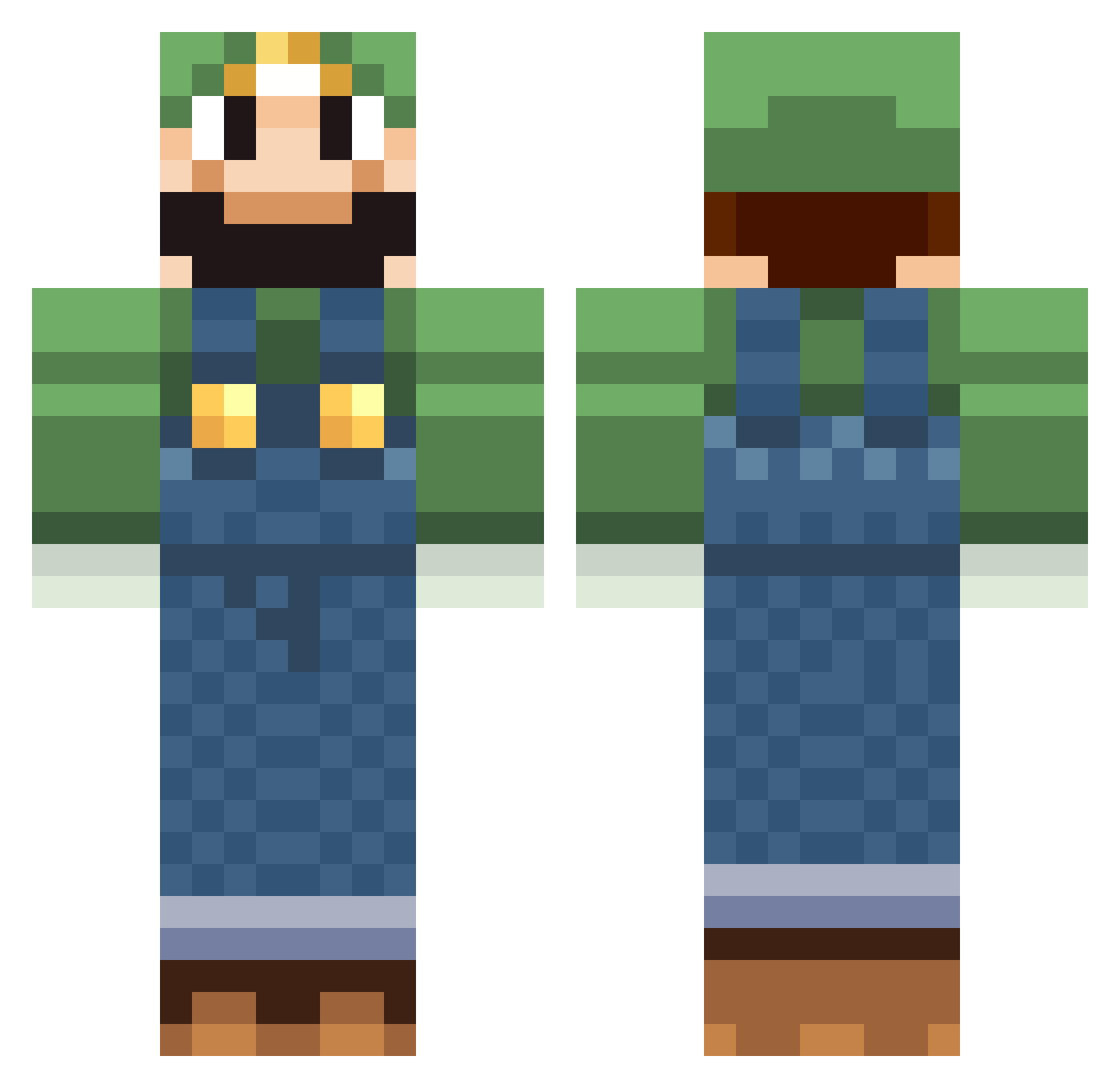
Current Minecraft skin of the player Ph0enix99, loaded from the official Mojang API. Rotate the 3D model with your mouse or finger, then download the skin as a PNG file and use it in Minecraft: Bedrock Edition or Java Edition for free. When Ph0enix99 changes their skin, this page updates automatically and the old skin stays in the history below.
Other players with this skin (518)
Ph0enix99 was the 476th player we have seen with this skin, first spotted on 24.10.2026. The same skin was seen on these players. Open a nickname to see their current skin and skin history.
 john447429 TvManPwns lightshadow123 billyds alessmadoka skopey DonLuigi54 OGLuigi robotichydra BenTube200 Brunsie gumdealer328 jakeypoo43 CouchWombat Strominik Heavenly_Buster SteveTheGuy1613 Rhynselias Recas95 lando4321 AustinWingert frankiehamster IsGubben skum64 JoeyBDL Flying_Bat Jacob_Simon Jbordz Jag5473 NicV402 ScaryStickMan rookiesniper AlexStach TwoTouKen BrandontheWise loyduss Yutasa FrankBoy1 adventurer_matt goergeprof X7lol RacoonWolf arbolito WilkoLindemann Sparky4543 alecerullo RyanandRex xmaself peepster ToadandPie SpectacularPwn PyroShoots 4licia YumCreamPie Murray_Lad Bludseeker Pitale flysxh Mineworld20 Kushcommander
More Luigi Minecraft skins
How to install the Ph0enix99 skin
- Press the Download button above to save the skin as a PNG file.
- Minecraft: Bedrock Edition (PE): open the Dressing Room from the main menu (or tap your character → Edit Character), go to Classic Skins → Owned, press the + (new skin) button, choose the downloaded PNG and pick the Classic (Steve) model. Works on PC and mobile; consoles cannot import custom skins.
- Minecraft: Java Edition: open the Minecraft Launcher, go to the Skins tab, click New Skin, load the PNG, pick the Classic (Steve) model and press Save & Use. You can also upload it at minecraft.net → Profile → Change Skin.
The skin does not show up after import - what should I do?
Restart Minecraft and open the Dressing Room again - imported skins sometimes appear only after a restart. Also make sure you selected the imported skin and picked the Classic (Steve) model.
Which model should I choose, Classic or Slim?
This skin is designed for the Classic (Steve) model. If you pick the wrong model, the arms of the skin will look stretched or squeezed.
Is the skin of Ph0enix99 free to download?
Yes. Press Download, save the PNG file and use it in Minecraft: Bedrock Edition or Java Edition - no payment or registration needed. The skin also works on multiplayer servers and Realms.
More skins
Looking for more? Go back to all Minecraft skins and check the top skins of the week, month and all time, or find any player's skin by nickname.