
OrangeeGeek - Minecraft Skins & Skin History
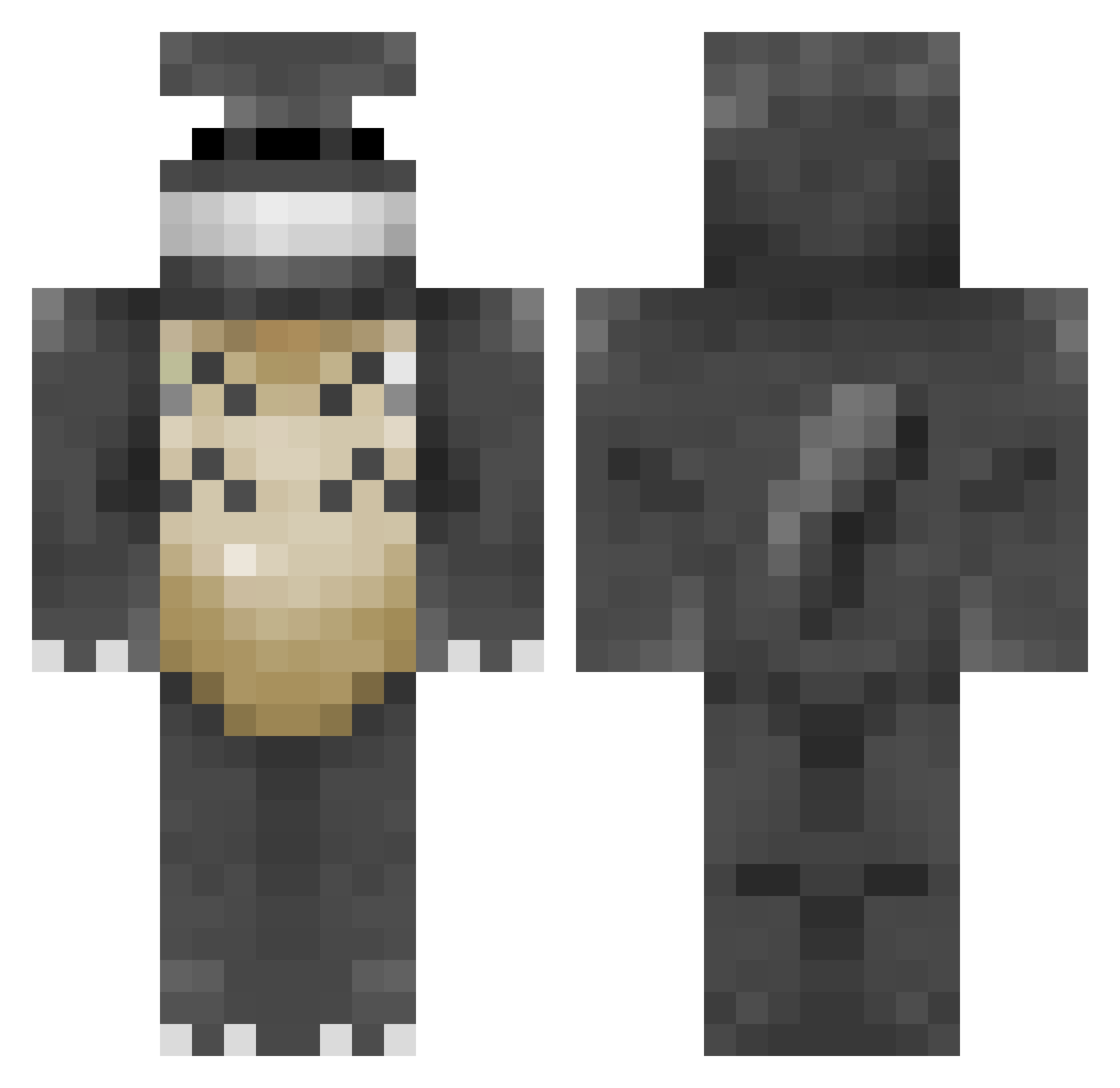
Current Minecraft skin of the player OrangeeGeek, loaded from the official Mojang API. Rotate the 3D model with your mouse or finger, then download the skin as a PNG file and use it in Minecraft: Bedrock Edition or Java Edition for free. When OrangeeGeek changes their skin, this page updates automatically and the old skin stays in the history below.
Other players with this skin (115)
OrangeeGeek was the 100th player we have seen with this skin, first spotted on 21.10.2026. The same skin was seen on these players. Open a nickname to see their current skin and skin history.
 Jenni87 dingohopper1 KimIsNotHere Jonny748 NiceMarmot TheAntisocial ShyGuy495 UserCL501 ptrakuzan Fersitoislas TotoroPog navieseal PieAnimal Elliot955 Fowlski77 ThinkAboutt killr1234567 Daikoro22 CaptainhSpook Relax2333 jugerzr hotnuts26 Steam_Shadow78 POULEEE MightBeTotoro jubtron Tayrrito lnvvan Sejemikkel ChocoMACCHIATO Skit1z GabriMaxYT GandalfTheGrayt byeongshinsekki1 stardragon91 Emeraldnickel lunev19 Silentnighto Helioblight Ibelongtolevi qsfehn AndrewBePositive Milperi Nanquil Ffshzz tjark200701 laurens1325 MisterCryptid madulas randomgamer125 Gl1tch0v0 duggrave Aangbuzz DIOGOCALISTO Totorooo777 I_want_to_swoop_ RedSaltBossman KyleMCV kitewo_0 BERMTHEO
More My Neighbor Totoro Minecraft skins
See all 18 My Neighbor Totoro skins
How to install the OrangeeGeek skin
- Press the Download button above to save the skin as a PNG file.
- Minecraft: Bedrock Edition (PE): open the Dressing Room from the main menu (or tap your character → Edit Character), go to Classic Skins → Owned, press the + (new skin) button, choose the downloaded PNG and pick the Classic (Steve) model. Works on PC and mobile; consoles cannot import custom skins.
- Minecraft: Java Edition: open the Minecraft Launcher, go to the Skins tab, click New Skin, load the PNG, pick the Classic (Steve) model and press Save & Use. You can also upload it at minecraft.net → Profile → Change Skin.
The skin does not show up after import - what should I do?
Restart Minecraft and open the Dressing Room again - imported skins sometimes appear only after a restart. Also make sure you selected the imported skin and picked the Classic (Steve) model.
Which model should I choose, Classic or Slim?
This skin is designed for the Classic (Steve) model. If you pick the wrong model, the arms of the skin will look stretched or squeezed.
Is the skin of OrangeeGeek free to download?
Yes. Press Download, save the PNG file and use it in Minecraft: Bedrock Edition or Java Edition - no payment or registration needed. The skin also works on multiplayer servers and Realms.
More skins
Looking for more? Go back to all Minecraft skins and check the top skins of the week, month and all time, or find any player's skin by nickname.