
HooperBhai - Minecraft Skins & Skin History
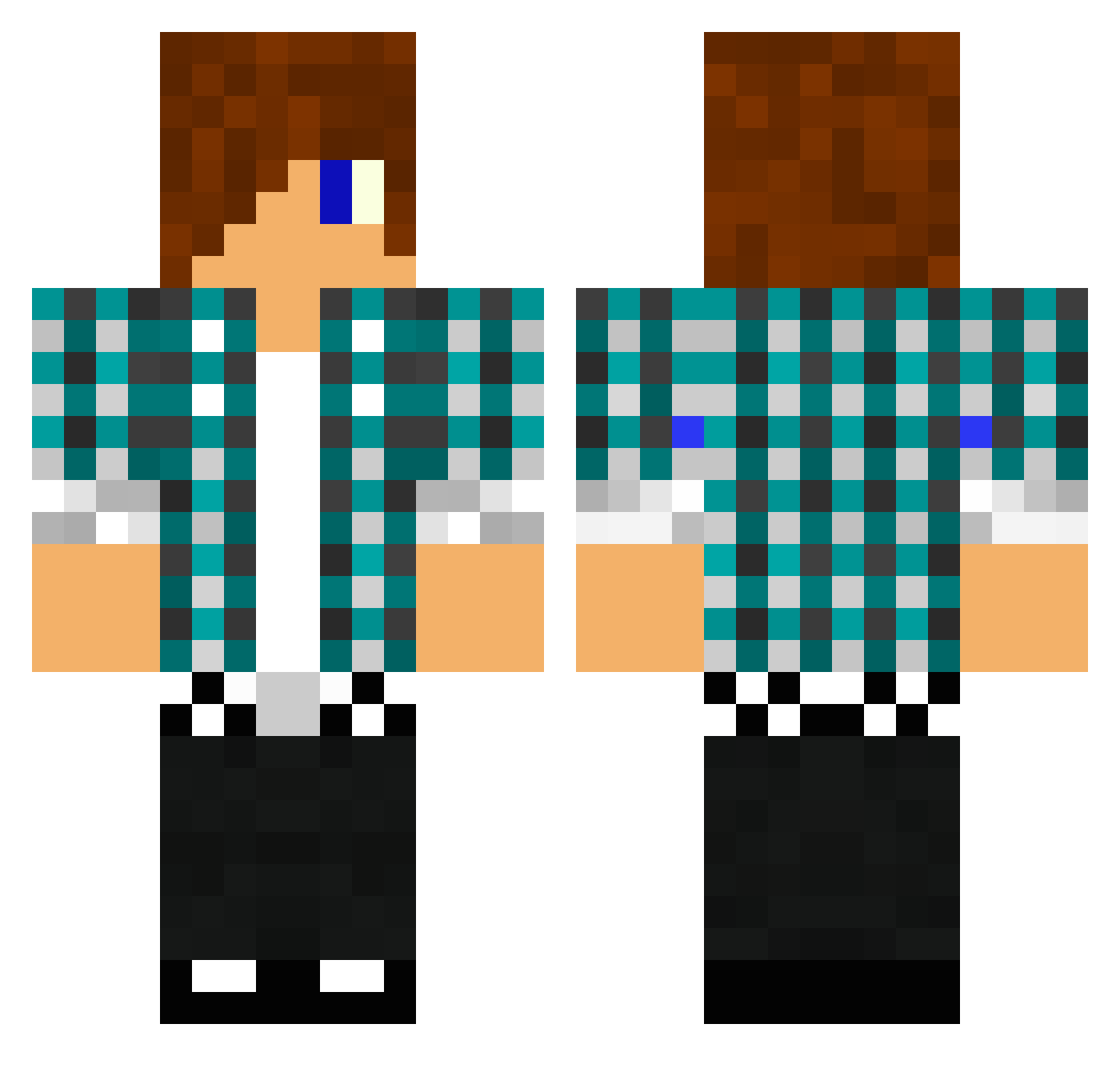
Current Minecraft skin of the player HooperBhai, loaded from the official Mojang API. Rotate the 3D model with your mouse or finger, then download the skin as a PNG file and use it in Minecraft: Bedrock Edition or Java Edition for free. When HooperBhai changes their skin, this page updates automatically and the old skin stays in the history below.
Other players with this skin (1475)
HooperBhai was the 1187th player we have seen with this skin, first spotted on 23.10.2026. The same skin was seen on these players. Open a nickname to see their current skin and skin history.
 Charlie0607 slimjohnny707 Shadowhunter62 luksus111 garciahome jonas945 martindb TheEagles7 michelin10 Hugo_florida Gabrielm47 firewater1999 seanlambo vincent301 CHECO2000 Quaxy Avster10 Pegasus_5177 nsboy05 DzAlt08 DerBerk mindmax1 SupergamerA Redkitt KingBlox_MC Jeppan2k mrcreeper5551 psheldon230 Hazza727 zaback speed159 KingShane99 DustDevilMan snowdr zoltan7 octosqiddy trippin47 lightcash smcmasan iceman44424 itzzwill Exportings17 eme0213 iAmMeetball j3rej4lz Maccas_Wifi God4ce fingernageldreck hulluk2 thomaswwe 1996gibbo 9olivier9 patrickminott TrashBukket epicheadshot2004 auburnboy09 monkeyuser1225 Lerco2012 rikesera Playsier
More Emo Minecraft skins
How to install the HooperBhai skin
- Press the Download button above to save the skin as a PNG file.
- Minecraft: Bedrock Edition (PE): open the Dressing Room from the main menu (or tap your character → Edit Character), go to Classic Skins → Owned, press the + (new skin) button, choose the downloaded PNG and pick the Classic (Steve) model. Works on PC and mobile; consoles cannot import custom skins.
- Minecraft: Java Edition: open the Minecraft Launcher, go to the Skins tab, click New Skin, load the PNG, pick the Classic (Steve) model and press Save & Use. You can also upload it at minecraft.net → Profile → Change Skin.
The skin does not show up after import - what should I do?
Restart Minecraft and open the Dressing Room again - imported skins sometimes appear only after a restart. Also make sure you selected the imported skin and picked the Classic (Steve) model.
Which model should I choose, Classic or Slim?
This skin is designed for the Classic (Steve) model. If you pick the wrong model, the arms of the skin will look stretched or squeezed.
Is the skin of HooperBhai free to download?
Yes. Press Download, save the PNG file and use it in Minecraft: Bedrock Edition or Java Edition - no payment or registration needed. The skin also works on multiplayer servers and Realms.
More skins
Looking for more? Go back to all Minecraft skins and check the top skins of the week, month and all time, or find any player's skin by nickname.