
EonicBoom - Minecraft Skins & Skin History
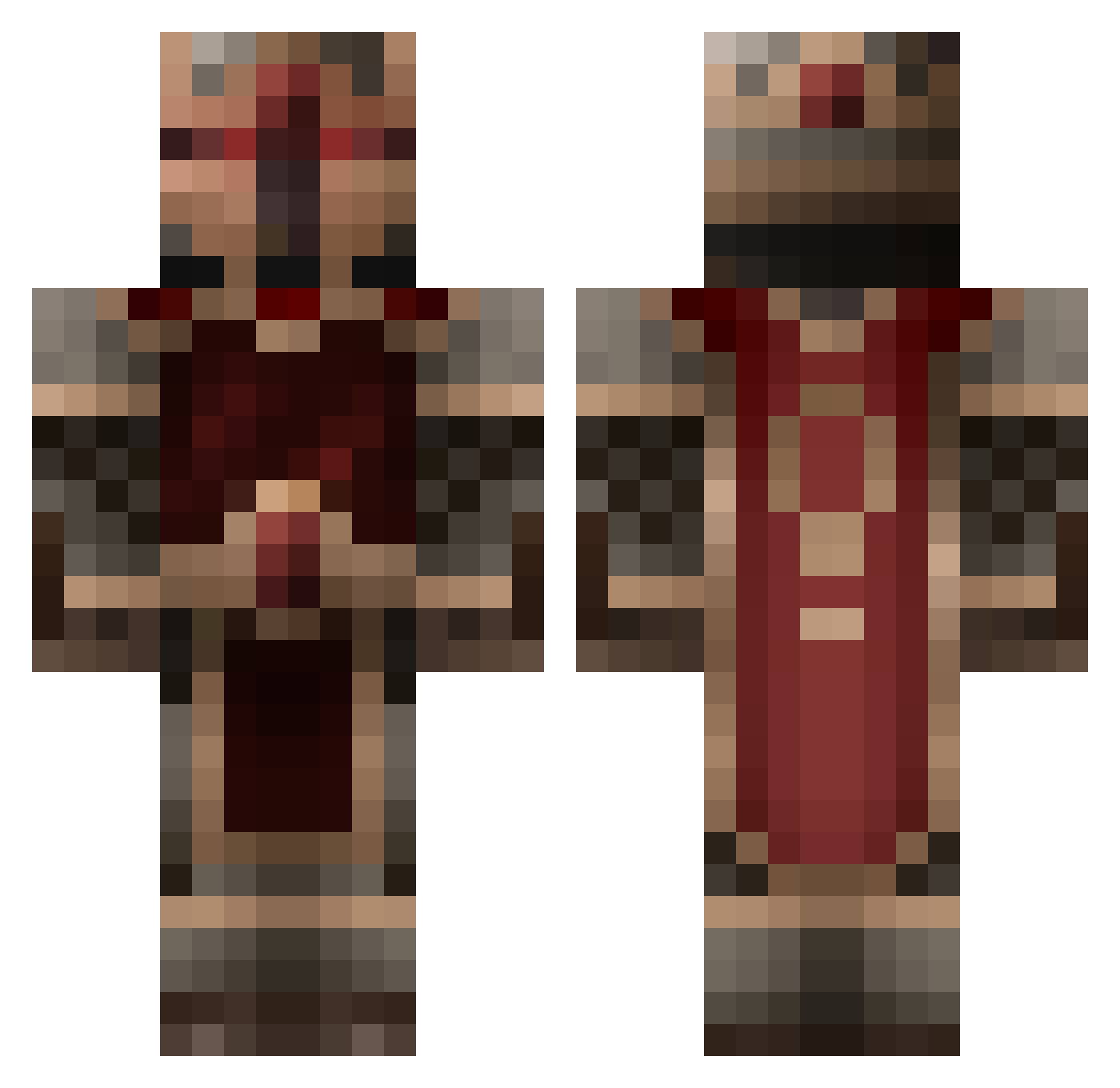
Current Minecraft skin of the player EonicBoom, loaded from the official Mojang API. Rotate the 3D model with your mouse or finger, then download the skin as a PNG file and use it in Minecraft: Bedrock Edition or Java Edition for free. When EonicBoom changes their skin, this page updates automatically and the old skin stays in the history below.
Other players with this skin (855)
EonicBoom was the 449th player we have seen with this skin, first spotted on 27.09.2026. The same skin was seen on these players. Open a nickname to see their current skin and skin history.
 AcidPandas CCRNS Hamboy00 lorumerth Supazombieslayer Odenkrebs kanegoku john2263 Kreugel Phumblez GageUK jackson1680 SuperBadger420 RedFoxGame FearDaBeast Effluvian Tichtich83 zipp1995 Kryoburn Nexkor armoring MegamanSSC Mephisto351 jobo1100 AdvanceBOT12 MrShutCo raiyneslyph thee_pro Ranfanx Desu_Enjeru TheFallenerMC SpunkMeister Penblade InfinityNova Peek_ fixit16 Galadon BoogieManRyan senorHatti KryptonOxid Kuthu Acht4991 ArchAngel0138 Wavad aegypticus isaacgould Vanjingle svxbro04 Sethatonious Captainbtk HeroCason Redwiser2 Unrealblight iDupeNotReally losthope666 Ingeniarius cheeseyoger PhatPirate moonzdragoon herokeng
More Knight Minecraft skins
How to install the EonicBoom skin
- Press the Download button above to save the skin as a PNG file.
- Minecraft: Bedrock Edition (PE): open the Dressing Room from the main menu (or tap your character → Edit Character), go to Classic Skins → Owned, press the + (new skin) button, choose the downloaded PNG and pick the Classic (Steve) model. Works on PC and mobile; consoles cannot import custom skins.
- Minecraft: Java Edition: open the Minecraft Launcher, go to the Skins tab, click New Skin, load the PNG, pick the Classic (Steve) model and press Save & Use. You can also upload it at minecraft.net → Profile → Change Skin.
The skin does not show up after import - what should I do?
Restart Minecraft and open the Dressing Room again - imported skins sometimes appear only after a restart. Also make sure you selected the imported skin and picked the Classic (Steve) model.
Which model should I choose, Classic or Slim?
This skin is designed for the Classic (Steve) model. If you pick the wrong model, the arms of the skin will look stretched or squeezed.
Is the skin of EonicBoom free to download?
Yes. Press Download, save the PNG file and use it in Minecraft: Bedrock Edition or Java Edition - no payment or registration needed. The skin also works on multiplayer servers and Realms.
More skins
Looking for more? Go back to all Minecraft skins and check the top skins of the week, month and all time, or find any player's skin by nickname.