
4TheHuzz - Minecraft Skins & Skin History
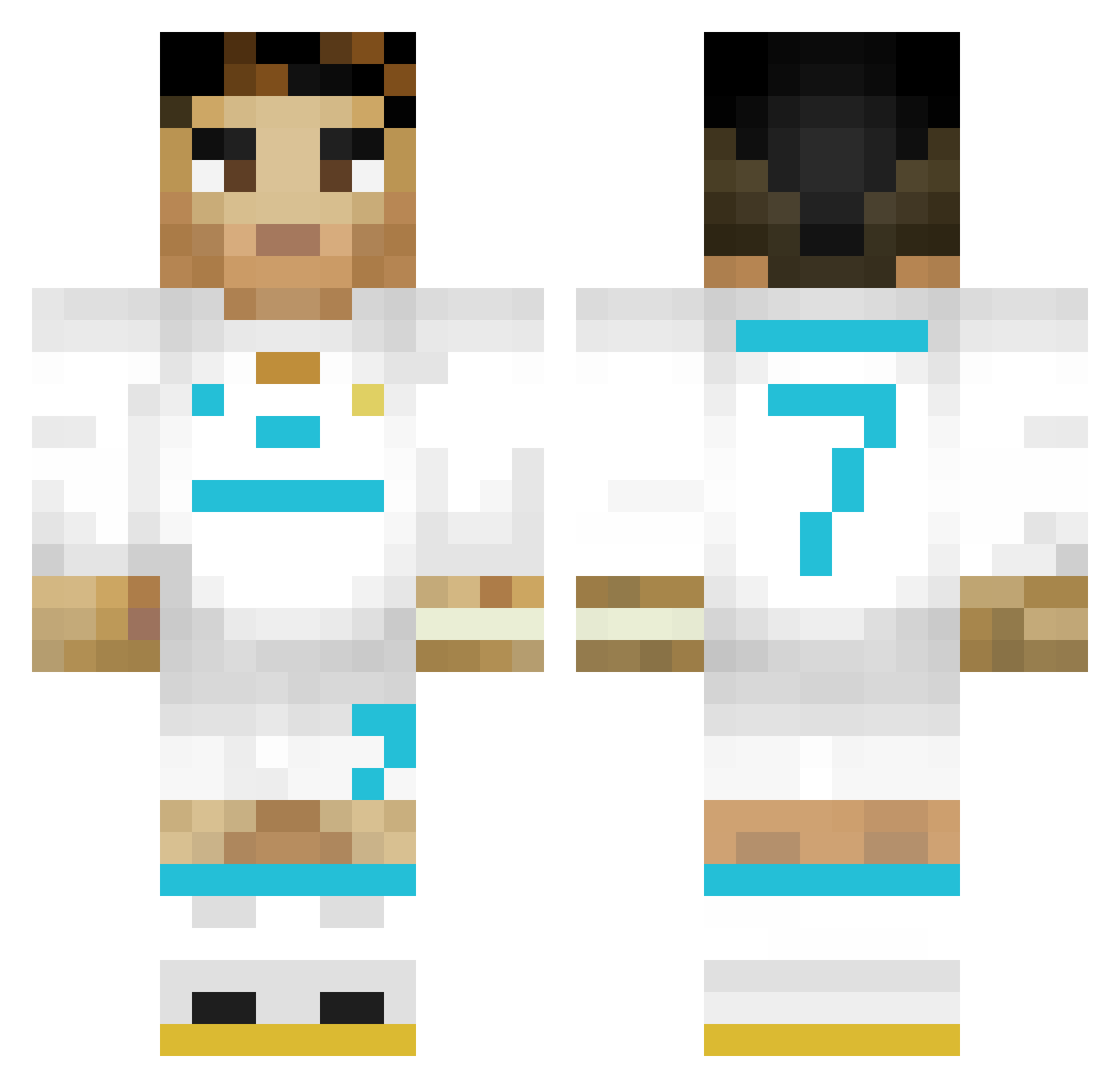
Current Minecraft skin of the player 4TheHuzz, loaded from the official Mojang API. Rotate the 3D model with your mouse or finger, then download the skin as a PNG file and use it in Minecraft: Bedrock Edition or Java Edition for free. When 4TheHuzz changes their skin, this page updates automatically and the old skin stays in the history below.
Other players with this skin (353)
4TheHuzz was the 307th player we have seen with this skin, first spotted on 21.10.2026. The same skin was seen on these players. Open a nickname to see their current skin and skin history.
 darkslayer09641 astoncool kubsooon__ Rekir11 Shaadowlucas zaylou CapitanMau Wasserpfeife migueluchooo IGAODAKEKE Caszilla bigmancarlito jeppech77 Aqmis3 Kekinhoo freshbeast123 elpolloncolgon kagan12323 Noel0364 OghuzA10 korea0741 Lazrail1903 SeFrEnks gabri3lito Dashz1 leonbasso Emil_Gang Rekipo Nasston vini_viii Dimandra_2006 Larsek10 FIRTINA6161 Jeqaioa MelikCR7 KROW0877 BeamyAlarm43878 wafflecrispss alexanDOOR28 05_RAZVAN Jona27809 Alex0970 XNOOPE DaDDy2404 Edurdino Ze_Espanhol mosso5241 adinuss123 Leisech SantinoYri124 RealMadrid_CR_7 Kwellman luisvdk ScranitXhaka jacobpoppin Mercelesis Ronaldo_Yunus ClapzDavid DireCandy312247 guille_guti26
More Cristiano Ronaldo Minecraft skins
See all 204 Cristiano Ronaldo skins
How to install the 4TheHuzz skin
- Press the Download button above to save the skin as a PNG file.
- Minecraft: Bedrock Edition (PE): open the Dressing Room from the main menu (or tap your character → Edit Character), go to Classic Skins → Owned, press the + (new skin) button, choose the downloaded PNG and pick the Classic (Steve) model. Works on PC and mobile; consoles cannot import custom skins.
- Minecraft: Java Edition: open the Minecraft Launcher, go to the Skins tab, click New Skin, load the PNG, pick the Classic (Steve) model and press Save & Use. You can also upload it at minecraft.net → Profile → Change Skin.
The skin does not show up after import - what should I do?
Restart Minecraft and open the Dressing Room again - imported skins sometimes appear only after a restart. Also make sure you selected the imported skin and picked the Classic (Steve) model.
Which model should I choose, Classic or Slim?
This skin is designed for the Classic (Steve) model. If you pick the wrong model, the arms of the skin will look stretched or squeezed.
Is the skin of 4TheHuzz free to download?
Yes. Press Download, save the PNG file and use it in Minecraft: Bedrock Edition or Java Edition - no payment or registration needed. The skin also works on multiplayer servers and Realms.
More skins
Looking for more? Go back to all Minecraft skins and check the top skins of the week, month and all time, or find any player's skin by nickname.