
huggybuggy - Minecraft Skins & Skin History
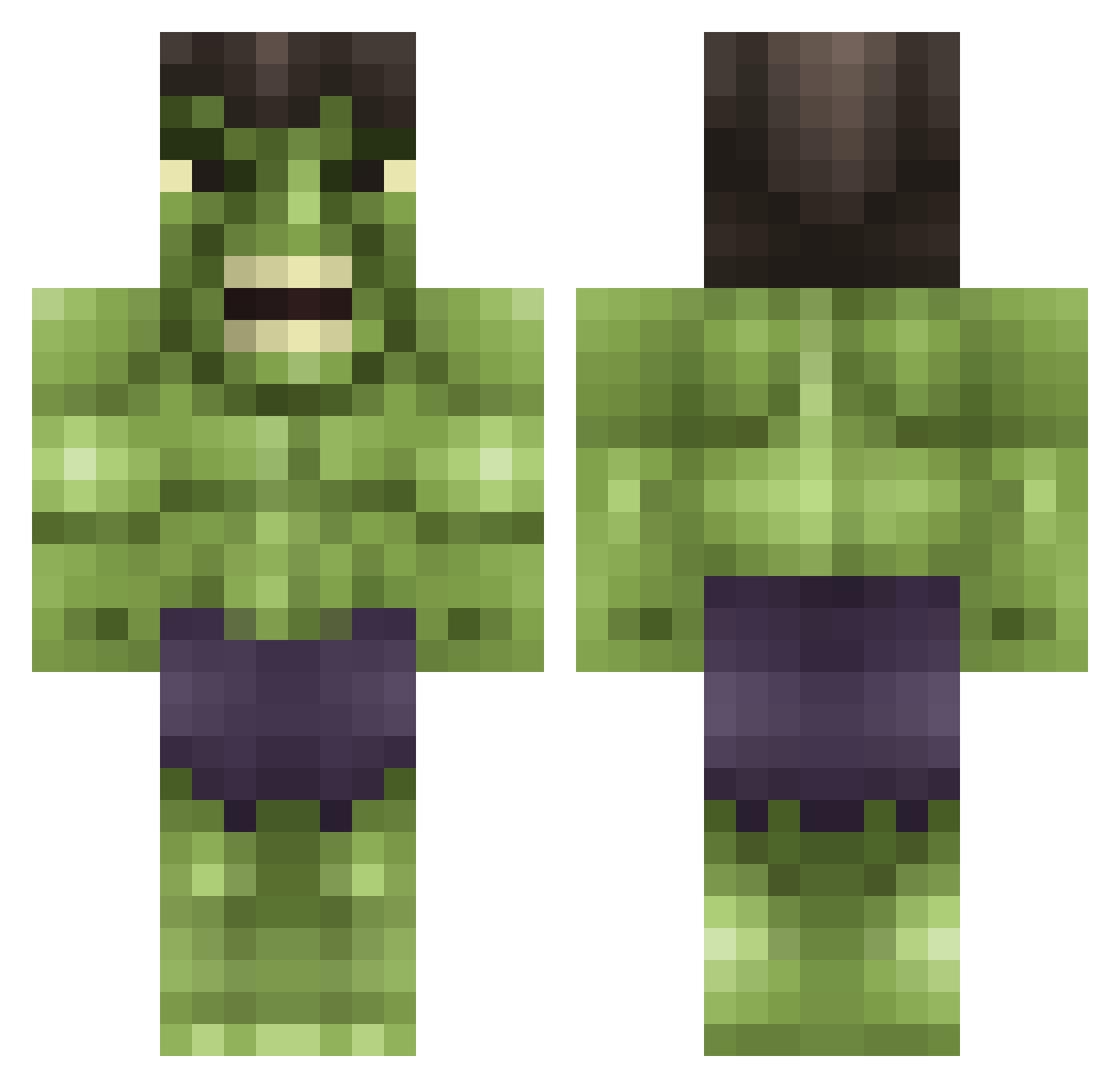
Current Minecraft skin of the player huggybuggy, loaded from the official Mojang API. Rotate the 3D model with your mouse or finger, then download the skin as a PNG file and use it in Minecraft: Bedrock Edition or Java Edition for free. When huggybuggy changes their skin, this page updates automatically and the old skin stays in the history below.
Other players with this skin (95)
huggybuggy was the 14th player we have seen with this skin, first spotted on 08.08.2026. The same skin was seen on these players. Open a nickname to see their current skin and skin history.
 TaappY Oli4HardCore LordEvan1129 991creeper killmanu JoinMeToDeath BLMoney97 wahmendes nahan35 Rommler Jordieyolo rafadjor AllenKid97 tomthebom13 tmmeh JDM_Supra1 projectDeLuca TheyCallMeConor Easyplay ZombeeMonkey xBAMFxBEAR Chipman420 jamesmurray99 JayTukz AaiPot Locksteel mcfclewlew Master36o Staudi1000 WilliamBlueNinja onlygeek toxicswager Slaturd kingkeyani The_Anchorman_ xXNitrusXx Garbull3 Dead_Panter Incredible_Spike DCOCH hugo55_99 Cautionlex PrincessSmartas Patriot116 kingmand missiemoo_90 renzososo Standard_HD wildechild Rotgrip FUDEGEE KingMobATX danger47 BigFuckingJoe Aeriander Oscii13 StainosMcgrainos Seven_Gamer ghost24793 FinaLxRage
More Hulk Minecraft skins
How to install the huggybuggy skin
- Press the Download button above to save the skin as a PNG file.
- Minecraft: Bedrock Edition (PE): open the Dressing Room from the main menu (or tap your character → Edit Character), go to Classic Skins → Owned, press the + (new skin) button, choose the downloaded PNG and pick the Classic (Steve) model. Works on PC and mobile; consoles cannot import custom skins.
- Minecraft: Java Edition: open the Minecraft Launcher, go to the Skins tab, click New Skin, load the PNG, pick the Classic (Steve) model and press Save & Use. You can also upload it at minecraft.net → Profile → Change Skin.
The skin does not show up after import - what should I do?
Restart Minecraft and open the Dressing Room again - imported skins sometimes appear only after a restart. Also make sure you selected the imported skin and picked the Classic (Steve) model.
Which model should I choose, Classic or Slim?
This skin is designed for the Classic (Steve) model. If you pick the wrong model, the arms of the skin will look stretched or squeezed.
Is the skin of huggybuggy free to download?
Yes. Press Download, save the PNG file and use it in Minecraft: Bedrock Edition or Java Edition - no payment or registration needed. The skin also works on multiplayer servers and Realms.
More skins
Looking for more? Go back to all Minecraft skins and check the top skins of the week, month and all time, or find any player's skin by nickname.