
elPorotoNegro - Minecraft Skins & Skin History
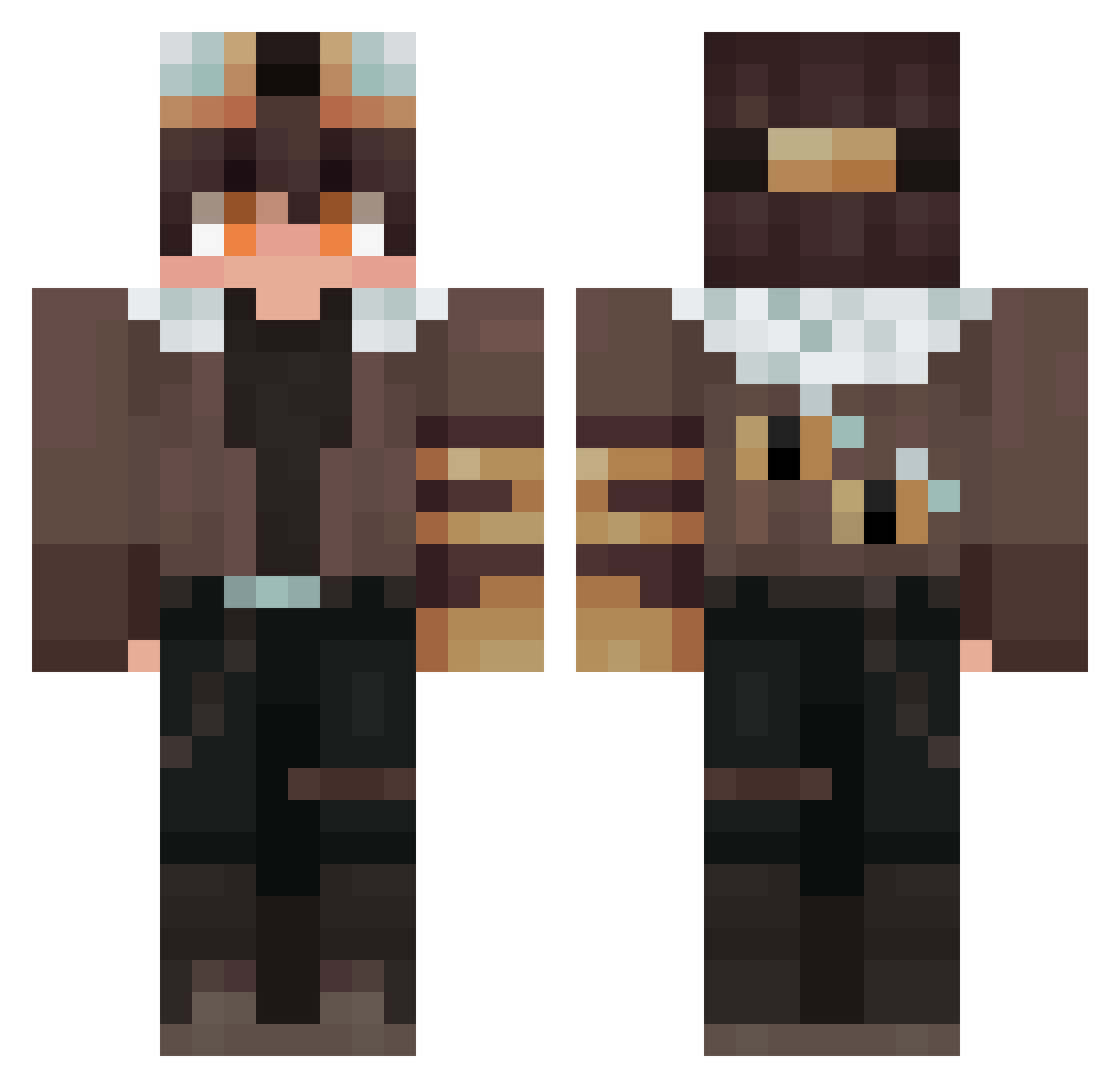
Current Minecraft skin of the player elPorotoNegro, loaded from the official Mojang API. Rotate the 3D model with your mouse or finger, then download the skin as a PNG file and use it in Minecraft: Bedrock Edition or Java Edition for free. When elPorotoNegro changes their skin, this page updates automatically and the old skin stays in the history below.
Other players with this skin (283)
elPorotoNegro was the 245th player we have seen with this skin, first spotted on 19.10.2026. The same skin was seen on these players. Open a nickname to see their current skin and skin history.
 Chacas1602 BlingAlt21 Fukran B13bb hyeonsseoi Laozen dreyanya _Birbuu_ c4westeQQ DarkPhantom88 mocurom KisukeUrh ChimmyChuu Deantrbl130 Liarhun Aut0run l3_a_d tfqnnn Colin_Darlingx Natanshhx wander_me PIXELSNOW Block2terre DeePee01 BBBwesleyRRR1 Alan123_v FrostyIsAFan TodesGuru Sylvarking AxtonPyn Hibikhi LikeNefi stuiedude Broker459 FANTouKing Outlandishy Axeel191 Jaffh Espera000 SITHIK2 squeaky719 dangan777 q3j_msmc_o9x LinYizhan KIT_ch MonstersReturn_ szczurixgame Kartoffel22 Soqulless nclsvv Viktuose ItsTorvik YamatoTengu Delta9410 Cytezen Backslash128 SenselessEel34 Paulo0905 Wertyzzz Moon_Kayn
More Aviator Minecraft skins
How to install the elPorotoNegro skin
- Press the Download button above to save the skin as a PNG file.
- Minecraft: Bedrock Edition (PE): open the Dressing Room from the main menu (or tap your character → Edit Character), go to Classic Skins → Owned, press the + (new skin) button, choose the downloaded PNG and pick the Classic (Steve) model. Works on PC and mobile; consoles cannot import custom skins.
- Minecraft: Java Edition: open the Minecraft Launcher, go to the Skins tab, click New Skin, load the PNG, pick the Classic (Steve) model and press Save & Use. You can also upload it at minecraft.net → Profile → Change Skin.
The skin does not show up after import - what should I do?
Restart Minecraft and open the Dressing Room again - imported skins sometimes appear only after a restart. Also make sure you selected the imported skin and picked the Classic (Steve) model.
Which model should I choose, Classic or Slim?
This skin is designed for the Classic (Steve) model. If you pick the wrong model, the arms of the skin will look stretched or squeezed.
Is the skin of elPorotoNegro free to download?
Yes. Press Download, save the PNG file and use it in Minecraft: Bedrock Edition or Java Edition - no payment or registration needed. The skin also works on multiplayer servers and Realms.
More skins
Looking for more? Go back to all Minecraft skins and check the top skins of the week, month and all time, or find any player's skin by nickname.