
Netherninja19 - Minecraft Skins & Skin History
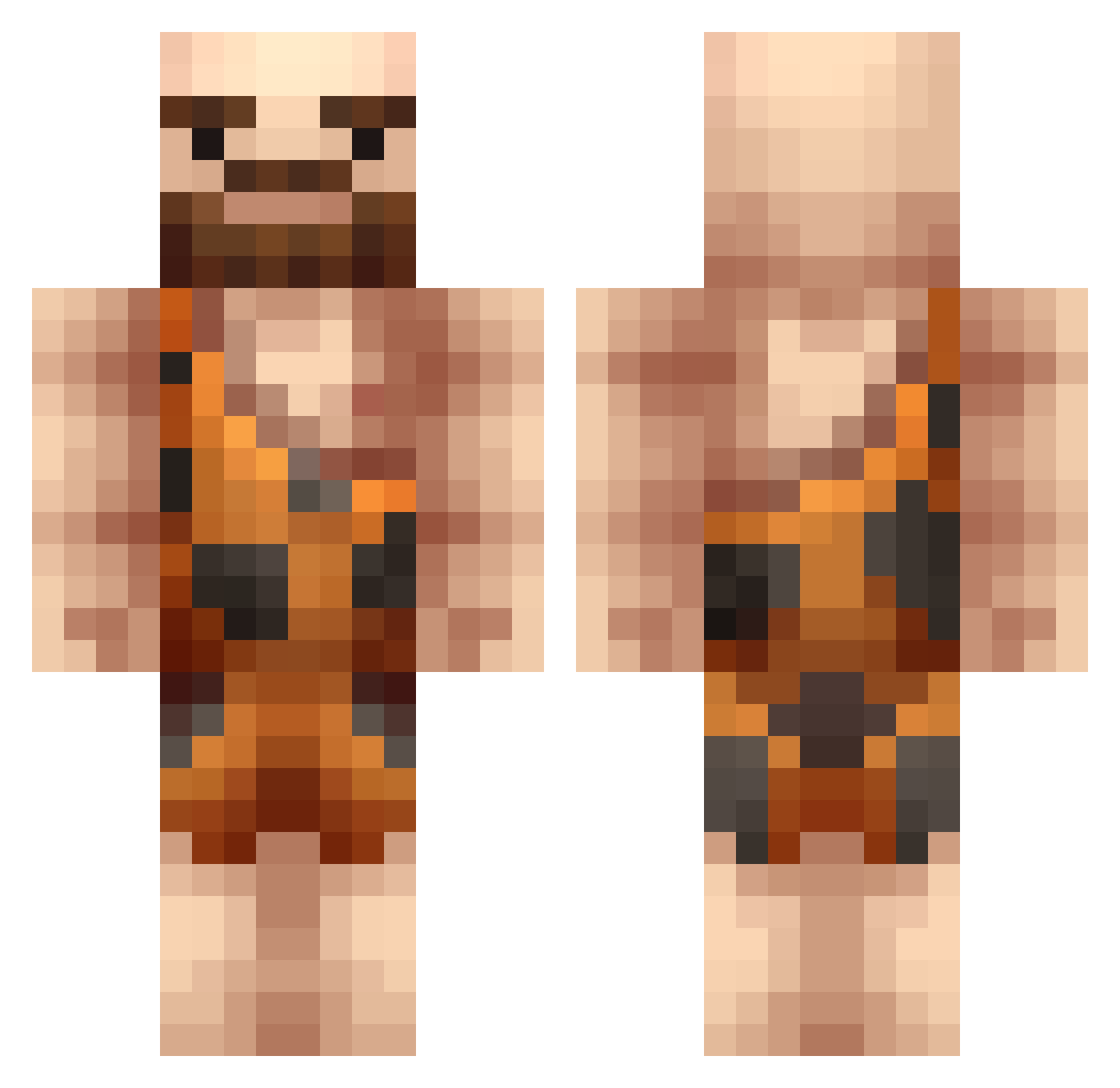
Current Minecraft skin of the player Netherninja19, loaded from the official Mojang API. Rotate the 3D model with your mouse or finger, then download the skin as a PNG file and use it in Minecraft: Bedrock Edition or Java Edition for free. When Netherninja19 changes their skin, this page updates automatically and the old skin stays in the history below.
Other players with this skin (220)
Netherninja19 was the 167th player we have seen with this skin, first spotted on 13.10.2026. The same skin was seen on these players. Open a nickname to see their current skin and skin history.
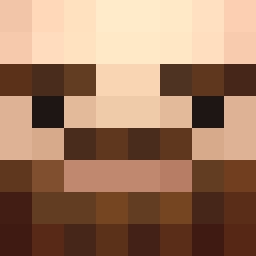 Ansonjmc jdhs41 barbarolo Davvoon Capn_Caveman Frodo1188 JustShadi Hakeemmmm xXProBeuXx Hopa27 Agresciwo LordGeorgis Gamer_Girl_Goo Akatleptyk dawgeth ZdrigaYeti AnnoyingTree _Green_Army_ SoominEE Gallieri Gavi_14 WantaSpud MuscleHedz IFev MaeHyang_ Nordicraft GomJaeKi LoneWolf2142 MeyThiuwer Valrak01 ParvenMC Armighon itzmowly Senor_Blarp cosi__04 lapjoint sickoris69 Bin2ong farmerallu eyore_ Titus_906 furkanmusus ClayCreated ZSN98 Neanderthal_ TheKingRajah kkcum ATFDarren BiuDeFou PsymonJC Uncl3Tony DarkAngel_4021 lucifersam1 Kurt4004 Cakai Meunga ddddhwan hmives kingwaffle332 jumyue
More Caveman Minecraft skins
How to install the Netherninja19 skin
- Press the Download button above to save the skin as a PNG file.
- Minecraft: Bedrock Edition (PE): open the Dressing Room from the main menu (or tap your character → Edit Character), go to Classic Skins → Owned, press the + (new skin) button, choose the downloaded PNG and pick the Classic (Steve) model. Works on PC and mobile; consoles cannot import custom skins.
- Minecraft: Java Edition: open the Minecraft Launcher, go to the Skins tab, click New Skin, load the PNG, pick the Classic (Steve) model and press Save & Use. You can also upload it at minecraft.net → Profile → Change Skin.
The skin does not show up after import - what should I do?
Restart Minecraft and open the Dressing Room again - imported skins sometimes appear only after a restart. Also make sure you selected the imported skin and picked the Classic (Steve) model.
Which model should I choose, Classic or Slim?
This skin is designed for the Classic (Steve) model. If you pick the wrong model, the arms of the skin will look stretched or squeezed.
Is the skin of Netherninja19 free to download?
Yes. Press Download, save the PNG file and use it in Minecraft: Bedrock Edition or Java Edition - no payment or registration needed. The skin also works on multiplayer servers and Realms.
More skins
Looking for more? Go back to all Minecraft skins and check the top skins of the week, month and all time, or find any player's skin by nickname.