
Nathanthemagpie - Minecraft Skins & Skin History
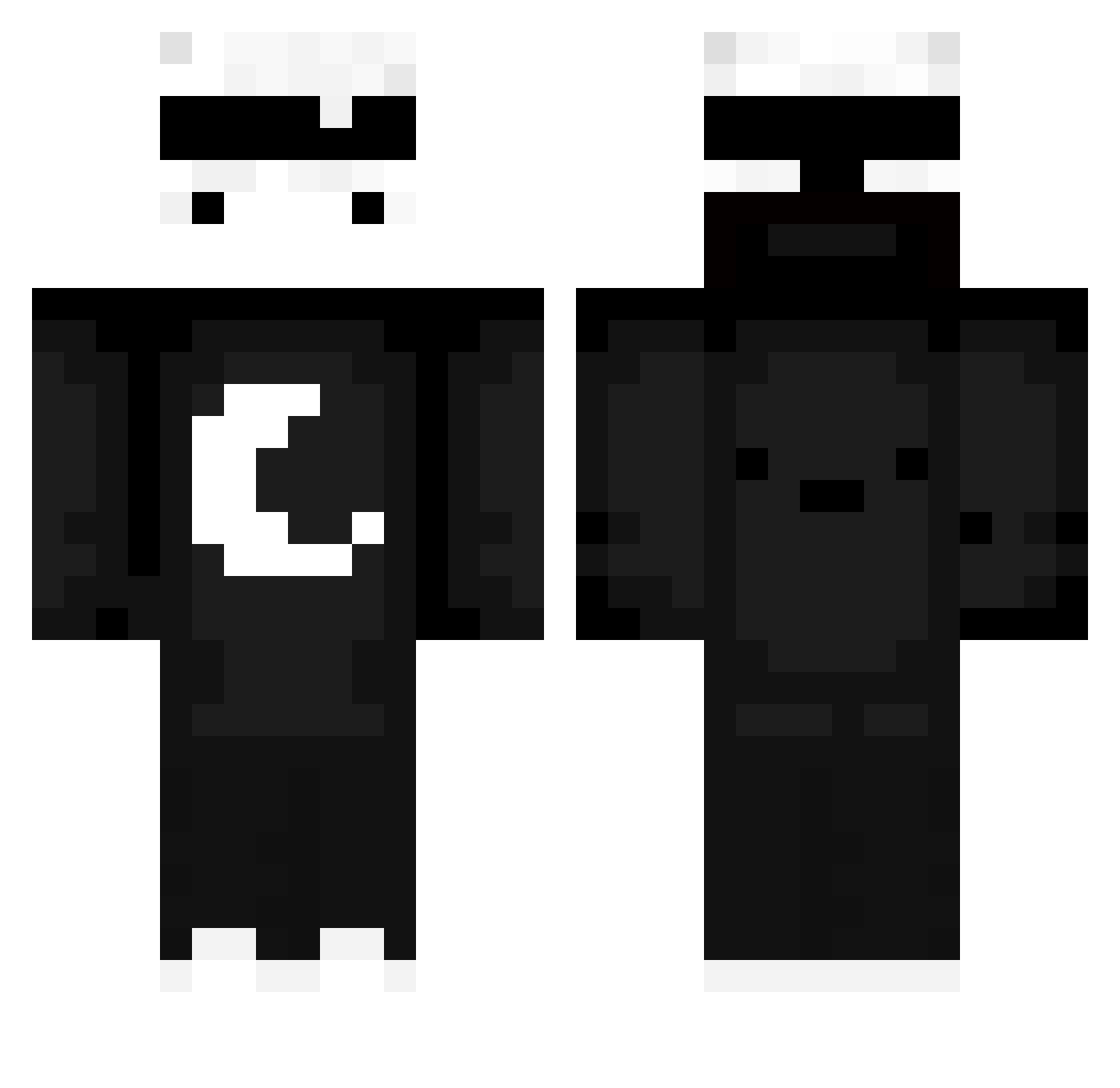
Current Minecraft skin of the player Nathanthemagpie, loaded from the official Mojang API. Rotate the 3D model with your mouse or finger, then download the skin as a PNG file and use it in Minecraft: Bedrock Edition or Java Edition for free. When Nathanthemagpie changes their skin, this page updates automatically and the old skin stays in the history below.
Other players with this skin (654)
Nathanthemagpie was the 589th player we have seen with this skin, first spotted on 24.10.2026. The same skin was seen on these players. Open a nickname to see their current skin and skin history.
 Qded T1ewLY VurzYT kyest Quirozz04 Zynxter AzureBench70520 BazingaBW ism4_11 Alsooo_ Flyy0 marek7421 Jord22 Buch_MC Coolman009 totopoko supergamerboy123 Gavinbots1 Miya_F24 Ribbie2 Dreamksjs FLUFFY_1NC yeah__YEAH monkey7521 SacRoquette1285 AbdulAbrahim98 GingerSoap JossyLOL Murdock_0220 thRomantic itzdimo wanwan2 IronGolemNoodle9 Deoxys1_ LUU22 RainZenKun v_Ander HIM6355 Smiley_Potato VanixR antivison lllEntitylll Andreizel Gxuse Henry_Bob Ayri0815 anisleboss PandaGamerPC swoo__ Scaline L1AM5 FeatherFails Unforgivingness D1nt7_2 TaroMC_VN cacac147 3kbeast BrettyBoi14 Kaj_Slender IozifStalin
More Moon Minecraft skins
How to install the Nathanthemagpie skin
- Press the Download button above to save the skin as a PNG file.
- Minecraft: Bedrock Edition (PE): open the Dressing Room from the main menu (or tap your character → Edit Character), go to Classic Skins → Owned, press the + (new skin) button, choose the downloaded PNG and pick the Classic (Steve) model. Works on PC and mobile; consoles cannot import custom skins.
- Minecraft: Java Edition: open the Minecraft Launcher, go to the Skins tab, click New Skin, load the PNG, pick the Classic (Steve) model and press Save & Use. You can also upload it at minecraft.net → Profile → Change Skin.
The skin does not show up after import - what should I do?
Restart Minecraft and open the Dressing Room again - imported skins sometimes appear only after a restart. Also make sure you selected the imported skin and picked the Classic (Steve) model.
Which model should I choose, Classic or Slim?
This skin is designed for the Classic (Steve) model. If you pick the wrong model, the arms of the skin will look stretched or squeezed.
Is the skin of Nathanthemagpie free to download?
Yes. Press Download, save the PNG file and use it in Minecraft: Bedrock Edition or Java Edition - no payment or registration needed. The skin also works on multiplayer servers and Realms.
More skins
Looking for more? Go back to all Minecraft skins and check the top skins of the week, month and all time, or find any player's skin by nickname.