
Mitchmini19 - Minecraft Skins & Skin History
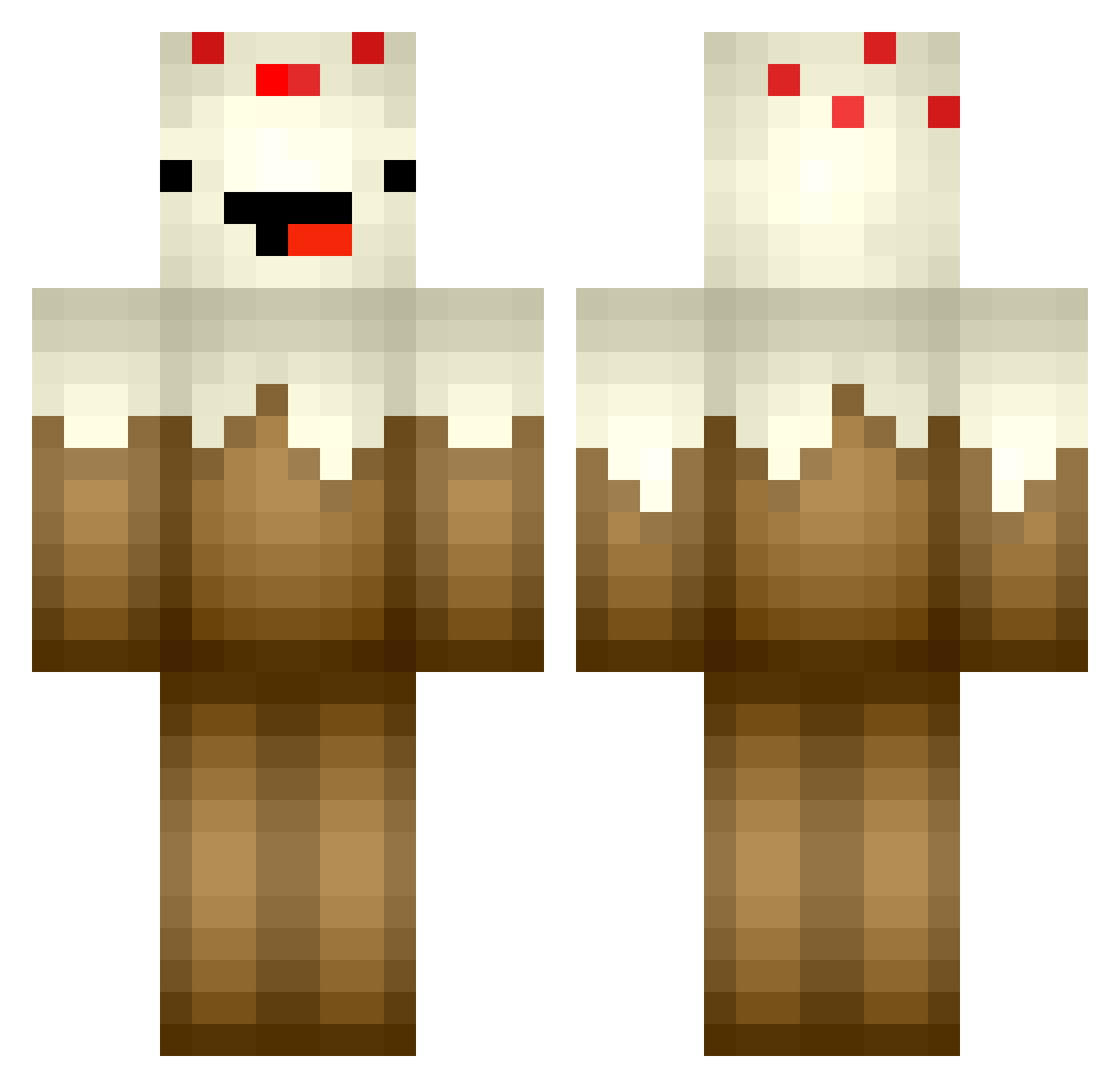
Current Minecraft skin of the player Mitchmini19, loaded from the official Mojang API. Rotate the 3D model with your mouse or finger, then download the skin as a PNG file and use it in Minecraft: Bedrock Edition or Java Edition for free. When Mitchmini19 changes their skin, this page updates automatically and the old skin stays in the history below.
Other players with this skin (362)
Mitchmini19 was the 218th player we have seen with this skin, first spotted on 23.09.2026. The same skin was seen on these players. Open a nickname to see their current skin and skin history.
 roeloetnaer SkyDoesJr88 w0lfkun Harry120305 karnyman kaboose96 cheesyhead9 x_Xx_Connor_xX_x Delicious_Cake2U AJLong01 Exsolix erikajoh RawrGoesLambx YummCake109 Aapo_01 KoRiTz88 EpicSquash Castiel6 soongies Grina kagemand099 bumble9 Sean_West EklipseEcho Brofessor12 virtualreal pc1014 InfamousToaster Shlumpzzz BEH59 XZEDBRAX DjMund0 cake_10 hjwjd Baberserker gpledge SpeedyOwl AbstractMist Bobbaboy Puggawugga BakerBoy2324 DarkSorbet maxietop09 tyguy10 CowzGrowAspargas Darragh___George Schwarz_tee04 _maddii crumble_cake PiggySara KonsolenLp Eysian firephysics PlayTendo360 XK4 Karlogee Emilylcn HOOCHICE CloudxCrushers MKEAILA
More Cake Minecraft skins
How to install the Mitchmini19 skin
- Press the Download button above to save the skin as a PNG file.
- Minecraft: Bedrock Edition (PE): open the Dressing Room from the main menu (or tap your character → Edit Character), go to Classic Skins → Owned, press the + (new skin) button, choose the downloaded PNG and pick the Classic (Steve) model. Works on PC and mobile; consoles cannot import custom skins.
- Minecraft: Java Edition: open the Minecraft Launcher, go to the Skins tab, click New Skin, load the PNG, pick the Classic (Steve) model and press Save & Use. You can also upload it at minecraft.net → Profile → Change Skin.
The skin does not show up after import - what should I do?
Restart Minecraft and open the Dressing Room again - imported skins sometimes appear only after a restart. Also make sure you selected the imported skin and picked the Classic (Steve) model.
Which model should I choose, Classic or Slim?
This skin is designed for the Classic (Steve) model. If you pick the wrong model, the arms of the skin will look stretched or squeezed.
Is the skin of Mitchmini19 free to download?
Yes. Press Download, save the PNG file and use it in Minecraft: Bedrock Edition or Java Edition - no payment or registration needed. The skin also works on multiplayer servers and Realms.
More skins
Looking for more? Go back to all Minecraft skins and check the top skins of the week, month and all time, or find any player's skin by nickname.