
Lightsout9 - Minecraft Skins & Skin History
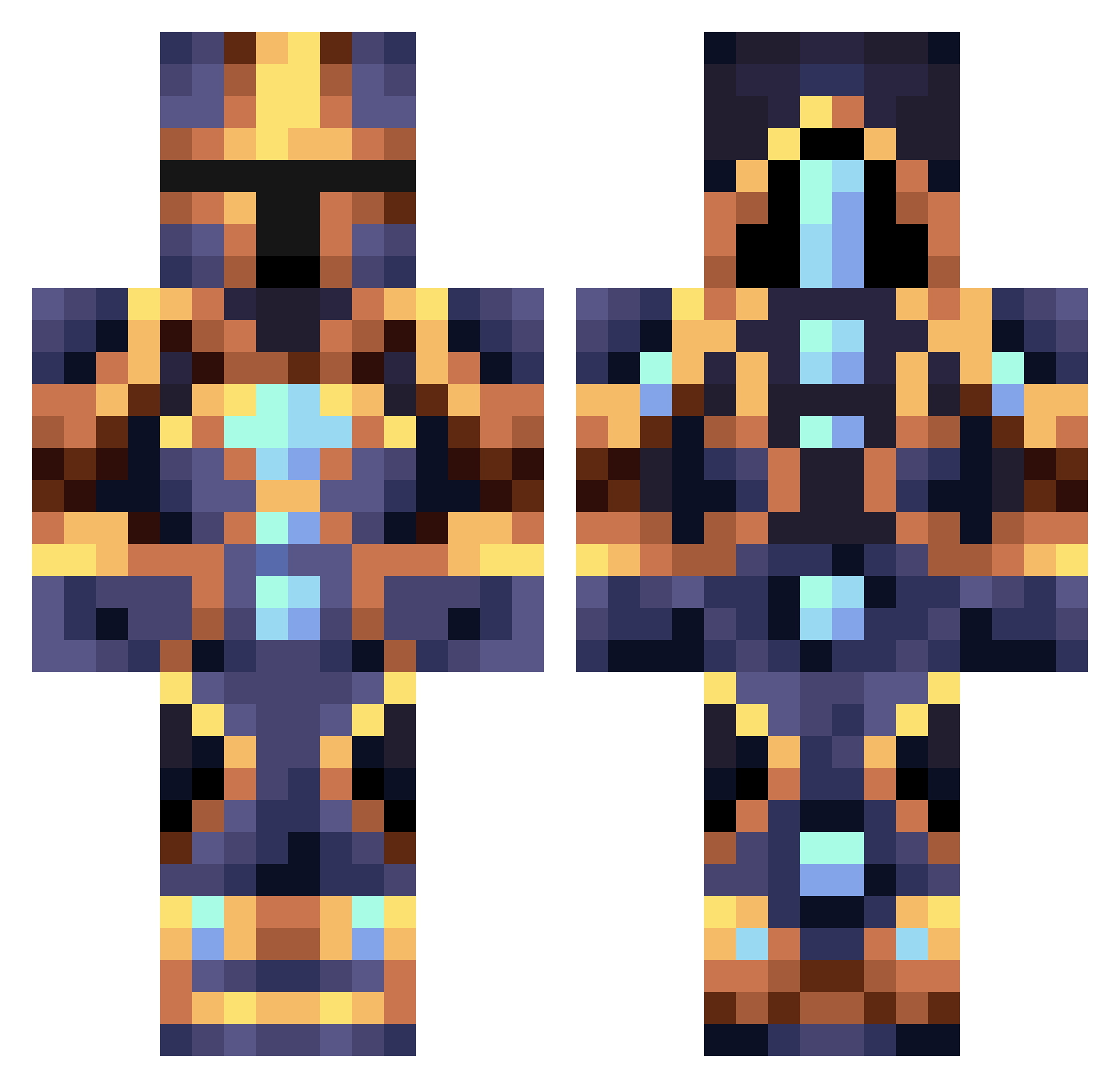
Current Minecraft skin of the player Lightsout9, loaded from the official Mojang API. Rotate the 3D model with your mouse or finger, then download the skin as a PNG file and use it in Minecraft: Bedrock Edition or Java Edition for free. When Lightsout9 changes their skin, this page updates automatically and the old skin stays in the history below.
Other players with this skin (363)
Lightsout9 was the 86th player we have seen with this skin, first spotted on 19.08.2026. The same skin was seen on these players. Open a nickname to see their current skin and skin history.
 Jeeqa7 oddmanout2 ElCarpio777 emillunden5 eeee123456 JPCMC2 Domino1230 WatchfulWolf Pedersen06 IYoshimaruI Luck13_ Nevezz2468 Nipolex Elgleaming JustStefqn Highlandweller TimProCrafter Sun_Wyrm melvinator1 ogunoo Haockay Frede847 keyboardwarrior_ Tal2013 dustmssx _Zarokk_ GOTPVPZ1234567
 PartyBrunder Seupp Miraiisy Madre1975 Joaolopes_12 jrsmouse lingo55k Guatero MOUSTACHE4959 OniiMazora F4LL_DAMAGE Dragonix111 Plexias2142 _Wizzzy_
 Tannypro Lxvdy MrKlocek Asian_Pyromaniac MAD_A777 MrSilverSnake Astro1011 oxford99 AcTiveElite1075 EliteSix Oblivv Firestorm2K_ DarkinRakan TragicFate bandris PotatoPatata123 jamesandrews2016 Fizky Arpo00
More Sci Fi Minecraft skins
How to install the Lightsout9 skin
- Press the Download button above to save the skin as a PNG file.
- Minecraft: Bedrock Edition (PE): open the Dressing Room from the main menu (or tap your character → Edit Character), go to Classic Skins → Owned, press the + (new skin) button, choose the downloaded PNG and pick the Classic (Steve) model. Works on PC and mobile; consoles cannot import custom skins.
- Minecraft: Java Edition: open the Minecraft Launcher, go to the Skins tab, click New Skin, load the PNG, pick the Classic (Steve) model and press Save & Use. You can also upload it at minecraft.net → Profile → Change Skin.
The skin does not show up after import - what should I do?
Restart Minecraft and open the Dressing Room again - imported skins sometimes appear only after a restart. Also make sure you selected the imported skin and picked the Classic (Steve) model.
Which model should I choose, Classic or Slim?
This skin is designed for the Classic (Steve) model. If you pick the wrong model, the arms of the skin will look stretched or squeezed.
Is the skin of Lightsout9 free to download?
Yes. Press Download, save the PNG file and use it in Minecraft: Bedrock Edition or Java Edition - no payment or registration needed. The skin also works on multiplayer servers and Realms.
More skins
Looking for more? Go back to all Minecraft skins and check the top skins of the week, month and all time, or find any player's skin by nickname.