
JTJC9 - Minecraft Skins & Skin History
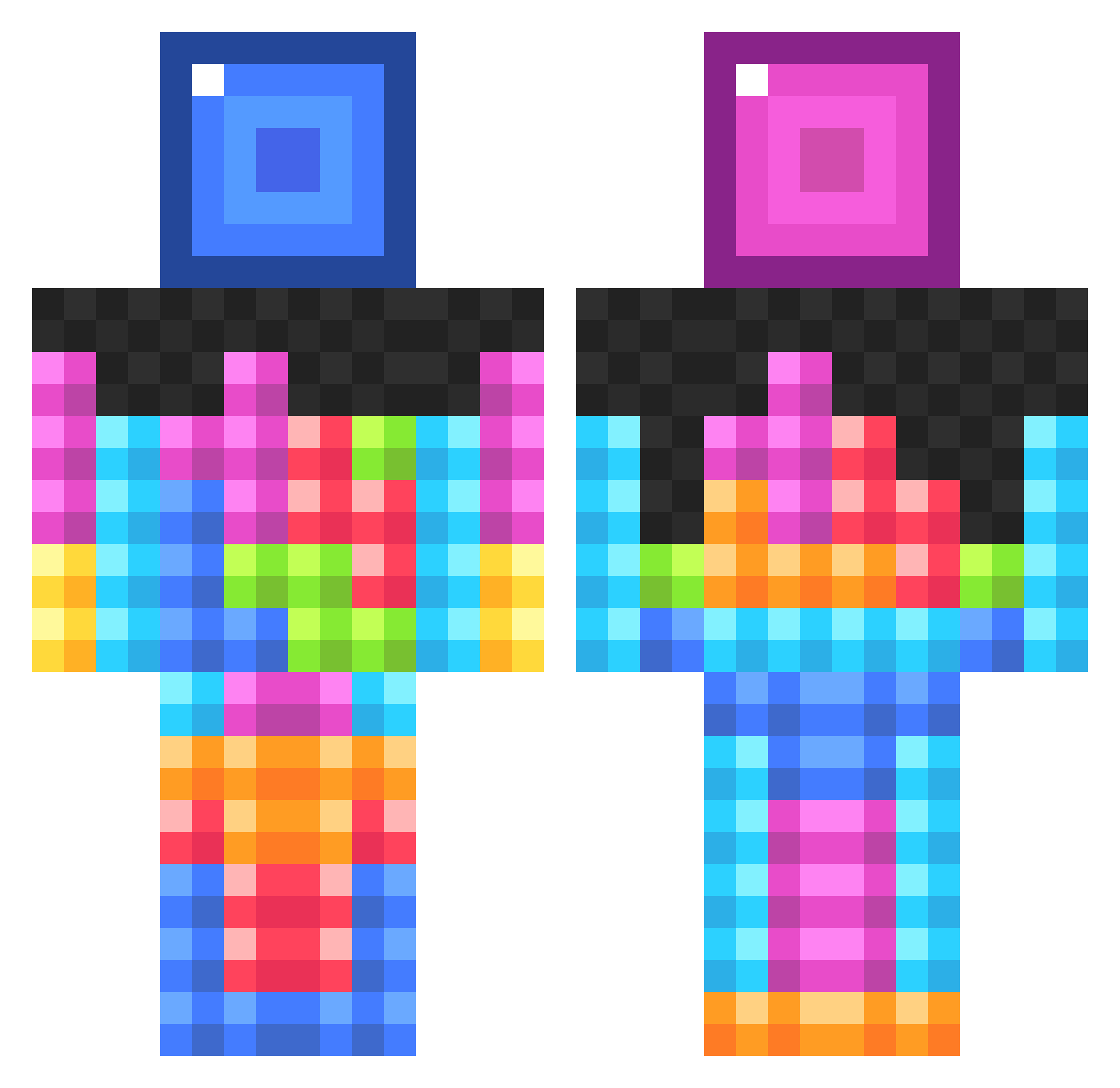
Current Minecraft skin of the player JTJC9, loaded from the official Mojang API. Rotate the 3D model with your mouse or finger, then download the skin as a PNG file and use it in Minecraft: Bedrock Edition or Java Edition for free. When JTJC9 changes their skin, this page updates automatically and the old skin stays in the history below.
Other players with this skin (834)
JTJC9 was the 656th player we have seen with this skin, first spotted on 12.10.2026. The same skin was seen on these players. Open a nickname to see their current skin and skin history.
 bobertvonking PAULDHANDA Linkthedots joejeter A_Ninja_Guy Drakula112 Qvasii Puffstuffs bluebananas222 LeChrictCosmique Abemand2001 mmarazzo20 MrSlyfox Jarjarbink5 Stressbal chaser12 Square_Pie rapdomaster2 XsilentxninjaX5 Nokyal Mr_biritish_ konsultant420x69 wackyJokester TheFurs XxSakuraWolfxX the_goof xImJakeyy jameshuskey11 henbob27 Flox1 HoneeyBadgeer MNM_15 bibix998 Mikeyswitz buford3 OhRearyNow guanoboy12 MasteR_MaD1 BirdyTheGod benj2188 comemeetjesusbro Shneider13 WEILGUNl bas6191 Meteor_HD Yatdude Sharzealthon azsx _kranius buttsagington885 jsays1 Smartasse Ninja_Skills29 liltumble BritishKitCat sweetbread4 GoldenNinjaJelly macklin6450 crisis_cannon ztripp17
More Tetris Minecraft skins
How to install the JTJC9 skin
- Press the Download button above to save the skin as a PNG file.
- Minecraft: Bedrock Edition (PE): open the Dressing Room from the main menu (or tap your character → Edit Character), go to Classic Skins → Owned, press the + (new skin) button, choose the downloaded PNG and pick the Classic (Steve) model. Works on PC and mobile; consoles cannot import custom skins.
- Minecraft: Java Edition: open the Minecraft Launcher, go to the Skins tab, click New Skin, load the PNG, pick the Classic (Steve) model and press Save & Use. You can also upload it at minecraft.net → Profile → Change Skin.
The skin does not show up after import - what should I do?
Restart Minecraft and open the Dressing Room again - imported skins sometimes appear only after a restart. Also make sure you selected the imported skin and picked the Classic (Steve) model.
Which model should I choose, Classic or Slim?
This skin is designed for the Classic (Steve) model. If you pick the wrong model, the arms of the skin will look stretched or squeezed.
Is the skin of JTJC9 free to download?
Yes. Press Download, save the PNG file and use it in Minecraft: Bedrock Edition or Java Edition - no payment or registration needed. The skin also works on multiplayer servers and Realms.
More skins
Looking for more? Go back to all Minecraft skins and check the top skins of the week, month and all time, or find any player's skin by nickname.