
Hub - Minecraft Skins & Skin History
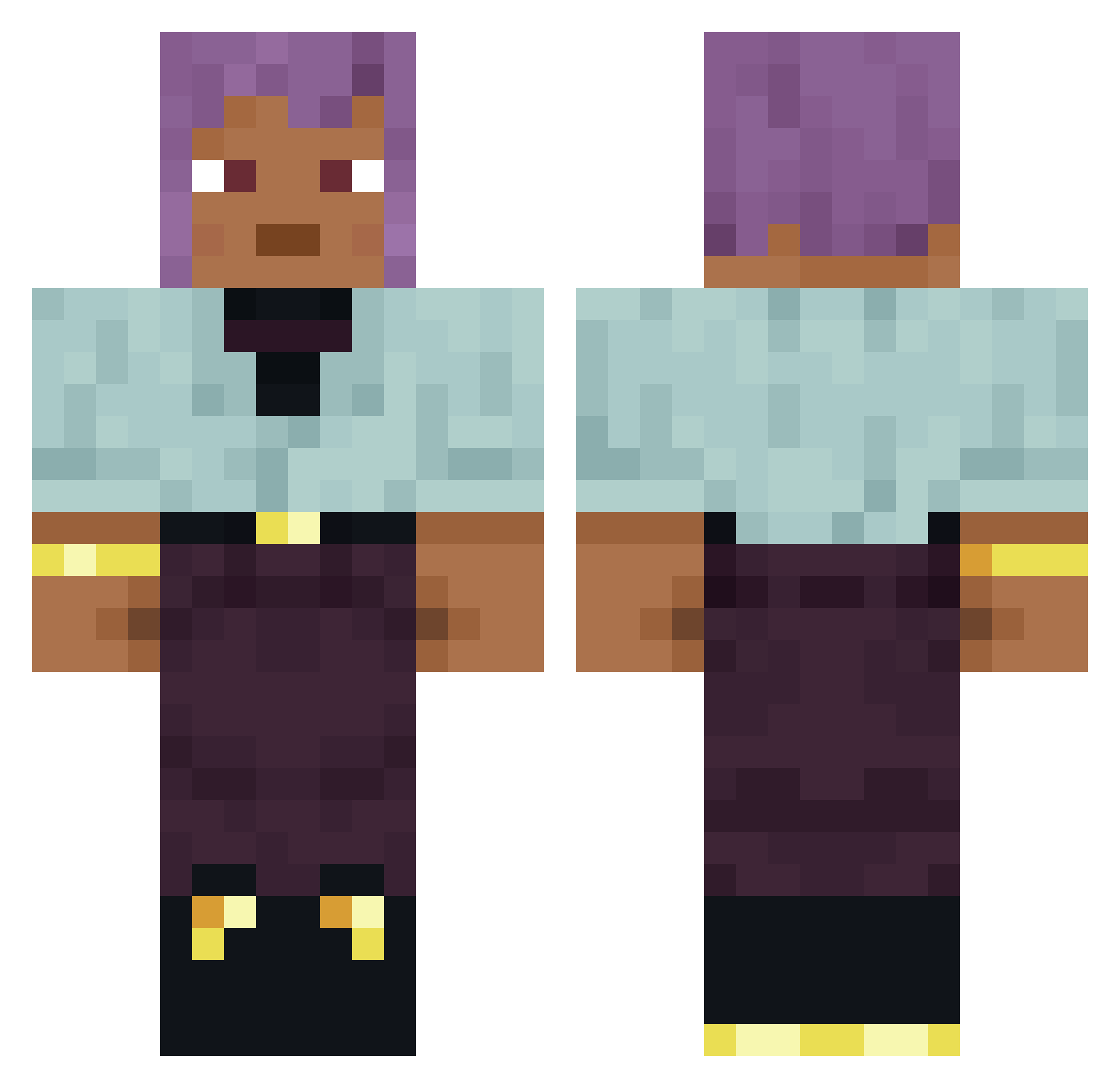
Current Minecraft skin of the player Hub, loaded from the official Mojang API. Rotate the 3D model with your mouse or finger, then download the skin as a PNG file and use it in Minecraft: Bedrock Edition or Java Edition for free. When Hub changes their skin, this page updates automatically and the old skin stays in the history below.
Other players with this skin (900)
Hub was the 726th player we have seen with this skin, first spotted on 21.10.2026. The same skin was seen on these players. Open a nickname to see their current skin and skin history.
 DoctorCyber Woodynooob123 Averruncate Prebend Priapulida Ohzyyyy joaozin_bacana Herbalize cosmads Adjustor Hyoscyamus _ninka_ninus_ kocayinee overcasual creemateplayz Tilbury hannahstromberg lovelydda_ Schenji hydroxyapatite Untucked Pupfish Ventofunesto idkctk FlyFlower GrumpyOtter MCWater1234 Rit AutoRail Lanason Fallency Loxy_0908 ClownNinga qq3092306412_012 dodrantal LinhHFVwt0205 monodon Wildvale Uncaptivated Geotropic pyrophanous Loadstones DWORKO gojoiscute Dessertspoon Disburdenment Tonging fabulist Investigate microcycles iloveasdojob kanari Gloze NovaG0 Husbander Astrographer Angwantibo AlexTesla95 DaLoco BantRiid
How to install the Hub skin
- Press the Download button above to save the skin as a PNG file.
- Minecraft: Bedrock Edition (PE): open the Dressing Room from the main menu (or tap your character → Edit Character), go to Classic Skins → Owned, press the + (new skin) button, choose the downloaded PNG and pick the Classic (Steve) model. Works on PC and mobile; consoles cannot import custom skins.
- Minecraft: Java Edition: open the Minecraft Launcher, go to the Skins tab, click New Skin, load the PNG, pick the Classic (Steve) model and press Save & Use. You can also upload it at minecraft.net → Profile → Change Skin.
The skin does not show up after import - what should I do?
Restart Minecraft and open the Dressing Room again - imported skins sometimes appear only after a restart. Also make sure you selected the imported skin and picked the Classic (Steve) model.
Which model should I choose, Classic or Slim?
This skin is designed for the Classic (Steve) model. If you pick the wrong model, the arms of the skin will look stretched or squeezed.
Is the skin of Hub free to download?
Yes. Press Download, save the PNG file and use it in Minecraft: Bedrock Edition or Java Edition - no payment or registration needed. The skin also works on multiplayer servers and Realms.
More skins
Looking for more? Go back to all Minecraft skins and check the top skins of the week, month and all time, or find any player's skin by nickname.