
Foenix_80 - Minecraft Skins & Skin History
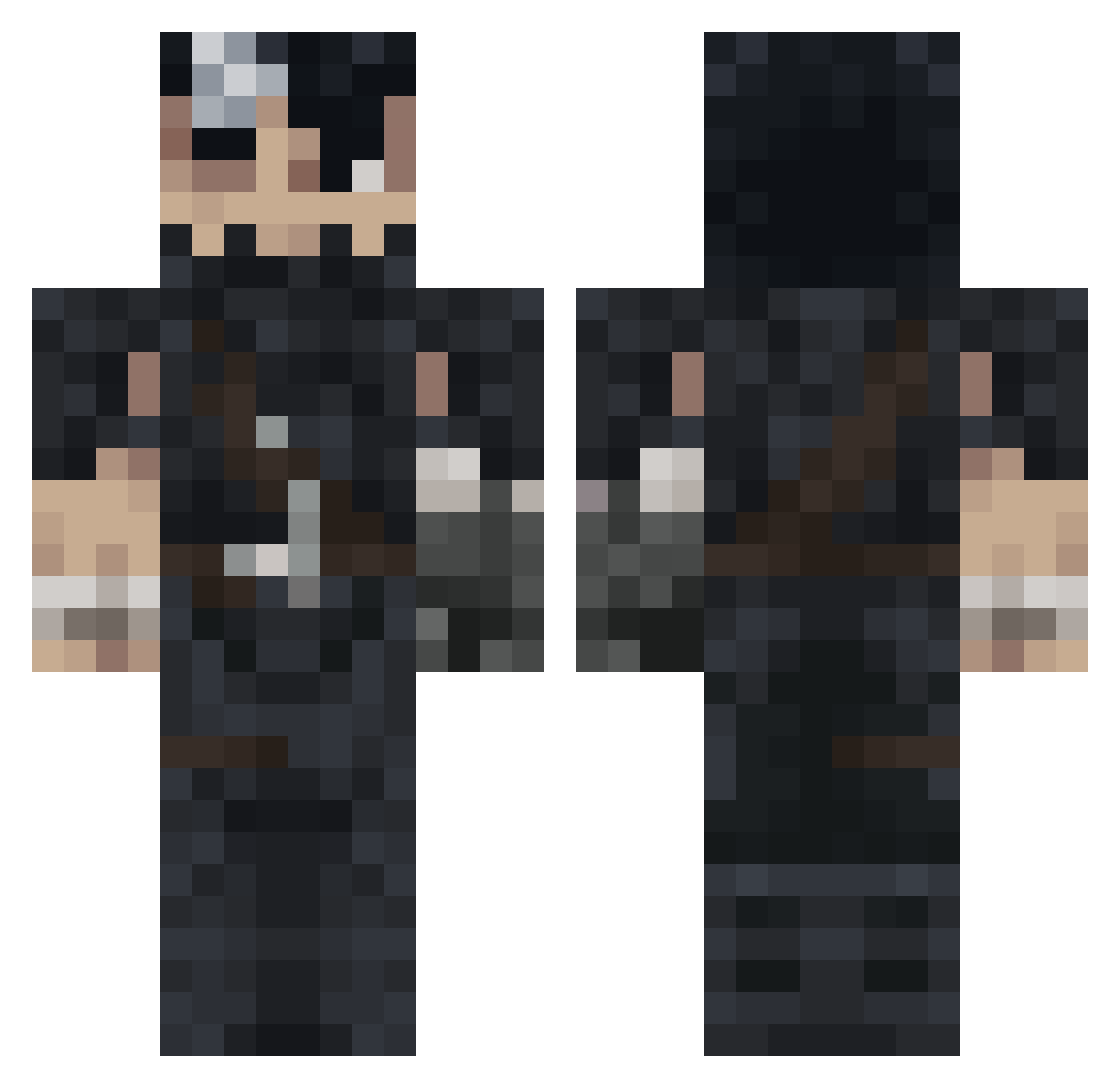
Current Minecraft skin of the player Foenix_80, loaded from the official Mojang API. Rotate the 3D model with your mouse or finger, then download the skin as a PNG file and use it in Minecraft: Bedrock Edition or Java Edition for free. When Foenix_80 changes their skin, this page updates automatically and the old skin stays in the history below.
Other players with this skin (993)
Foenix_80 was the 882nd player we have seen with this skin, first spotted on 21.10.2026. The same skin was seen on these players. Open a nickname to see their current skin and skin history.
 TheLegendaYT XpoSlayer BetoWatts IIYoung Blaze_Psych0 ABDUL515 EDRVKO Worsoft YaBoiScoob Valusa12 JuanOmnisciente rmex_ piggythepiggypig LeonSSJBlue1 Casten_ bloocheese CallmeSandwich chuparaja FadoxTV bahocu anytamaxwynn333 Joorrdaann Tayko42 senzodd wetilol TakeMySkillz V1gil4nt3 Fungus_Evolved CrystalAspect HIROKI_97 xhoufya MythicalS5 IlGattoDiCasa Tigerfang1125 Saleroso noel_nootje Treeforlife2 Enerat nnosferatu xia0vxcvt Ke__vin Acil1234 Mattb0419 yehyy Fede4216 Berserkrrr KaboomBoy leAdam69 alextheory Nindos123 Cojko22 brainbroke69 Peacelovegood 6cee_ rnbcrew Cavi2323 Zhwandoon MoonFlowerdc farkXz YisusMc
More Guts Minecraft skins
How to install the Foenix_80 skin
- Press the Download button above to save the skin as a PNG file.
- Minecraft: Bedrock Edition (PE): open the Dressing Room from the main menu (or tap your character → Edit Character), go to Classic Skins → Owned, press the + (new skin) button, choose the downloaded PNG and pick the Classic (Steve) model. Works on PC and mobile; consoles cannot import custom skins.
- Minecraft: Java Edition: open the Minecraft Launcher, go to the Skins tab, click New Skin, load the PNG, pick the Classic (Steve) model and press Save & Use. You can also upload it at minecraft.net → Profile → Change Skin.
The skin does not show up after import - what should I do?
Restart Minecraft and open the Dressing Room again - imported skins sometimes appear only after a restart. Also make sure you selected the imported skin and picked the Classic (Steve) model.
Which model should I choose, Classic or Slim?
This skin is designed for the Classic (Steve) model. If you pick the wrong model, the arms of the skin will look stretched or squeezed.
Is the skin of Foenix_80 free to download?
Yes. Press Download, save the PNG file and use it in Minecraft: Bedrock Edition or Java Edition - no payment or registration needed. The skin also works on multiplayer servers and Realms.
More skins
Looking for more? Go back to all Minecraft skins and check the top skins of the week, month and all time, or find any player's skin by nickname.