
Etheriut - Minecraft Skins & Skin History
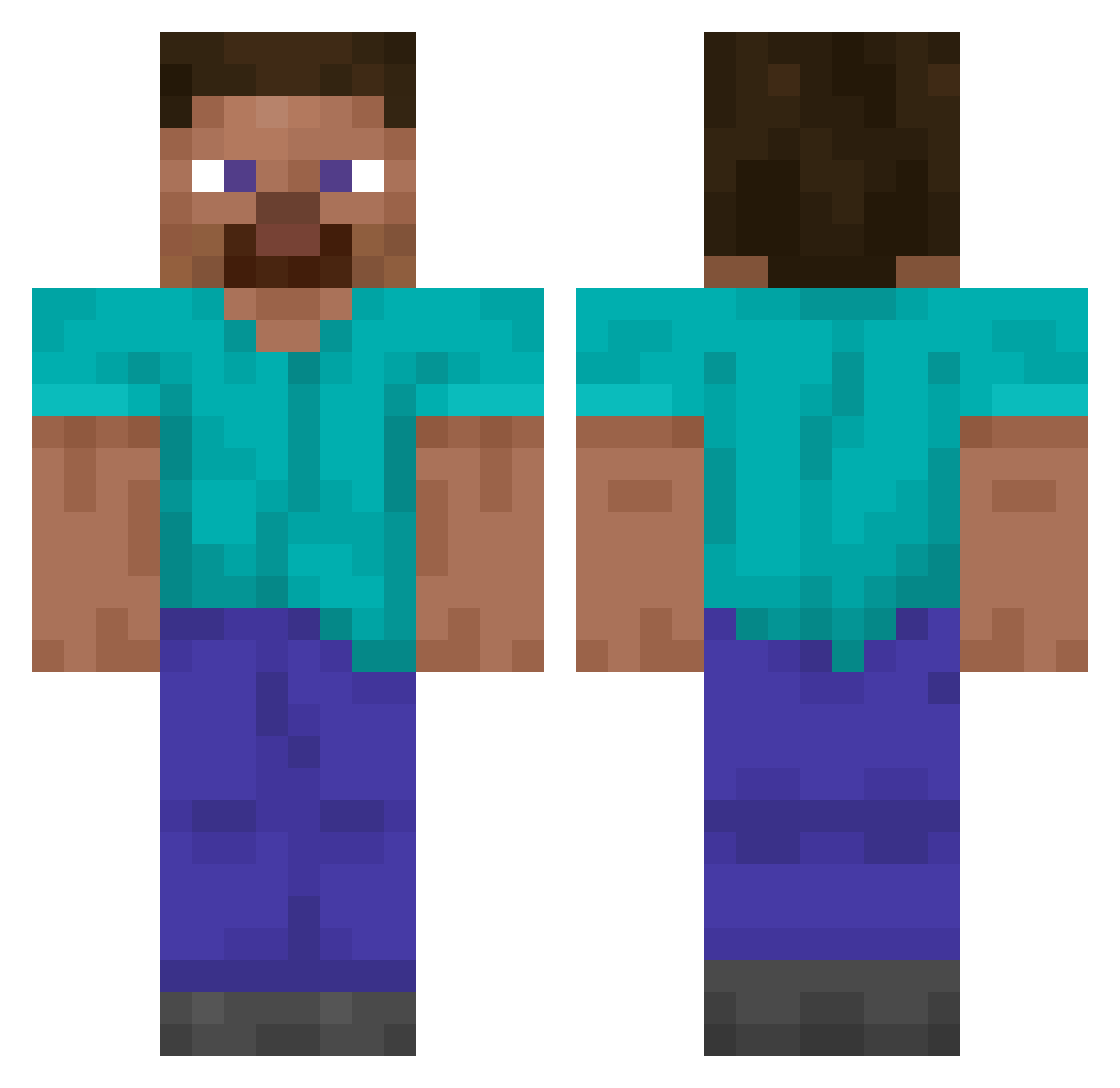
Current Minecraft skin of the player Etheriut, loaded from the official Mojang API. Rotate the 3D model with your mouse or finger, then download the skin as a PNG file and use it in Minecraft: Bedrock Edition or Java Edition for free. When Etheriut changes their skin, this page updates automatically and the old skin stays in the history below.
Other players with this skin (11542)
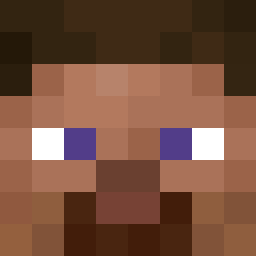
Etheriut was the 11509th player we have seen with this skin, first spotted on 20.10.2026. The same skin was seen on these players. Open a nickname to see their current skin and skin history.
 BreadL Pro_Wannabe ruddka1102 Goqueio O922 poheug Chandler390 Cino_sasso Airgraph pochito01 Yoo_25 Lengkais aaron8868 olisany_11 SMK1 rnxh__ Cosmic_225 legostyx chicho2005 WaterDecision Lightsil fille381 noelyn BorisTheTort3 hidoxy M3MonsterD ScaryCake488 Keelia MoggyMN ssabaljeoc LEDELUGE MichleJordan Kathi_Craft NeJos Salatti nightowl374 TwoMav visneuyu HKG_Shing HardBolts TheTrueClintKill karwanisko JPHulk3000 WeaponControls Sh1zyy balisticsa Dimple16 CommandoRage lobo707 Oniesk ryusaku1523 ladek321 poppakristof furrycon2014 Ryder_exe SkipperDuke HSHMOM Talwyen AirToast4211 HakkuHeikki
How to install the Etheriut skin
- Press the Download button above to save the skin as a PNG file.
- Minecraft: Bedrock Edition (PE): open the Dressing Room from the main menu (or tap your character → Edit Character), go to Classic Skins → Owned, press the + (new skin) button, choose the downloaded PNG and pick the Classic (Steve) model. Works on PC and mobile; consoles cannot import custom skins.
- Minecraft: Java Edition: open the Minecraft Launcher, go to the Skins tab, click New Skin, load the PNG, pick the Classic (Steve) model and press Save & Use. You can also upload it at minecraft.net → Profile → Change Skin.
The skin does not show up after import - what should I do?
Restart Minecraft and open the Dressing Room again - imported skins sometimes appear only after a restart. Also make sure you selected the imported skin and picked the Classic (Steve) model.
Which model should I choose, Classic or Slim?
This skin is designed for the Classic (Steve) model. If you pick the wrong model, the arms of the skin will look stretched or squeezed.
Is the skin of Etheriut free to download?
Yes. Press Download, save the PNG file and use it in Minecraft: Bedrock Edition or Java Edition - no payment or registration needed. The skin also works on multiplayer servers and Realms.
More skins
Looking for more? Go back to all Minecraft skins and check the top skins of the week, month and all time, or find any player's skin by nickname.