
Dragonix80 - Minecraft Skins & Skin History
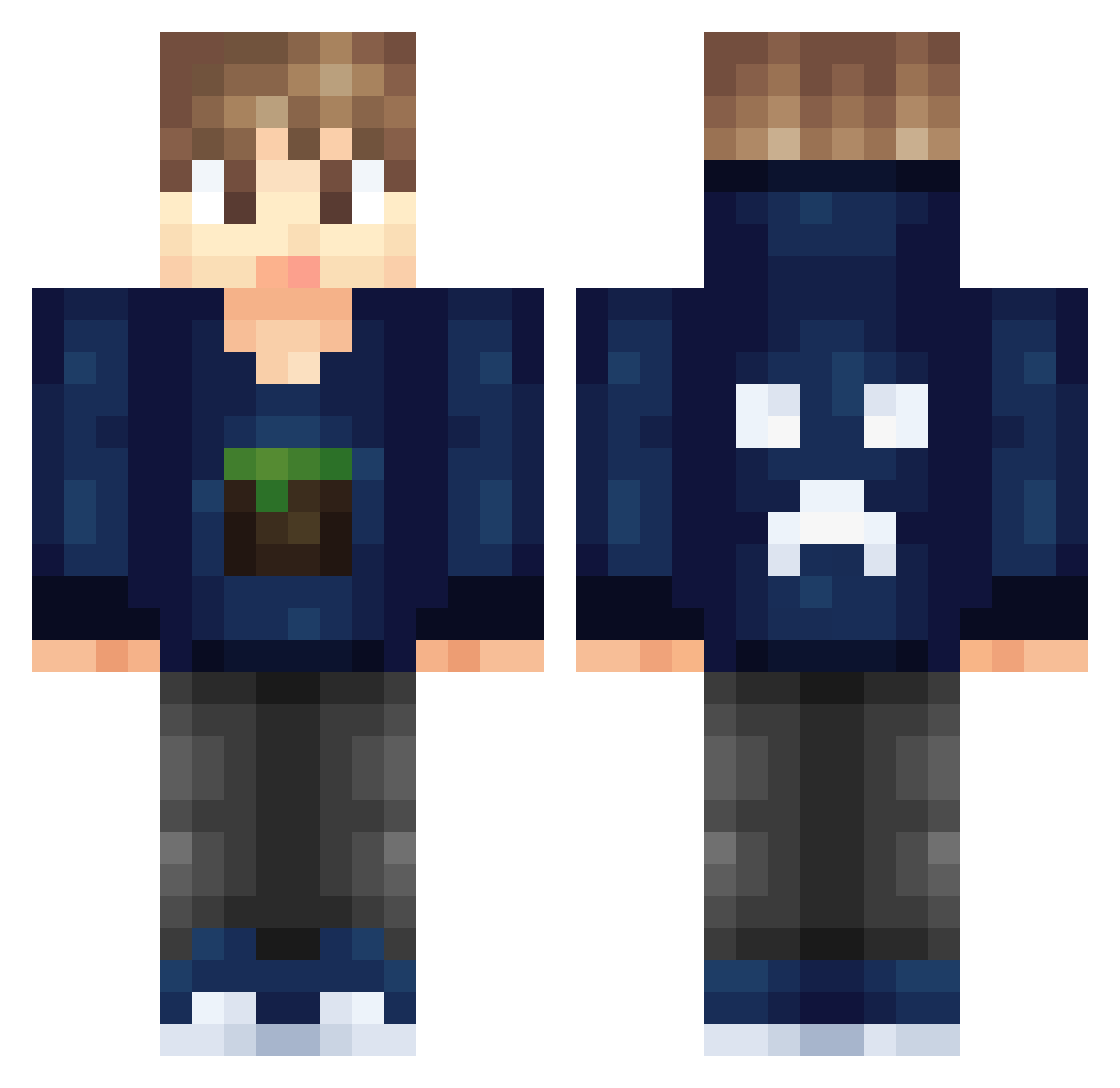
Current Minecraft skin of the player Dragonix80, loaded from the official Mojang API. Rotate the 3D model with your mouse or finger, then download the skin as a PNG file and use it in Minecraft: Bedrock Edition or Java Edition for free. When Dragonix80 changes their skin, this page updates automatically and the old skin stays in the history below.
Other players with this skin (326)
Dragonix80 was the 297th player we have seen with this skin, first spotted on 29.10.2026. The same skin was seen on these players. Open a nickname to see their current skin and skin history.
 MartinWall pupupaga 24K_SaltedFish Kurupted7 Shawnicals Giang123 greatgamer81 noplayerhate7 psc_student_11 ClickingMyCamera JAKEYBOB999 itsmilad Hudrock09 daichi_MADLOVE Falconxstr Creeper_Torch glen251 CreatOver Class08 Yizhe megari akc2001 jpix DerLebenssinn Johnsuperman iWaFFlzZ DNMolenaar iMarvin120 Snoopiey94 sany1344 Silence5149 R_Hoya Lightningc0bra flyite ZoomaPvP BJJAyden spoodermahn ConnorNicolle MarcusBeast yowiboy deanobeano542 CaptainColton LewsConley AmeroCraft Ri_zh Zac_07 Sheep_Chinese afarret snowdog97 Vapsii RunzeZhu Bluey67 Krydia Rijketata111 RaggyRosie wobblejoe Seowj0420 HAPPYHOUR1369 mitchells8 KillerBeast75
More Creeper Minecraft skins
How to install the Dragonix80 skin
- Press the Download button above to save the skin as a PNG file.
- Minecraft: Bedrock Edition (PE): open the Dressing Room from the main menu (or tap your character → Edit Character), go to Classic Skins → Owned, press the + (new skin) button, choose the downloaded PNG and pick the Classic (Steve) model. Works on PC and mobile; consoles cannot import custom skins.
- Minecraft: Java Edition: open the Minecraft Launcher, go to the Skins tab, click New Skin, load the PNG, pick the Classic (Steve) model and press Save & Use. You can also upload it at minecraft.net → Profile → Change Skin.
The skin does not show up after import - what should I do?
Restart Minecraft and open the Dressing Room again - imported skins sometimes appear only after a restart. Also make sure you selected the imported skin and picked the Classic (Steve) model.
Which model should I choose, Classic or Slim?
This skin is designed for the Classic (Steve) model. If you pick the wrong model, the arms of the skin will look stretched or squeezed.
Is the skin of Dragonix80 free to download?
Yes. Press Download, save the PNG file and use it in Minecraft: Bedrock Edition or Java Edition - no payment or registration needed. The skin also works on multiplayer servers and Realms.
More skins
Looking for more? Go back to all Minecraft skins and check the top skins of the week, month and all time, or find any player's skin by nickname.