
Apertures - Minecraft Skins & Skin History
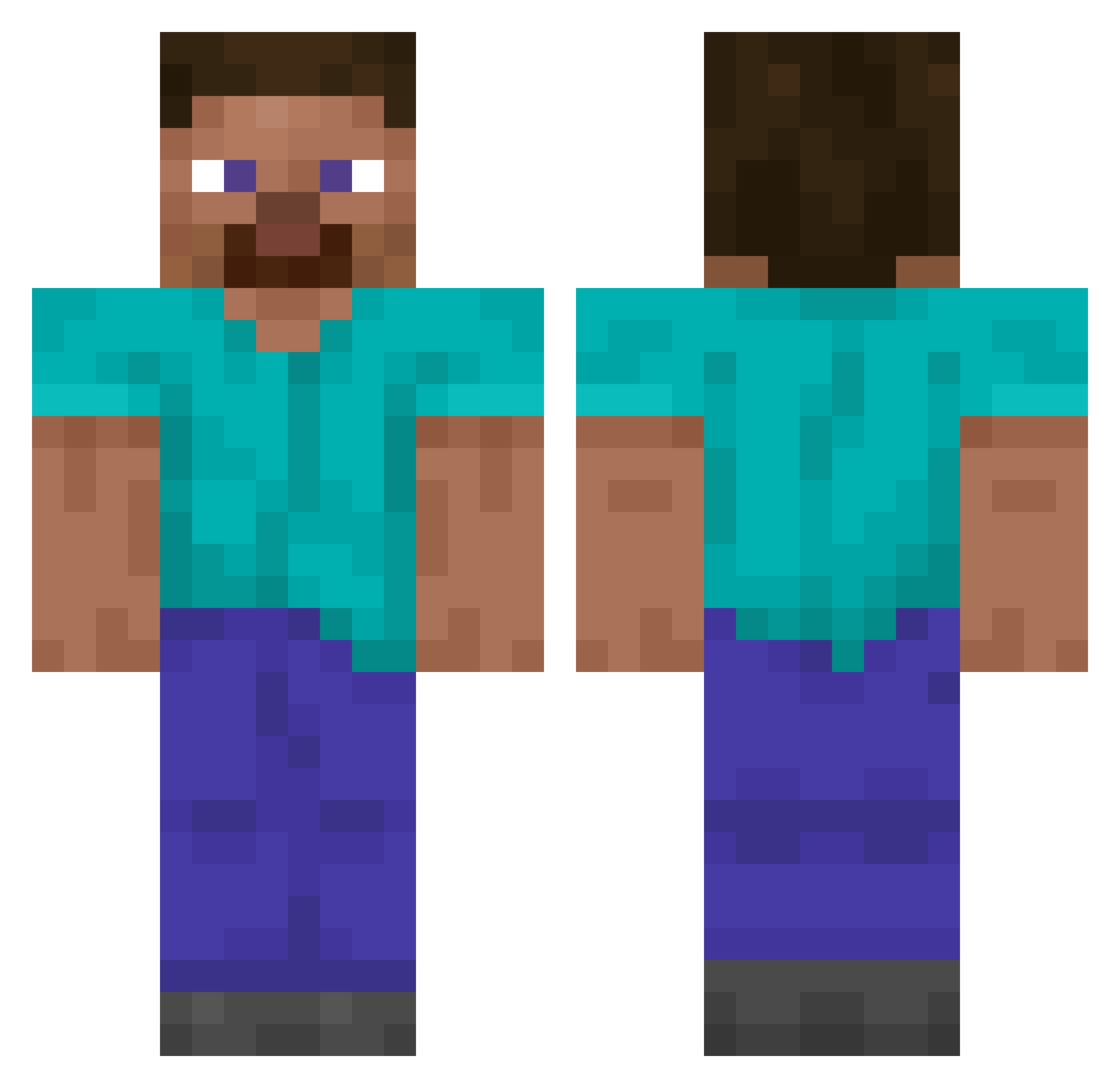
Current Minecraft skin of the player Apertures, loaded from the official Mojang API. Rotate the 3D model with your mouse or finger, then download the skin as a PNG file and use it in Minecraft: Bedrock Edition or Java Edition for free. When Apertures changes their skin, this page updates automatically and the old skin stays in the history below.
Other players with this skin (16287)
Apertures was the 16201st player we have seen with this skin, first spotted on 19.11.2026. The same skin was seen on these players. Open a nickname to see their current skin and skin history.
 Molten_Crystal Foufolle Antxvo FishCutter Sarkazim LavaBucket99 lichtly fileasy neontricks Natex2 Chevaar saragrisen toreta_0 waterloon666 Genjisdead Marinacraft30 krtzpf _KoKopops_ fupity FREEPIOTR eksodia _zann_ ShikzOlasStorm Olek20 xzolat OrchaxS TheNameisCJR TU_Bossman mawang111 _jimmy__ kingpoggerz kamilo495 blackdod Flaixair WojZb _Nico_11_ kjeldahl WaxPenWizard Windows11ProMax clarity5 zLau Deyanko420 Cheaser123 henri26mobu BicDeng Falconeyi JoTaX Giussepepro2110 mackrel_1 zurikata TPbigBoy sisterhoods Marioukos123 craniofacial Zero_0906 lKongoll Dal_jiyong Slowthes Slimdiq neoaxton
How to install the Apertures skin
- Press the Download button above to save the skin as a PNG file.
- Minecraft: Bedrock Edition (PE): open the Dressing Room from the main menu (or tap your character → Edit Character), go to Classic Skins → Owned, press the + (new skin) button, choose the downloaded PNG and pick the Classic (Steve) model. Works on PC and mobile; consoles cannot import custom skins.
- Minecraft: Java Edition: open the Minecraft Launcher, go to the Skins tab, click New Skin, load the PNG, pick the Classic (Steve) model and press Save & Use. You can also upload it at minecraft.net → Profile → Change Skin.
The skin does not show up after import - what should I do?
Restart Minecraft and open the Dressing Room again - imported skins sometimes appear only after a restart. Also make sure you selected the imported skin and picked the Classic (Steve) model.
Which model should I choose, Classic or Slim?
This skin is designed for the Classic (Steve) model. If you pick the wrong model, the arms of the skin will look stretched or squeezed.
Is the skin of Apertures free to download?
Yes. Press Download, save the PNG file and use it in Minecraft: Bedrock Edition or Java Edition - no payment or registration needed. The skin also works on multiplayer servers and Realms.
More skins
Looking for more? Go back to all Minecraft skins and check the top skins of the week, month and all time, or find any player's skin by nickname.