
MurphhBot - Minecraft Skins & Skin History
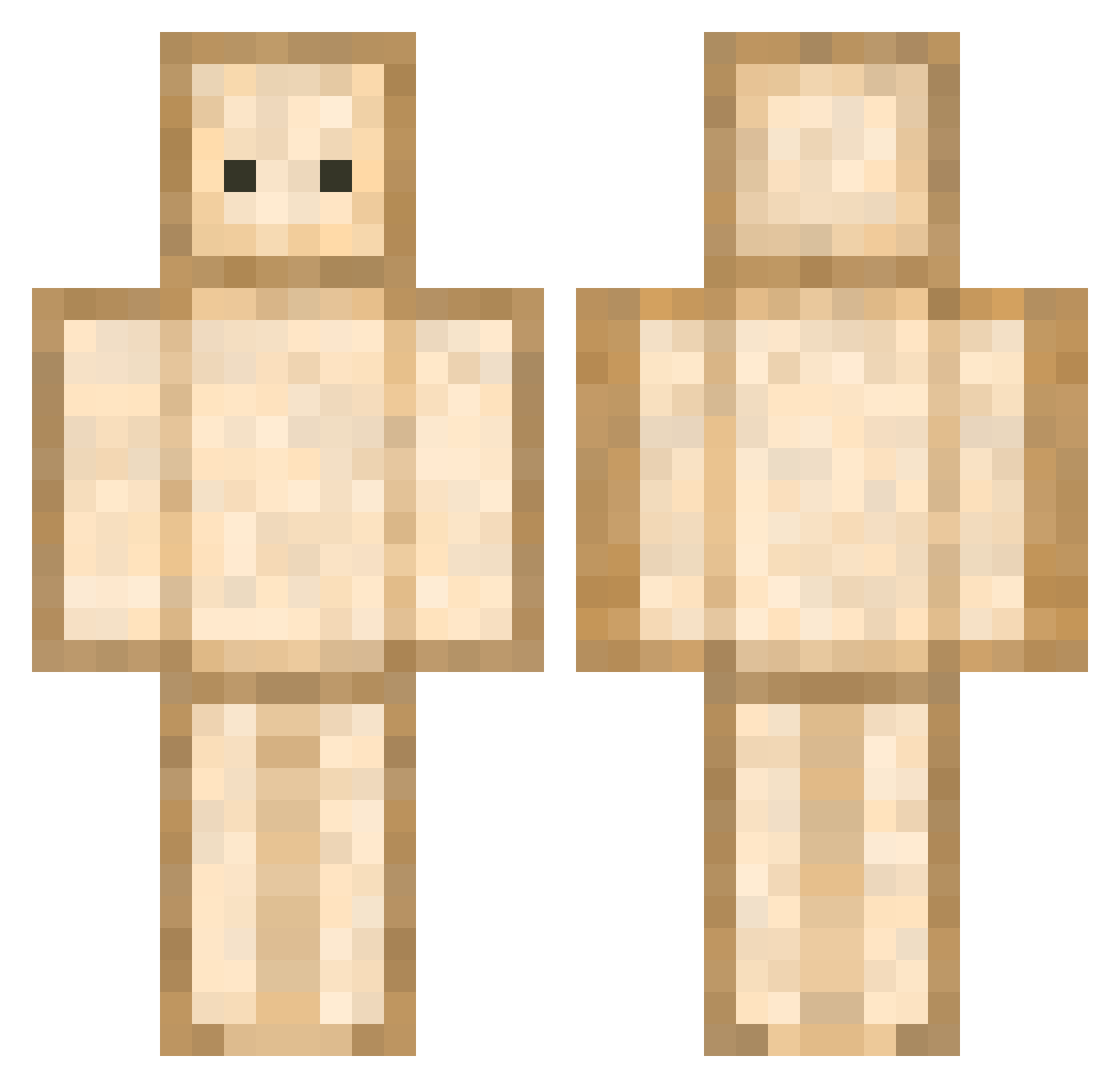
Current Minecraft skin of the player MurphhBot, loaded from the official Mojang API. Rotate the 3D model with your mouse or finger, then download the skin as a PNG file and use it in Minecraft: Bedrock Edition or Java Edition for free. When MurphhBot changes their skin, this page updates automatically and the old skin stays in the history below.
Other players with this skin (754)
MurphhBot was the 643rd player we have seen with this skin, first spotted on 27.10.2026. The same skin was seen on these players. Open a nickname to see their current skin and skin history.
 DigemFrog PaleEliteNOOB AloeFeroxx Ojoesinco bananahbelle Octo930000 TheLord_ofVoid ehdgoanfrhk Meir0s Potatjo Subtilizer427 melsTT oovey geoostorm ghost25chan eswizzle05 Actul DraGzUseVape OoHYUNoO Schmikamii sugaringcandy_2 zTeki NotReborn BBBBBread Legumes2002 Blanco84 Escruchi shadow_YT0 heeeunji BucketBoy77 GLXYT _wumi Kimmycupcakes GreatSandwiches Ballular_ MEME_Madfrog H_erick l_OuO_l Doofalo EBoyEBoy MethSkies Pressxpers abaldetti Euuuuh SpadeSwapper ujiji510 kramisnothere AT_toong super_UC Natznatzim Zelrio64 Baustelac123 mangosteen1884 pohahang PaddeOP ballu02 sopya2487 Spenpai__ iAmazingIvan TavukluYumurta
More Toast Minecraft skins
How to install the MurphhBot skin
- Press the Download button above to save the skin as a PNG file.
- Minecraft: Bedrock Edition (PE): open the Dressing Room from the main menu (or tap your character → Edit Character), go to Classic Skins → Owned, press the + (new skin) button, choose the downloaded PNG and pick the Classic (Steve) model. Works on PC and mobile; consoles cannot import custom skins.
- Minecraft: Java Edition: open the Minecraft Launcher, go to the Skins tab, click New Skin, load the PNG, pick the Classic (Steve) model and press Save & Use. You can also upload it at minecraft.net → Profile → Change Skin.
The skin does not show up after import - what should I do?
Restart Minecraft and open the Dressing Room again - imported skins sometimes appear only after a restart. Also make sure you selected the imported skin and picked the Classic (Steve) model.
Which model should I choose, Classic or Slim?
This skin is designed for the Classic (Steve) model. If you pick the wrong model, the arms of the skin will look stretched or squeezed.
Is the skin of MurphhBot free to download?
Yes. Press Download, save the PNG file and use it in Minecraft: Bedrock Edition or Java Edition - no payment or registration needed. The skin also works on multiplayer servers and Realms.
More skins
Looking for more? Go back to all Minecraft skins and check the top skins of the week, month and all time, or find any player's skin by nickname.