
JordanGamer3D - Minecraft Skins & Skin History
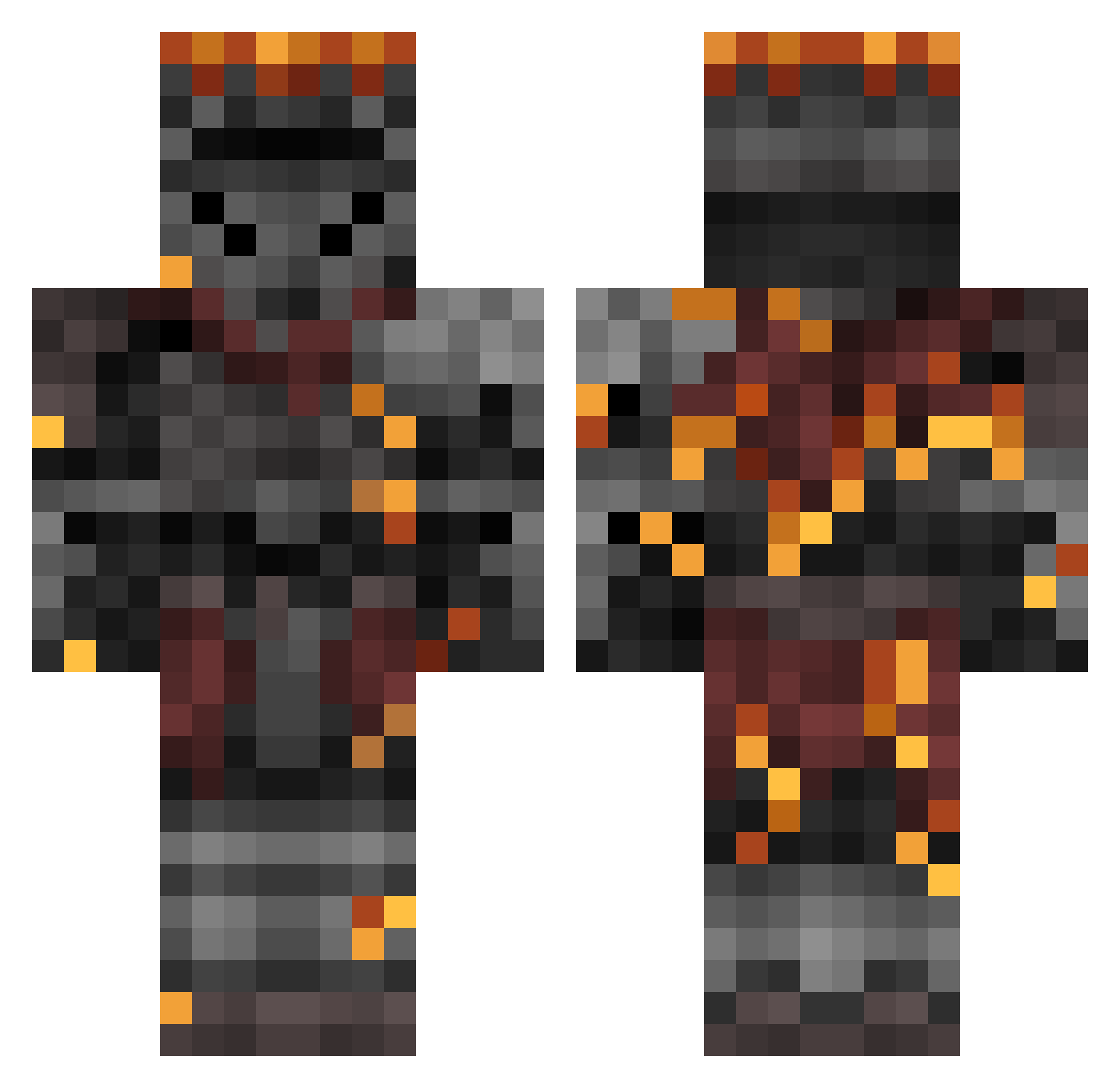
Current Minecraft skin of the player JordanGamer3D, loaded from the official Mojang API. Rotate the 3D model with your mouse or finger, then download the skin as a PNG file and use it in Minecraft: Bedrock Edition or Java Edition for free. When JordanGamer3D changes their skin, this page updates automatically and the old skin stays in the history below.
Other players with this skin (460)
JordanGamer3D was the 355th player we have seen with this skin, first spotted on 20.10.2026. The same skin was seen on these players. Open a nickname to see their current skin and skin history.
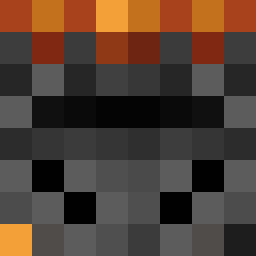 SilverSlayer122 Chosen_Undeadd KermitCrimess CinderSage Redthanial Snacky_002 Blechi48 __card _Haribosz_ Dataphase SPICYSPICYbaby2 HK_Nakki chasebeleren Crusader_27 Nyx03 LeviathanSheol TheChars squeezychip Portelah Daz3warm Python_Gamer07 Thornsvoice rossomex12 DefconZeroV2 CharlesVonKlunt C9caliber kyrtje dressedlizrd RhinoBoy286 Frtzz Senor_Stalebread BoringMan7 Rufian_yt Bea5tmode AjaxTheDishSoap SrSejo avano24 Ahmedaru Hollow_Core FerrumTyrannis FreeLimewirePro FPbrisk Threefix Tyras2142 BLOCKHEAD_ZORO SoulofCinder13 ImSoLost0 Redrum2 jestermiles_ Chuckys1 ThePanther543 TTB40_A 4Moons Judge_Gabranth SpiciestTwink TrashPandaYeet_ ManoMaximo991 Karasu_No_Yurei AngeloAx SeekerJay
More Netherite Armor Minecraft skins
See all 94 Netherite Armor skins
How to install the JordanGamer3D skin
- Press the Download button above to save the skin as a PNG file.
- Minecraft: Bedrock Edition (PE): open the Dressing Room from the main menu (or tap your character → Edit Character), go to Classic Skins → Owned, press the + (new skin) button, choose the downloaded PNG and pick the Classic (Steve) model. Works on PC and mobile; consoles cannot import custom skins.
- Minecraft: Java Edition: open the Minecraft Launcher, go to the Skins tab, click New Skin, load the PNG, pick the Classic (Steve) model and press Save & Use. You can also upload it at minecraft.net → Profile → Change Skin.
The skin does not show up after import - what should I do?
Restart Minecraft and open the Dressing Room again - imported skins sometimes appear only after a restart. Also make sure you selected the imported skin and picked the Classic (Steve) model.
Which model should I choose, Classic or Slim?
This skin is designed for the Classic (Steve) model. If you pick the wrong model, the arms of the skin will look stretched or squeezed.
Is the skin of JordanGamer3D free to download?
Yes. Press Download, save the PNG file and use it in Minecraft: Bedrock Edition or Java Edition - no payment or registration needed. The skin also works on multiplayer servers and Realms.
More skins
Looking for more? Go back to all Minecraft skins and check the top skins of the week, month and all time, or find any player's skin by nickname.